Forecast corrections
BeginnerThe essentials
The wind of weather models does not always match what you find on the water: light airs are often overestimated and stronger winds underestimated. The difference is larger for models with a coarse grid than for those with a fine one.
NavimetriX can therefore correct the wind of each forecast, applying a percentage that depends on the wind speed and on the grid of the model. For example, for 20 knots in the file:
| Model | Grid | Correction at 20 kt | Wind used |
|---|---|---|---|
| GFS | 0.25° | +15 % | 23 kt |
| ECMWF IFS | 0.1° | +10 % | 22 kt |
| AROME | 0.025° | +5 % | 21 kt |
The correction is off by default: the wind is then the one the model publishes. To turn it on, open the right drawer, “Forecast corrections”, and turn on “Correct the wind of forecasts”. This setting follows your account on your other devices. The corrections NavimetriX offers are those recommended by the best experts and used by offshore racing professionals.
The chart (colours, wind barbs, particles), the cursor, the meteogram and routing then all use this corrected wind. A GRIB adjusted in “Observed / Forecast” keeps its adjustment, whether the correction is on or off.
With the correction on, the page shows one card per grid: its curve, the percentage at each wind speed and the models it applies to. Tap a card to open it full size.
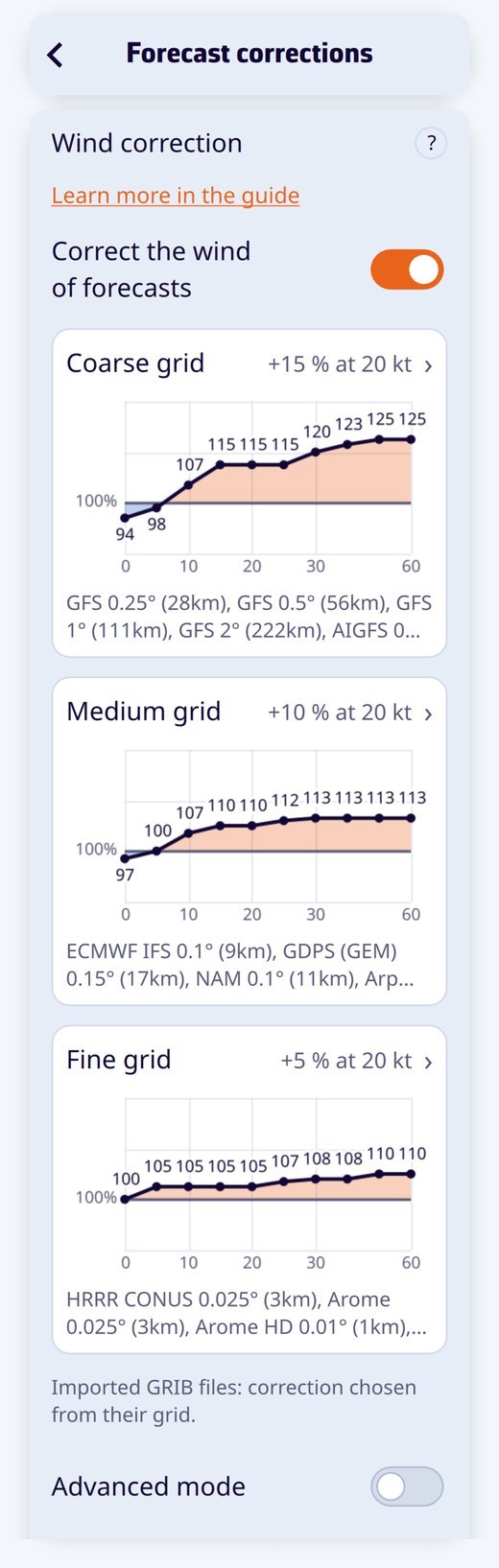 Right drawer, Forecast corrections: one card per grid, with its curve and its models
Going further
Why correct the wind
These corrections are empirical: they come from the experience of navigators and weather routers, not from a meteorological calculation.
- In light winds, an overestimated wind makes routing too optimistic: it goes too easily through ridges and areas of light air.
- In stronger winds, the real wind often exceeds the one in the file. That is the wind to plan for, for the route and for the sail plan.
- The coarser the grid, the stronger the correction: at 20 knots, a 0.25° model gets +15 %, a 0.025° model only +5 %.
The default corrections
The percentage applied depends on the wind speed in the file:
| Wind in the file (kt) | 0 | 5 | 10 | 15 | 20 | 25 | 30 | 40 | 50 | 60 |
|---|---|---|---|---|---|---|---|---|---|---|
| Coarse grid (0.2° and above) | 94 | 98 | 107 | 115 | 115 | 115 | 120 | 123 | 125 | 125 |
| Medium grid (0.05° to 0.2°) | 97 | 100 | 107 | 110 | 110 | 112 | 113 | 113 | 113 | 113 |
| Fine grid (under 0.05°) | 100 | 105 | 105 | 105 | 105 | 107 | 108 | 108 | 110 | 110 |
Between two columns the percentage varies in a straight line. Beyond the last column it stays at the value of the last one.
- Coarse grid: GFS, ECMWF IFS from 0.25° to 1°, AIFS, AIGFS, Arpège Monde, ICON Global from 0.25°, GEFS, ECMWF ENS.
- Medium grid: ECMWF IFS 0.1°, GDPS, RRFS North America, Arpège Europe, ICON Global 0.125°, ICON Europe.
- Fine grid: AROME, AROME HD, HRRR, RRFS CONUS, ICON D2, UKV.
The grid is read in the file itself: an imported GRIB or an archive also gets the correction of its grid.
What is corrected, and what is not
- Corrected: the strength of the 10 m wind and of the gusts. The wind direction does not change.
- Not corrected: waves, currents and satellite observations, which are measurements.
- The file does not change: a GRIB you export or share stays as it was published.
In routing
When the correction is on, routing uses the corrected wind, and the “Wind” row of the routing window shows Corrected instead of a percentage. When it is off, the row simply shows the percentage applied to the wind, as in previous versions. A GRIB adjusted in “Observed / Forecast” also carries the blue Adjusted mark on its selector.
Tap this button to add a percentage on top of the correction. The button then shows, for example, “Corrected +5 %”, in orange. With a GFS at 20 knots, the correction brings the wind to 23 knots, and these 5 % bring it to 24.2 knots.
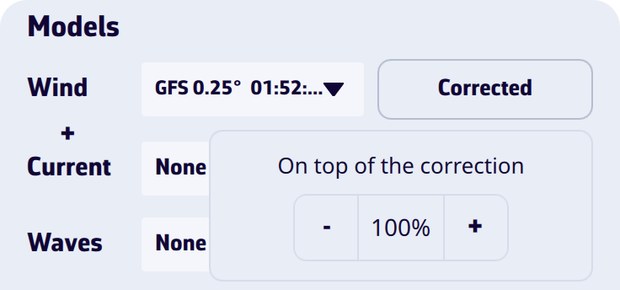 Routing window: the Corrected button and the percentage it lets you add
Wind percentages set with earlier versions are no longer applied: the setting goes back to 100 %, which adds nothing to the correction.
The “Inputs” tab of a routing shows the correction used for each GRIB. Routings already calculated do not change. “Recalculate” uses the current corrections.
Changing a correction
With the correction on, turn on Advanced mode below the tables of the “Forecast corrections” page, or tap “Edit” in the large window of a correction. This setting is specific to each device.
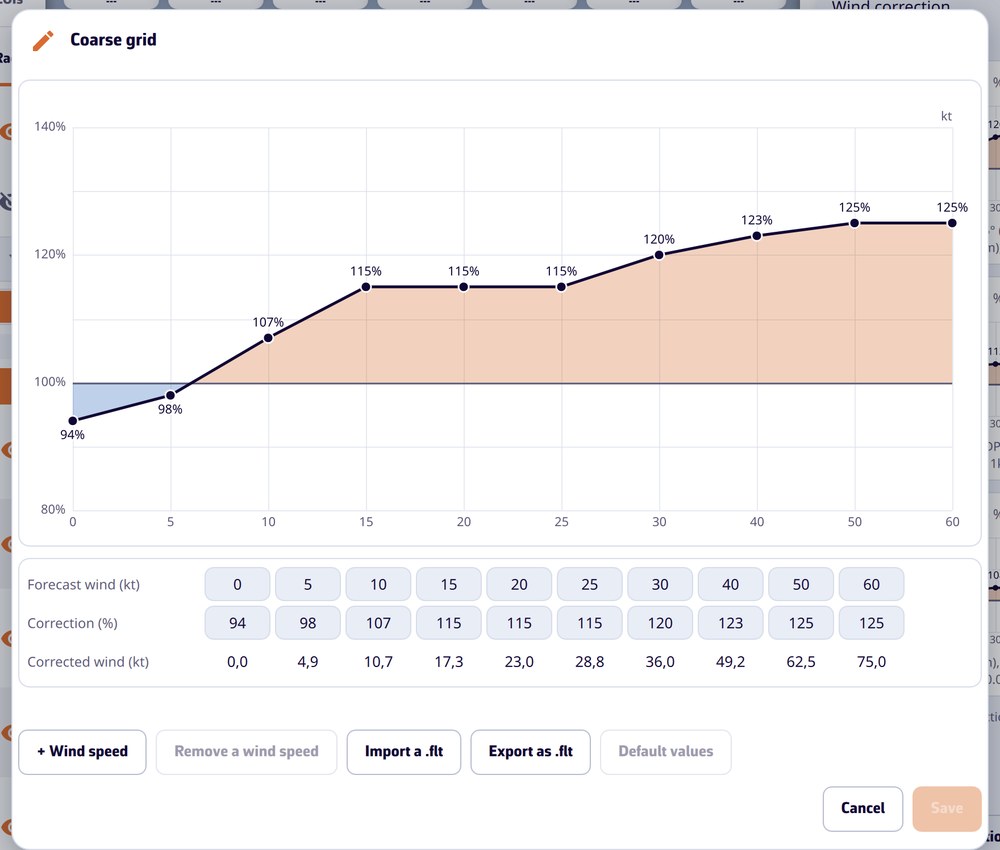 Large window of a correction: the curve, the table of values and the corrected wind
- Type a value: tap a cell of the table and enter the percentage or the speed. The curve follows, and Enter moves to the next cell.
- Move a point: drag it up or down on the chart.
- Add a wind speed: “+ Wind speed” button, or double-click on the chart. The column takes the value of the curve: nothing changes until you modify it.
- Remove a wind speed: select its column or its point, then tap the “Remove” button. At least two columns always remain.
- Default values: puts the correction of a grid back to its original values.
Nothing is applied before “Save”. The GRIB on display is then read again with the new correction.
Speeds go from 0 to 120 knots and percentages from 50 to 200. A table in which a stronger wind would come out weaker than a lighter one is refused.
The corrections you save follow your account on your other devices.
A correction for one model
In advanced mode, “+ New correction” starts from a copy of a grid correction, a flat curve at 100 % or a .flt file. Give it a name and choose its models.
- It replaces the grid correction for these models, which leave the card of their grid.
- A model has a single correction: choosing it here takes it from the one it had.
- With no model chosen, it stays saved but is not used.
- If you delete it, its models go back to the correction of their grid.
The Without correction row, below the tables, lists the models that keep their raw wind. For a given GRIB, NavimetriX looks first at this list, then at the corrections for one model, then at the grid correction.
Knowing which correction applies to a GRIB
In advanced mode, the ⋮ menu of each GRIB shows the correction applied on its first line, for example “Correction: Coarse grid”. For an imported GRIB, it only appears once the file is loaded.
Exchanging corrections
The “Import a .flt” button replaces the values of the open correction, and “Export as .flt” saves it to a file (“Share as .flt” on phones and tablets).
A .flt file holds two lines of values separated by semicolons, the wind speeds and then the percentages:
0.00;5.00;10.00;20.00;40.00;60.00;
95;105;105;115;115;125;
Percentages are exported as whole numbers.