Share a Track
BeginnerThe essentials
A track is shared like a web page. You send a link; the recipient clicks, and NavimetriX opens in their browser, with no account and nothing to install. They replay your trip, with the dials and AIS targets of the time, and read your logbook. They cannot modify anything.
- Open the Tracks tab, tap the track’s ⋮ button, then Share replay link (for the track in progress: Share live link).
- The “Share this track” window prepares the link.
- Tap Copy to paste it into a message, or, on tablet and phone, Send to go through the system share sheet.
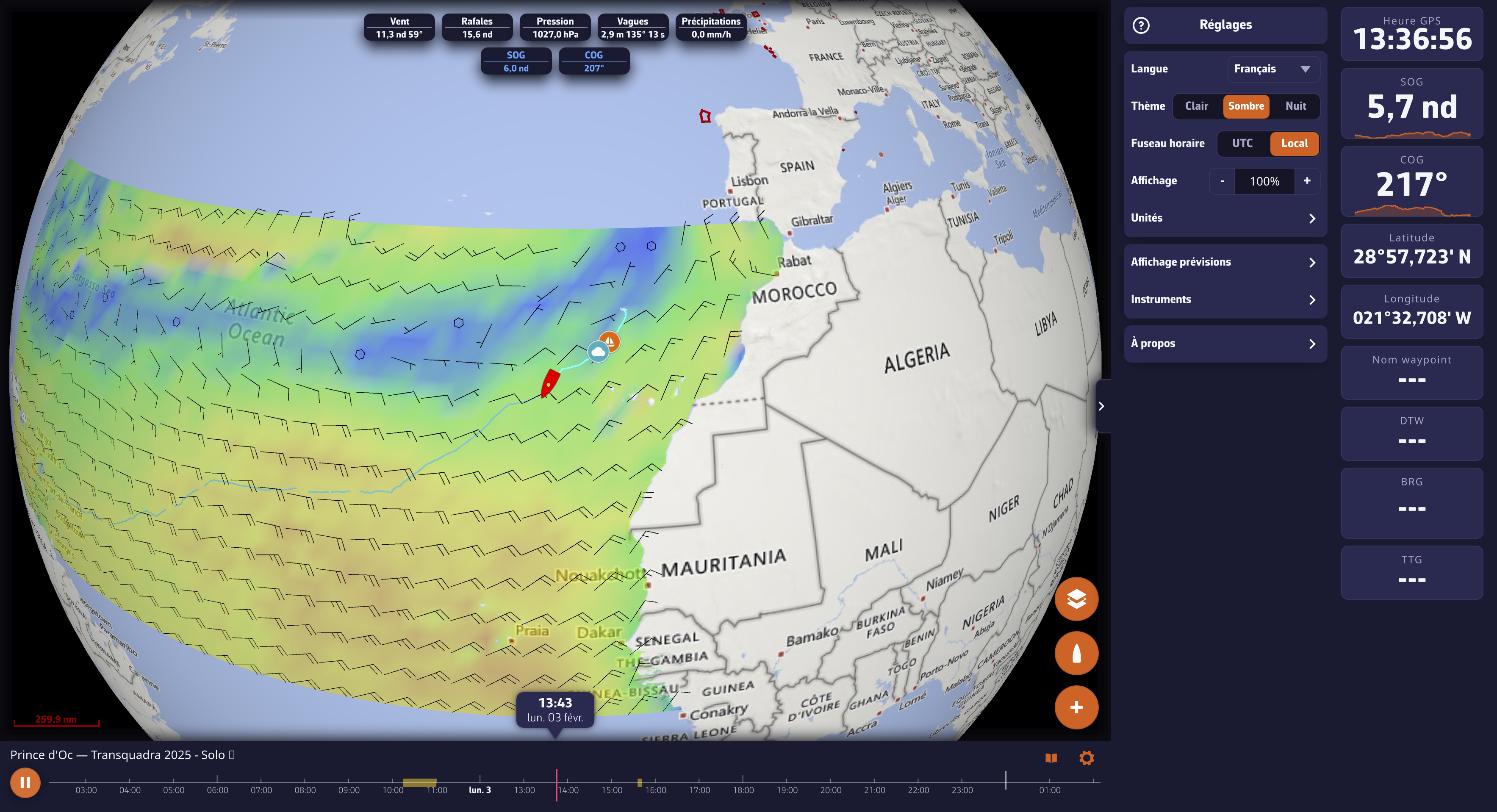 A trip replayed in the browser, opened from a share link
Going further
What you need to share
The link is served by your NavimetriX account: the track must first be uploaded there, which requires a connected Premium account and an Internet connection. Until this is done, the share entry is greyed out, or the window says “This track is not on your account yet.”. Wait for synchronization to finish, visible at the top of the Tracks tab.
A track imported from an .nx file, even one received from another user, becomes a trip on your account: it can be shared once uploaded.
Requesting the link of an already shared track again gives the same link: those you have already sent remain valid.
Live
When the track is being recorded, the window shows the “Let them follow this track live” box:
- ticked: as long as you are sailing, the link shows the position, heading and dials in real time, with a “LIVE” badge. The recipient can go back in the trip’s past; the “Back to live” button brings them back to the present. Once the track has ended, the same link becomes a Replay;
- unticked: “The link will only open once you end this track.”. A way to share a passage without giving away your current position.
The choice applies to this track only and is sent to the server as soon as you tick or untick the box. The link itself does not change.
Stop sharing
Reopen the share window and tap Stop sharing. The link is revoked: it no longer opens, for anyone, including those to whom you had already sent it.
What the recipient sees
- The chart frames the trip on opening, and the track keeps the colour you gave it.
- The playback banner works as in the app: play, timeline, speed set by the zoom (see Replay).
- The logbook button opens your logbook in read-only mode.
- The banner’s cogwheel lets them adjust the display for themselves (colour, width, day numbers, boat following, speed); their choices stay in their browser and do not touch your track.
- On iPhone, they can add the page to the home screen from Safari: opened from that icon, it fills the whole screen, without the browser bars.
To pass a complete trip to another NavimetriX user, who can keep it and annotate it at home, export it as .nx instead: see Import and export tracks.
See also
- Replay
- Track sync
- Remote cockpit: follow the onboard instruments from another device.
- Installation, account and subscription: NavimetriX in a browser.
- FAQ: How do I share a track with a simple link, in Replay or live?