Record and Display the Track
BeginnerThe essentials
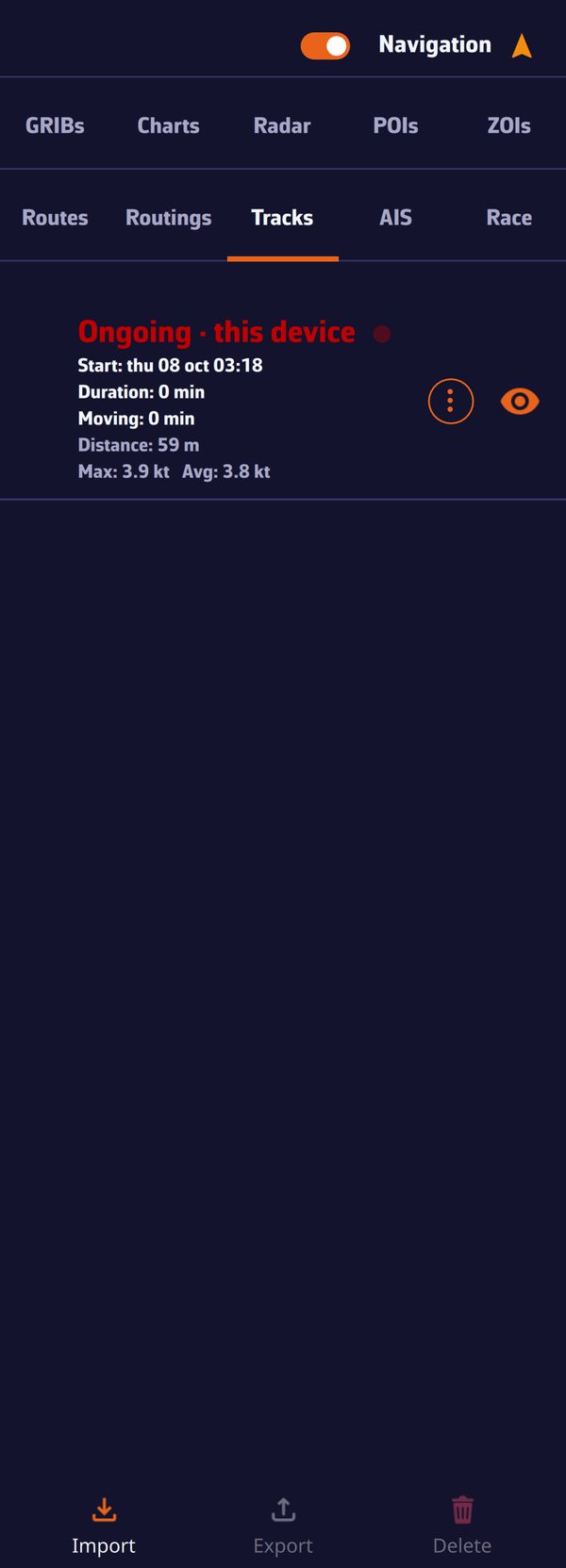 The Tracks tab with the track in progress
The track is the path travelled by the boat. NavimetriX records it automatically as soon as Navigation mode is active, point by point, with speed, heading and instrument data. Each trip becomes a separate track, which you find in the Tracks tab. Navigation mode is reserved for the Premium subscription.
- Open the left drawer (the › handle at the left edge of the screen) and turn on the Navigation switch at the top of the drawer. Recording begins.
- Open the Tracks tab: the current trip appears at the top of the list under the heading “In progress · this device”, with a flashing red dot. Its duration, distance and speeds update while the tab is open.
- To stop recording, turn off the Navigation switch. The track is closed and takes its place in the list.
- To display a past track on the chart, tap the eye on its line. The chart frames the track. Tap the eye again to hide it.
Going further
Start and end of a track
When you turn on Navigation mode, NavimetriX looks at the last closed track:
- ended less than 30 minutes ago, it continues without asking (a pause at the pontoon does not split the trip in two);
- ended between 30 minutes and 3 days ago, the app asks: “Continue previous track “…”, ended on …? Otherwise a new track starts.”, with the buttons “Continue” and “New track”;
- older, a new track starts without a question.
When the app restarts in Navigation mode (after being closed or crashing), the open track resumes without a question.
A track left 48 hours without movement (speed below 0.5 knot) is closed automatically.
A new track gets a default name made of its start date and time, for example “Track 2026-07-14 09:30”. You can rename it with ⋮ > Rename once it has ended: during recording, this entry is greyed out.
A track’s information
Each line of the Tracks tab shows:
- Start: start date and time;
- Duration: from the start to the end (or to now for the track in progress);
- Moving: the time spent making way, without the hours at the dock or at anchor at the beginning and end of the trip;
- Distance;
- Max and Avg.: the maximum speed and the average speed. The average is calculated over the moving time, not over the total duration.
⋮ > Details adds the end time, the number of points and the state of the track’s logbook (“recorded, replayable”, “reconstructed from the track”, “not recorded”…). This state tells whether the track can be replayed: see Replay.
Tapping a track displayed on the chart opens, at the spot you tapped, the same menu as the ⋮ button on its line.
Adjust a track’s display
⋮ > Display opens the “Track display” window. The settings apply immediately, with no confirmation button, and are specific to that track:
| Setting | Effect | Default |
|---|---|---|
| “Day numbers” | Places a badge with the day number where the boat was at midnight, on a multi-day trip | on |
| “Logbook events” | Shows the logbook entry pictograms on the track | on |
| “Follow boat during replay” | The chart follows the boat during Replay | off |
| “Live track extent” | Track in progress only: “Full” (the whole trip) or “Short” (the last 20 minutes) | Full |
| “Playback speed” | Multiplies the Replay speed: ×½, ×1, ×2, ×4 | ×1 |
| “Track color” | Colour of the line | automatically assigned colour |
| “Width” | Line width, from 1 to 5 | that of My Boat |
Day numbers follow the app’s Time zone setting (UTC or local time): the day is split in the time zone you read. A trip that fits within a single day has none.
During recording, the track in progress is drawn in the colour set in My Boat (see below). The colour chosen in this window applies to the track once it has ended.
These settings, the colour, the name and the eye of each track follow your account: see Track sync.
The track in progress in My Boat
In the Settings (right drawer), My Boat > Track sets the appearance of the track being recorded:
| Setting | Values | Default |
|---|---|---|
| “Width” | 1 to 5 | 2 |
| “Color” | colour picker | red |
| “Wind barb” | wind barbs along the track | on |
| “Current arrow” | current arrows along the track | on |
| “Wind/Current frequency” | interval between two barbs or arrows, from 1 to 360 min | 10 min |
| “Clear” | deletes the track in progress |
The width chosen here is also used as the default for past tracks for which you have not chosen anything.
“Clear” asks for confirmation (“Are you sure you want to clear the track? This action cannot be undone.”) then deletes the current trip from your account and from all your devices.
The track in progress is always drawn as long as its eye is open in the Tracks tab. For a lighter chart during a long crossing, set its “Live track extent” to “Short”.
See also
- Organize your tracks: archive folders, deletion and trash.
- Import and export tracks
- Replay and Logbook
- Getting started and interface: Navigation mode and the drawers.
- FAQ: How do I display and adjust the track?