Organize Your Tracks
ExpertThe essentials
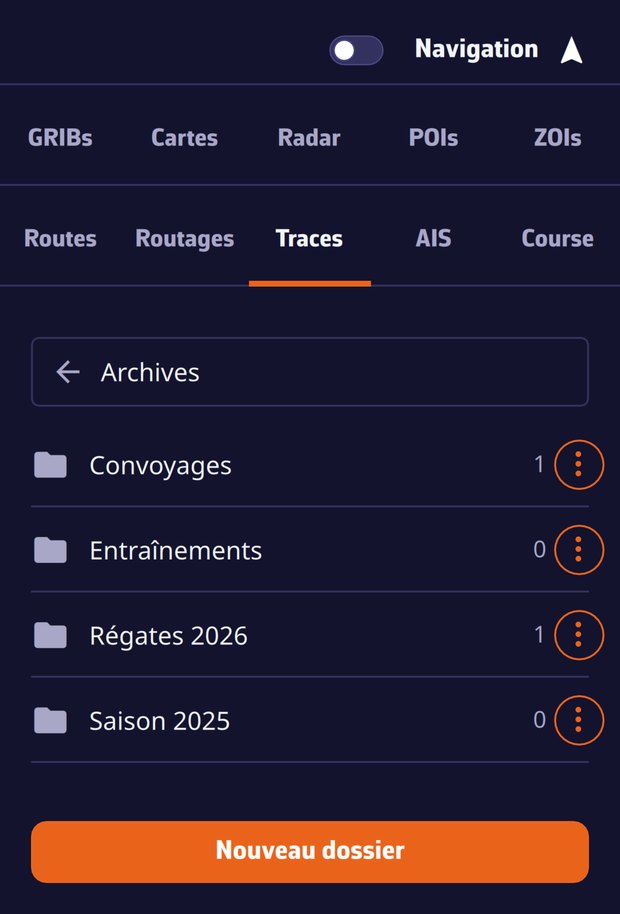 The archive folders of the Tracks tab
Over the seasons, the list in the Tracks tab grows longer. Archive folders let you put away the trips you no longer want to see in the current list, without deleting them: “Races 2026”, “Deliveries”… An archived track leaves the current list and the chart, but stays on your account and replays as before.
- In the Tracks tab, tap the track’s ⋮ button, then Archive.
- Choose a folder, or New folder… to create one. The very first time you archive, the app directly asks for the folder name.
- An Archives (n) bar appears at the top of the list. Tap it to open your folders, then a folder to see its tracks.
- Inside a folder, the bar becomes the back button: it shows the folder name and takes you, with one tap, back to the list of folders and then to the current list.
Going further
Manage folders and archived tracks
- In the folders view, each folder shows the number of tracks it contains on this device. The New folder button, at the bottom, creates an empty folder.
- A folder’s ⋮ button offers Rename and Delete folder. Deleting a folder deletes no track: they return to the current list, and the app says so before you confirm.
- An archived track’s ⋮ button offers Move to… (another folder) and Unarchive (back to the current list). It also keeps Replay, Details, Logbook, sharing and export.
- An archived track has no eye: it is not displayed on the chart. Unarchive it to see it again.
- The track being recorded cannot be archived: the Archive entry is greyed out until it has ended.
Folders and the filing of tracks follow your account: a season put away on the computer is put away on the tablet. If a folder is deleted on another device, its tracks return by themselves to the current list: a track is never invisible.
Delete tracks
- One track: ⋮ > Delete.
- Several tracks: tick the boxes at the left of the lines, then tap Delete in the bottom bar.
Deletion applies to the whole navigation history, not only to the screen you are looking at: the track is removed from your account and from all your devices, and the confirmation question says so. Without a network, the deletion is queued and sent as soon as the connection returns. The track being recorded cannot be deleted from the list (to clear it, see My Boat > Track > Clear in Record and display the track).
The local trash
On the device where you delete a track, its GPX file is not destroyed: it is moved to the tracks/trash folder of the app data and stays there for 30 days, then it is purged. On a computer, after a mistake, re-import this file with the Import button in the Tracks tab. On phones and tablets, this folder stays in the app’s private storage: the file picker cannot access it. The GPX only contains the points: the logbook and the original Replay data do not come back this way.
Keep a complete trip: the .nx format
To back up an entire trip outside the app, export it in NavimetriX (.nx) format: a single file contains the track, its logbook, its Replay data and its display settings. Re-imported later, or passed to another NavimetriX user, it restores the complete, replayable trip. See Import and export tracks.