Logbook
ExpertThe essentials
Each track has its own logbook. You note the events of the trip in it (sail change, watch handover, weather bulletin, failure…), each one automatically dated and positioned. Entries appear as pictograms on the track, are entered while underway or afterwards during a Replay, and can be printed as a PDF.
To add an entry while underway (Navigation mode active):
- Tap the round orange button marked with a page and a “+”, above the button that centres on the boat. On a phone in landscape, go through the chart’s + menu > “Add a logbook entry”.
- The moment and position are taken at the time of the tap. Choose the category, then fill in the form.
- Tap “Add”: the entry appears on the track and in the logbook. When editing, the button is called “Save”.
To consult a track’s logbook:
- Tracks tab, the track’s ⋮ button, then Logbook. During a Replay, the logbook button is in the playback banner.
- The table lists the entries in order: time, category, detail, position. Tap a line to open its menu (details, edit, delete).
- Tap PDF to produce the printable document.
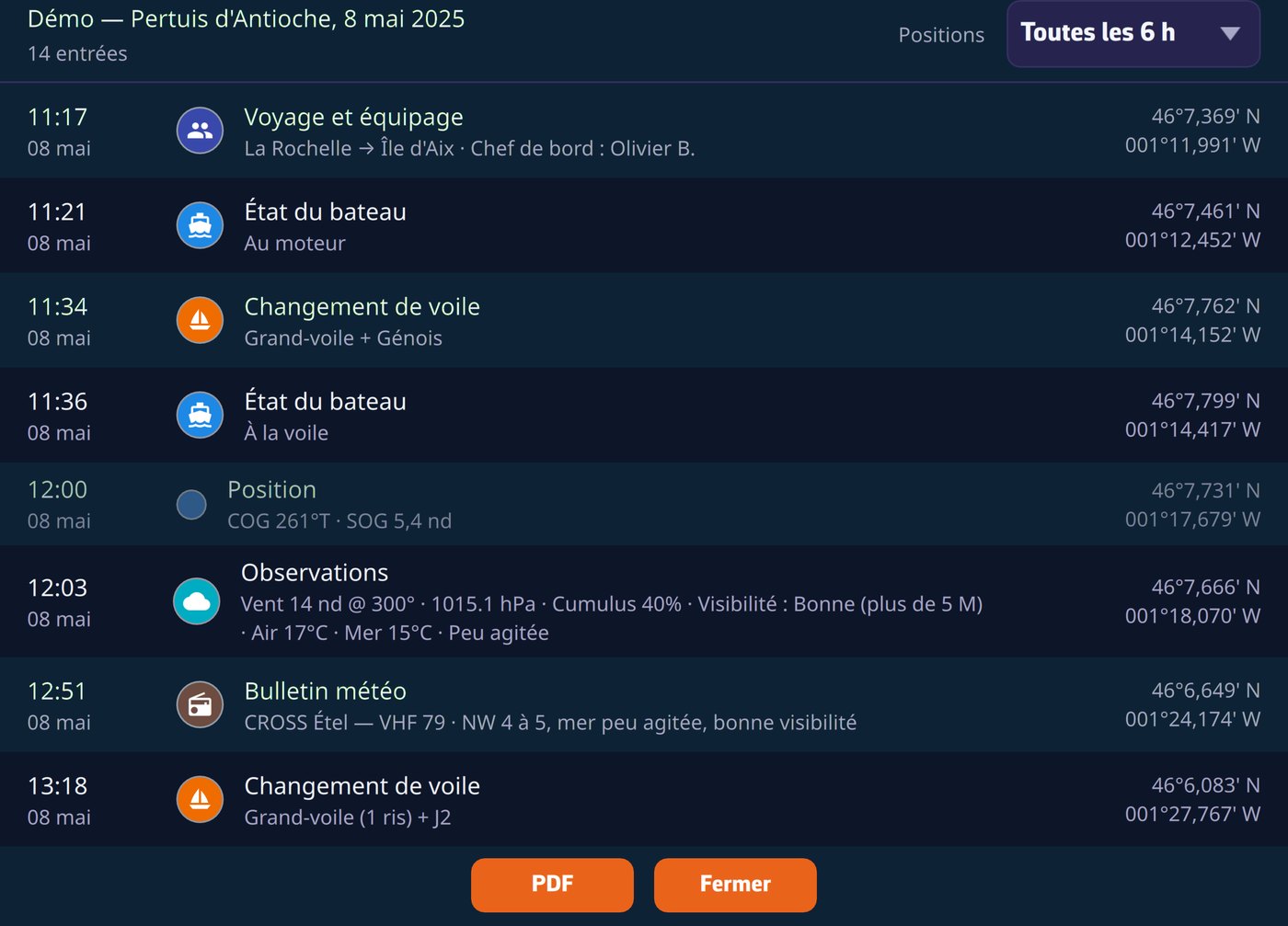 A trip’s logbook table
Going further
The eleven categories
| Category | Content |
|---|---|
| Voyage & crew | Skipper, crew, departure and destination |
| Boat status | Sailing, motoring, motorsailing, in port, at anchor, moored |
| Comment | Free text note |
| Observations | Weather and sea state |
| Sail change | Mainsail, reefs, headsail, spinnaker |
| Watch handover | Who takes the watch |
| Technical event | Maintenance, adjustment, intervention |
| Failure | Breakage or malfunction |
| Safety event | MOB, injury, distress, contact with the MRCC (CROSS in France) |
| Weather bulletin | Bulletin or gale warning received |
| Racing event | Start, mark rounding, finish… |
A few forms are pre-filled:
- Observations takes the instrument values at the time of entry: wind, pressure, air and sea temperatures, when available;
- Voyage & crew takes the form of the previous trip, since the same crew often sails several trips in a row.
An entry’s moment and position are those of the time you open the entry form, not of the confirmation: the time spent filling in the form does not shift the event.
Man overboard: the automatic entry
When the man overboard alarm is triggered during recording, by the app’s MOB button or by receiving an AIS MOB beacon, a Safety event entry is added to the logbook by itself, at the time and position of the trigger. For a beacon, its MMSI number (the AIS identifier) is kept in the entry. See Man overboard (MOB).
Periodic positions
The “Positions” selector, at the top of the table, interleaves position lines taken from the track: “Hidden”, “Hourly” (default), “Every 6 h”, “Every 12 h” or “Every 24 h”. On a trip of less than 2 hours, the hourly rate becomes a quarter of an hour. This setting is specific to the device, and the PDF reproduces what the screen shows.
Edit, delete: nothing disappears silently
Tap an entry in the table: “Details”, “Edit”, “Go to this moment” (during a Replay) and “Delete” (after confirmation).
An edited entry carries the mention “Modified (rev. N)”. Its previous versions remain readable in “Details”, under “Previous versions:”. The mention also appears in the PDF, as a crossing-out stays legible in a paper logbook.
Add an entry afterwards
During the Replay of one of your trips, chart + menu > “Add a logbook entry”: the entry is dated at the moment being played and placed on the track. The table’s Add button, however, only appears for the trip being recorded.
In the “Track display” window (⋮ > Display), “Logbook events” shows or hides the pictograms on the chart.
The PDF export
The PDF button composes a document ready to print or archive, then shows it in a preview. On a computer, “Save” stores it wherever you want; on mobile, “Share” opens the share sheet.
The document contains:
- the name of the trip and of the boat, with the vessel identity line: registration, call sign, MMSI and home port, as entered in Settings > My Boat;
- the line from the “Voyage & crew” form: departure and destination, skipper, crew;
- the map of the course, on the chart background you use, with the entry pictograms;
- the table of entries (time, position, type, details) and of periodic positions;
- a “Summary” line: distance, moving time, maximum speed over ground, maximum wind, and engine hours deduced from the “Boat status” entries (motoring or motorsailing);
- at the foot, a SHA-256 fingerprint that lets you verify that the content has not been modified.
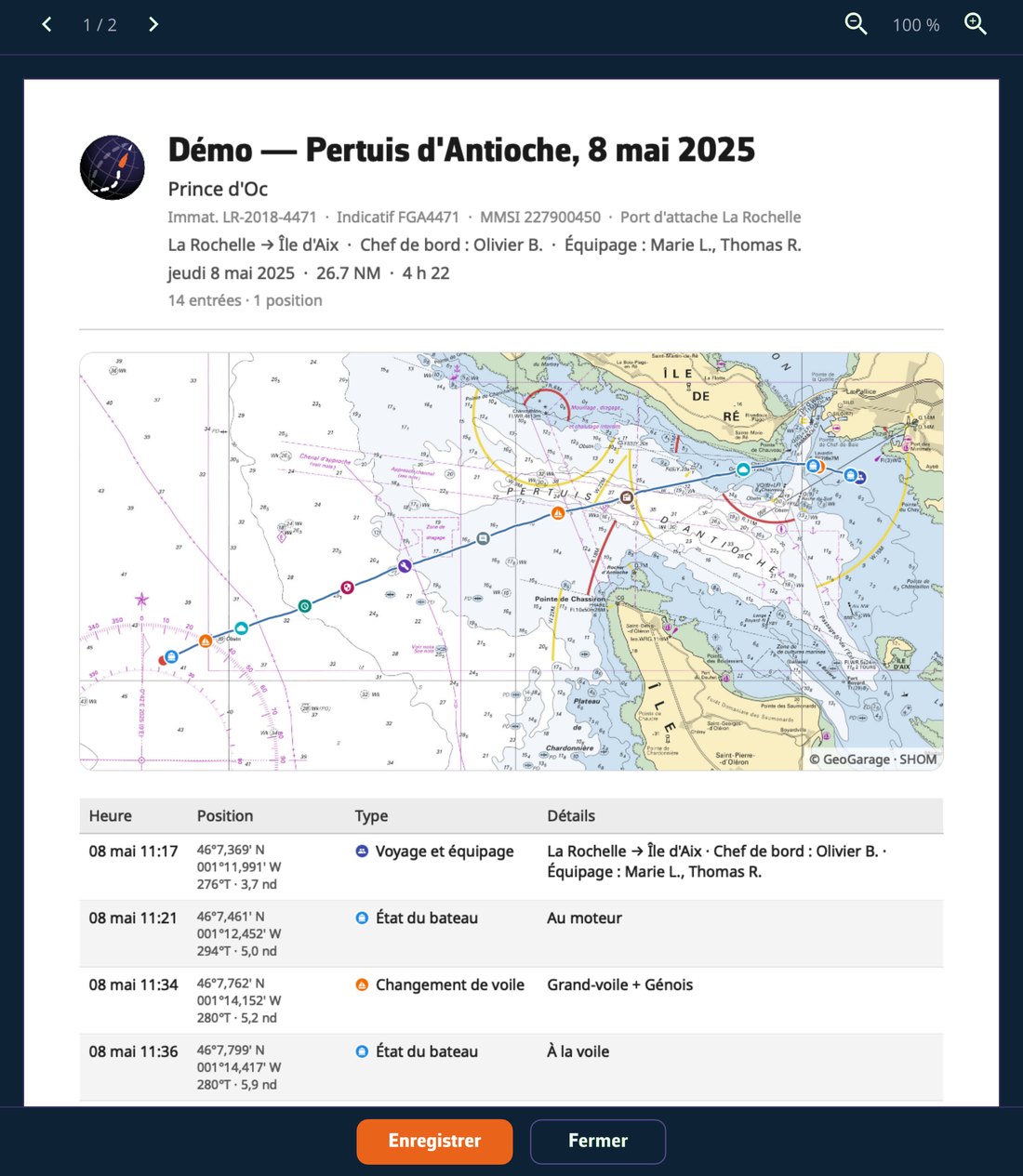 The logbook PDF
Where the logbook goes
The logbook follows your Premium account: entered on the tablet, it is on the computer when you get home. It travels in the track’s .nx file, and the recipient of a share link can read it, without being able to modify it.
See also
- Replay
- Man overboard (MOB)
- Settings: the boat’s identity in My Boat.
- FAQ: How do I keep a track’s logbook?