Import and Export Tracks
ExpertThe essentials
The Tracks tab exchanges tracks with other devices, other apps or other users. Two file formats are used for export:
- NavimetriX (.nx): the complete trip in a single file (points, logbook, Replay data, display settings). This is the format for backup and for exchange between NavimetriX users;
- GPX: the standard exchange format for GPS tracks, read by most navigation and sports apps. It only carries the points.
To import:
- In the Tracks tab, tap Import in the bottom bar.
- Choose one or more files: GPX, .nx, NMEA logs (
.txt,.nmea,.log,.gz) or Adrena tracks (.trz). - GPX and .nx tracks are added to the list, filed at their date. NMEA logs and Adrena tracks first go through a preview window (see below).
To export a track:
- Tap its ⋮ button, then Export (on a computer) or Share (on tablet and phone).
- Choose the format: “NavimetriX (.nx)” or “GPX”.
- On a computer, choose the file location (the Downloads folder is suggested). On mobile, the system share sheet opens: messaging, mail, saving to files…
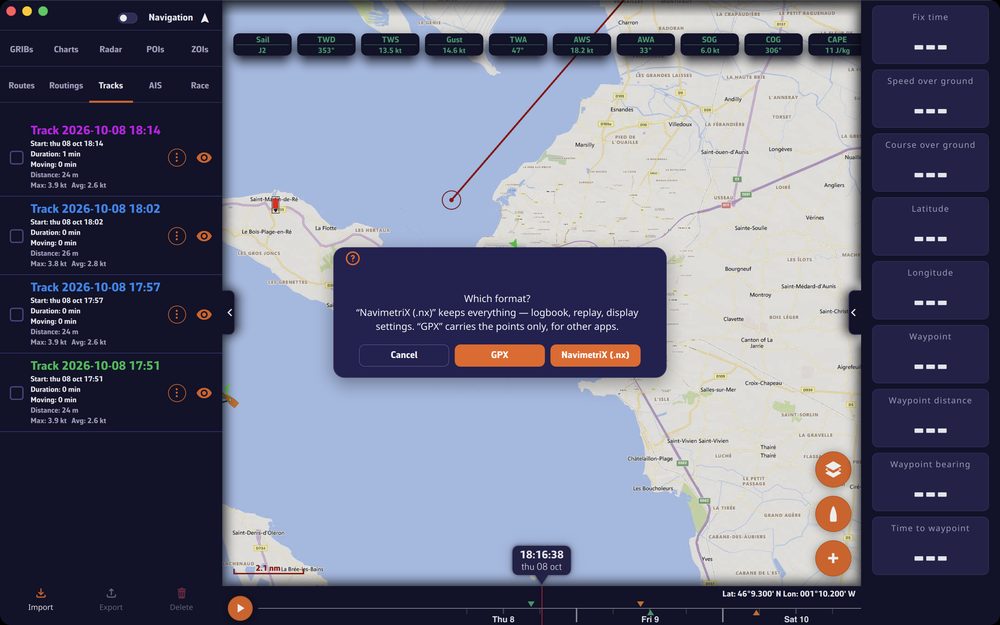 “Which format?” question with the “NavimetriX (.nx)”, “GPX” and “Cancel” buttons
Going further
Import a GPX or an .nx
- A GPX is read in the background: the line appears immediately and its statistics fill in when reading ends. The app does not freeze, even on a large file.
- An .nx restores the complete trip: track, logbook, Replay and display settings. With a Premium account, it joins your account and appears on all your devices.
- With a Premium account, a track imported as GPX gets a Replay reconstructed from its points: position, heading and speed over ground, and wind and current if the file contains them, but no depth, heel or AIS targets. ⋮ > Details indicates this (“reconstructed from the track”).
- An .nx received from another user becomes a trip on your account: with Premium, it is uploaded there, then shared by link like your own trips. The share entry stays greyed out until the upload is finished.
Import NMEA 0183 logs and Adrena tracks
An NMEA log is a text file that records the sentences sent by the onboard instruments (NMEA 0183 is the standard for these sentences). NavimetriX can extract complete tracks from it, with the instruments and AIS targets, replayable like a trip recorded in the app. Adrena tracks (.trz) follow the same path.
The “Import NMEA logs” window reads the files in the background, then splits them into segments at each interruption of positions:
- “Split after an interruption of”: the time without a position beyond which a new segment begins, from 1 to 72 h, 6 h by default. This setting only concerns interruptions;
- “Split at position jumps”: also splits where the position makes an impossible jump (a speed of more than 50 knots between two points). On by default;
- each segment shows its date, duration, distance, number of positions and the data found (Wind, Heading, Speed through water, Depth, Temperature, Pressure, Current, AIS). Tick those to import: segments that are too short (fewer than 30 positions or less than 2 minutes) are unticked by default;
- between two segments, a selector decides: “New track” (default) or “Continue previous”. When continued, the track stays in one piece and the interruption becomes a gap in the Replay;
- a summary says how many lines were read and what was discarded (sentences with a wrong checksum, sentences earlier than the first date, position jumps removed…), then how many tracks will be created. Tap “Import”.
To be placed in time, a log must contain RMC sentences, or ZDA with GGA or GLL. Without them, the window explains and imports nothing. A track imported from an old log is filed at its own date, far down the list: the final message gives its name so you can find it.
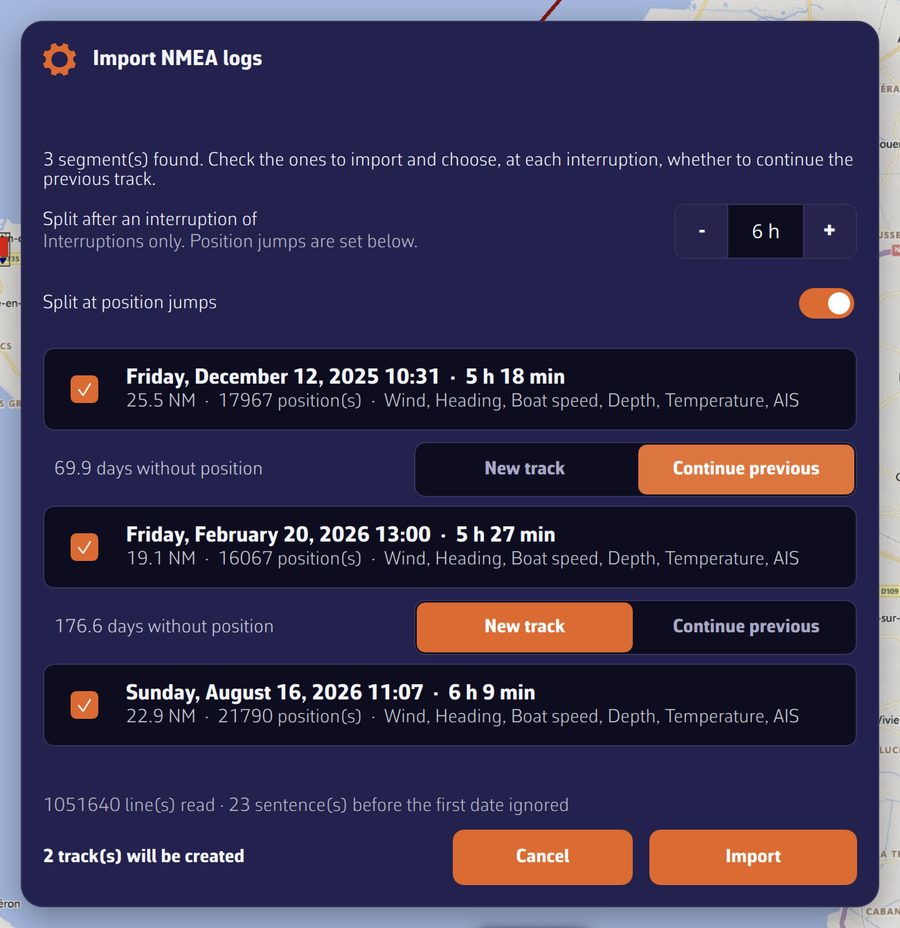 “Import NMEA logs” window: three segments, the second continuing the first, and the summary
Export several tracks
Tick the boxes at the left of the lines, then tap Export (or Share on mobile) in the bottom bar:
- as .nx, each track gives its own file. On a computer, you choose a destination folder;
- as GPX, all the ticked tracks are combined into a single file.
The track being recorded cannot be exported: the file would be truncated without anything saying so. To show a trip while it is under way, share its live link instead (see Share a track).
Send a trip to Strava
On a computer, after exporting a single track as GPX, the app offers to open Strava’s upload page: “Open Strava” or “Later”. You then need to drop on that page the GPX file you have just saved (in the Downloads folder, unless you chose another one). On mobile, share the GPX to the app of your choice from the share sheet.
See also
- Organize your tracks
- Replay
- Share a track: a link rather than a file.
- Navigation: GPS, NMEA and AIS: record an NMEA log yourself.
- FAQ: How do I organize my tracks: archive folders, .nx format and trash?