Prepare your tablet or smartphone
BeginnerThe essentials
When sailing, NavimetriX must keep the boat’s position and watch over the alarms, even with the screen off, and you must be able to reopen it with one gesture. A few phone or tablet settings contribute to this. The app itself checks the most important ones when Navigation mode is activated.
- Activate Navigation mode a first time at the dock (“Navigation” switch in the left drawer).
- If the “Almost ready” window opens, press “Fix” opposite each row: the corresponding system setting opens. Come back to the app: the row disappears once the setting is done.
- Then set the sleep and screen lock (see below).
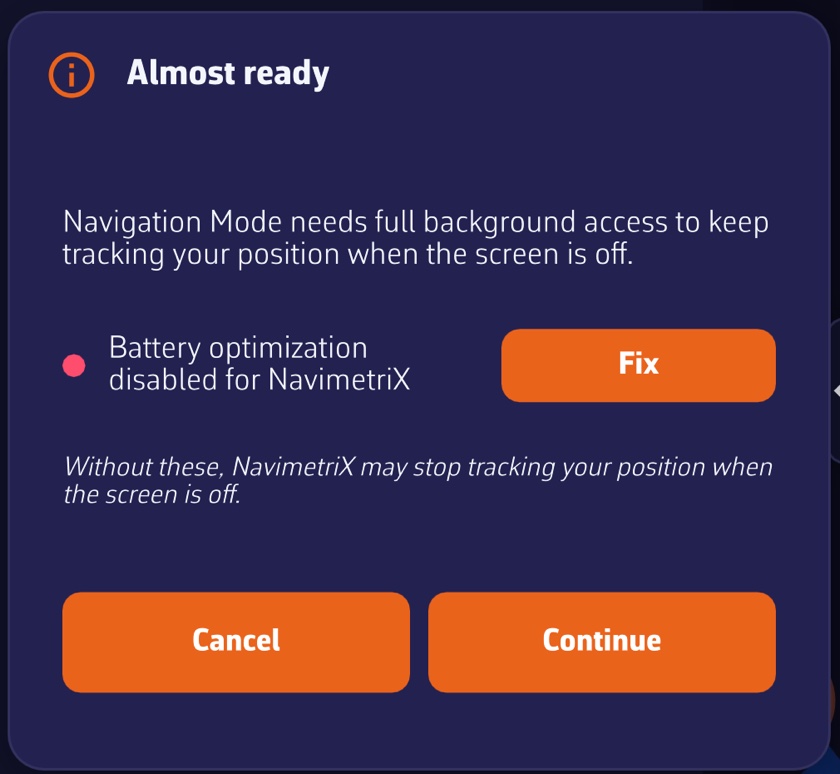 “Almost ready” window on Android: the “Battery optimization disabled for NavimetriX” row with its “Fix” button, then the “Cancel” and “Continue” buttons
Going further
What the app checks
When Navigation mode is activated on a phone or tablet, the “Almost ready” window recalls that “Navigation Mode needs full background access to keep tracking your position when the screen is off.” It lists only what is missing:
| Row | Platform | Why |
|---|---|---|
| Location permission | iOS and Android | without it, no position at all |
| Location set to “Always” (required for background) | iOS | to track position with the screen off or the app in the background |
| Precise Location enabled | iOS and Android | an approximate position is not enough for navigation |
| Notifications allowed | Android | the service that keeps NavimetriX active in the background shows itself through a notification |
| Battery optimization disabled for NavimetriX | Android | otherwise the system may suspend the app to save battery |
“Continue” bypasses this until the app’s next launch; “Cancel” gives up Navigation mode. Without these settings, NavimetriX may stop tracking your position when the screen is off.
On Android, if you answered “Don’t ask again” for location, the app can no longer ask you again: it offers “Open Settings” of the system. Android may then restart NavimetriX after the permission change; simply relaunch the app.
Screen sleep
- Android: NavimetriX itself keeps the screen on as long as Navigation mode is active. The system’s sleep delay therefore only counts outside this mode.
- iPhone and iPad: the app does not hold the screen. If you want to keep the chart displayed, set auto-lock to “Never” in the device’s display settings.
- Screen saver on Android: in Navigation mode, tap the arrow icon to the right of the word “Navigation” to dim the screen as much as possible without turning it off. Wi-Fi stays active, reception of NMEA data from the onboard instruments continues, and a touch restores brightness. See Operating modes.
Onboard safety tips
These settings belong to the system, not the app, and depend on your use:
- The unlock code: your crew must be able to open the navigation app without you, if you are not in a state to do so. Consider whether to remove the code while sailing.
- Automatic spelling correction: turning it off avoids it altering the names of routes or POIs (points of interest) that you enter.
- Wet fingers make the touchscreen temperamental: plan something to wipe it, and test the useful gestures (drawer handles, boat button, “+” menu) before you need them.
On computer
The same principles apply to an onboard computer: turn off sleep during navigation. On Windows, the installer opens the NMEA network reception ports in the firewall (see Platforms and installation).