Manage routings (Routings tab)
BeginnerThe essentials
All your routings are found in the left drawer, “Routings” tab. They are saved and shared between the devices of your account.
For each routing, the list shows its name in its colour, the start, the finish, the duration, the length of the optimal route with its ratio, as a percentage, to the plotted route, and the date of the calculation. On the right:
- the eye shows or hides the routing on the chart;
- the ⋮ button opens its menu: “Details”, “Convert to route”, “Recalculate”, “Rename”, “Export” (“Share” on phone and tablet) and “Delete”.
Tapping the row selects the routing (orange bar on the left) and displays its isochrones if the “Isochrones” checkbox of the layers menu is ticked.
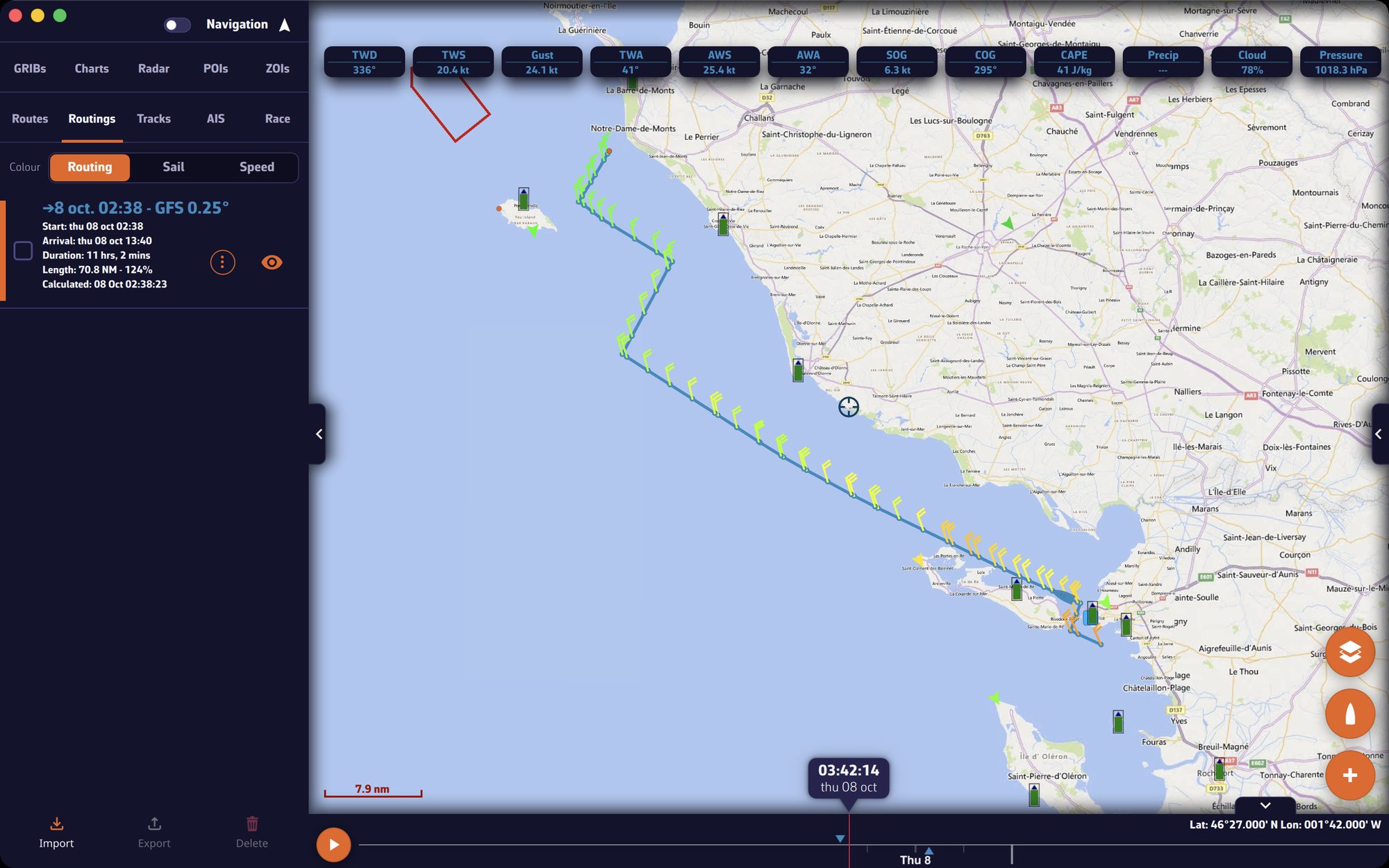 The Routings tab and a routing displayed on the chart
Going further
A routing’s menu
| Entry | Effect |
|---|---|
| “Details” | opens the table, the statistics, the AI briefing and the routing inputs (see Read a routing) |
| “Convert to route” | creates a route to follow from the routing (below) |
| “Recalculate” | restarts the routing with a more recent forecast (see Routings started from the chart) |
| “Rename” | opens “Rename routing”, with the “Routing name:” field |
| “Export” or “Share” | exports this routing alone (below) |
| “Delete” | deletes the routing after confirmation |
“Details”, “Convert to route” and “Rename” are unavailable during a calculation.
Convert a routing to a route
A route taken from a routing has hundreds of points. “Convert to route” simplifies it into a route to follow, which you can edit, follow with the autopilot or send to your instruments.
Warning: look at a routing ten times before entrusting it to an autopilot. We do not recommend it.
The “Convert to route” window offers:
| Setting | Values | Default |
|---|---|---|
| “Name” | free | the routing’s name followed by “(route)” |
| “Heading tolerance” | 0 to 30° | 5° |
| “XTE margin” | 0.1 to 10.0 nm | 0.4% of the routing length, between 0.1 and 10 nm |
- The heading tolerance groups legs whose heading varies by less than this value.
- The XTE margin (cross-track error) is the maximum deviation allowed between the simplified route and the routing’s route.
Under the settings, “… points → … waypoints” shows live how many waypoints the route will keep. The simplification never cuts across land or no-go zones and, if C-MAP coastal routing is on, it respects the same shallows, distances to dangers and buoyage as the routing.
Tap “Create route”: the route appears at the top of the “Routes” tab, and a message confirms the number of waypoints. You can then hide the routing with its eye. To follow the route, see Navigate to a POI and follow a route.
Export and share
One routing: ⋮ menu, “Export” or “Share”. Several routings: tick their boxes, to the left of the rows, then tap “Export” or “Share” in the bottom bar.
Three formats exist:
- .nxrouting (“NavimetriX routings”): the complete routing, as it was calculated. It opens in another NavimetriX installation, including on another account, and is displayed there identically;
- GPX: the optimal route, point by point, for a chartplotter or other software;
- KML: the route for Google Earth and mapping tools.
On computer, a save window opens on the Downloads folder, with a name of the form “navimetrix_routings_YYYYMMDD_HHMM”; the format follows the chosen extension (.gpx, .kml or .nxrouting). On phone and tablet, “Share” sends all three files at once through the system share sheet.
Import
Tap “Import” in the bottom bar and choose one or more .nxrouting files. The app checks that they really are NavimetriX routings, then:
- displays “The routing “…” has been imported.”, or reports that it already exists;
- selects the last imported routing and centres the chart on it.
Import is not possible during a calculation (“A routing is being calculated. Import the file once it is finished.”).
Delete
- One routing: ⋮ menu, “Delete”, then confirm.
- Several routings: tick them, then “Delete” in the bottom bar.
Deletion also removes the routing’s AI briefing. It applies to all the devices of the account.