AI briefing
BeginnerThe essentials
The AI briefing is an expert reading of the weather and strategy of your routing, written in a few dozen seconds by an artificial intelligence from the routing data. It requires the Premium subscription, an Internet connection and being logged in to your NavimetriX account.
- In the “Routings” tab of the left drawer, open the ⋮ menu of the routing, then “Details”.
- Choose the “AI briefing” tab.
- Tap “Request AI briefing”.
- Wait: a message says the AI is analysing the routing and gives an estimate of the time remaining.
- Read the briefing, and tap “Export as PDF” to keep or share it.
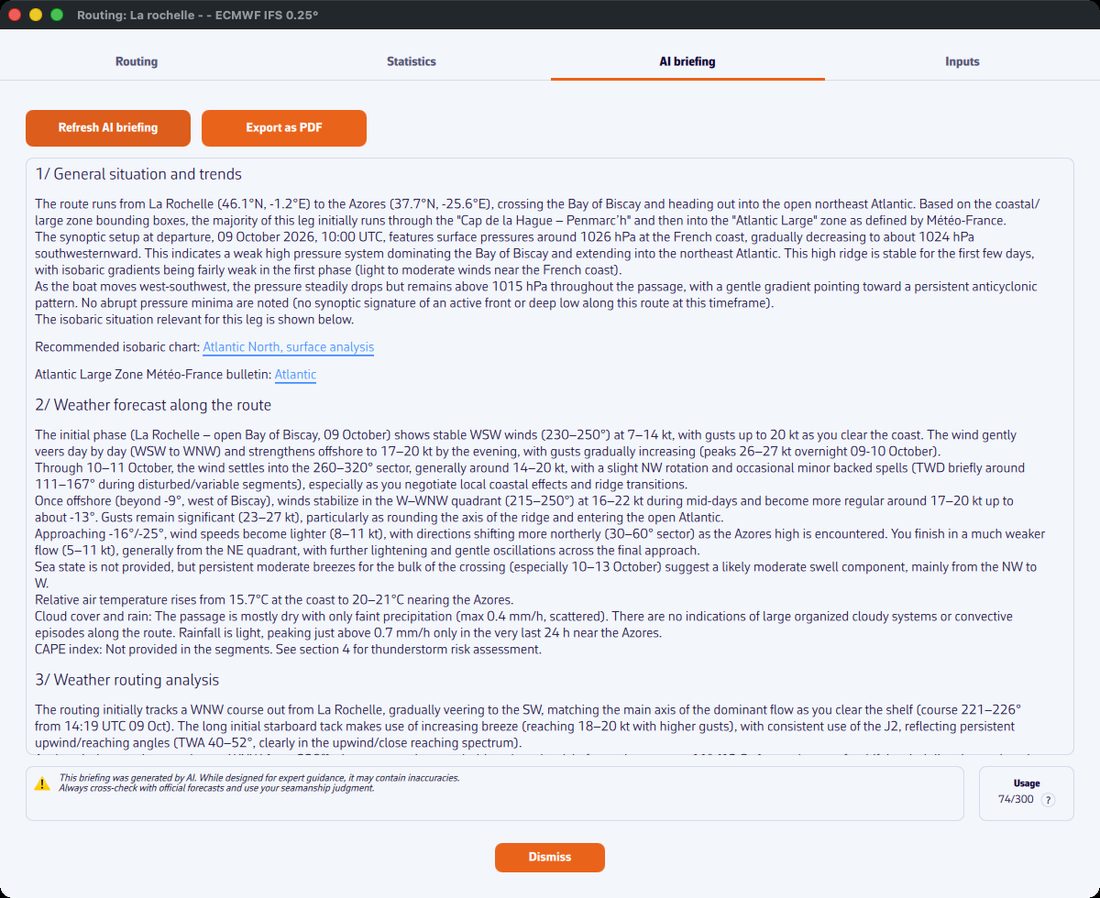 “AI briefing” tab of a routing’s details: the briefing displayed with its numbered headings, the “Refresh AI briefing” and “Export as PDF” buttons at the top, the AI warning and the “Usage” counter at the bottom
Warning: the briefing is generated automatically. It may contain inaccuracies, even errors. Always check the official forecasts and use good seamanship: the skipper alone remains responsible for the safety of the boat and crew.
Going further
What the briefing contains
The app sends the AI server a summary of the routing: the optimal route leg by leg (time, position, heading, speed, wind) and, when the GRIBs provide them, gusts, CAPE (the energy available for thunderstorms), pressure, cloud, rain, temperature, sea state, crossed sea, the sail carried and engine hours. The briefing is written in the language of the app and structured in four parts:
- general situation and trends;
- weather forecast along the route: wind, pressure, cloud, rain, thunderstorms, CAPE index;
- analysis of the routing;
- risks: front, gusts, thunderstorms, sea state…
It may also offer links to an isobaric chart and to the coastal and offshore bulletins of Météo-France.
Keep, refresh, cancel
- The briefing is saved with the routing: when you reopen the tab, it is still there. It is deleted along with the routing.
- When a briefing exists, the button becomes “Refresh AI briefing”: tap it to request a new one, for example after a recalculation.
- During generation, “Cancel Request” stops the request.
- Without a Premium subscription, the button stays greyed out and the message “AI briefing requires Premium subscription” is displayed.
The credit of 300 briefings a year
Generation uses artificial intelligence servers billed by usage. Each Premium subscriber has 300 briefings a year, over a sliding window of 365 days: each briefing counts for one year, then no longer counts. The counter is shared by all the devices of your account.
At the bottom of the tab, “Usage” shows the number of briefings used out of 300; tap it to see the detail (used, remaining). When the credit is exhausted, a message says so and no briefing can be requested until an older request expires.
The PDF export
“Export as PDF” becomes active as soon as a briefing is displayed. The document, in A4 format, is always printed on a white background, whatever the theme of the app:
- the first page: the title “Weather briefing”, the routing, the boat, the polar and the weather model; the key figures (start, duration, distance, average speed, minimum, average and maximum wind, maximum gust, maximum sea, maximum CAPE, sail changes, number of segments); the route chart, coloured by sail and marked with wind barbs; the graph of wind and boat speed, with the sails carried below it;
- the briefing pages, with the AI text;
- graphs along the route: wind direction, wind angle, sea state (sea and swell), pressure;
- statistics: time spent by wind force, by wind angle and by sail.
Each page notes in its footer that the document was generated by an artificial intelligence.
A preview opens first (“Briefing PDF”), with a page and zoom bar. Then:
- on phone and tablet, “Share” opens the system share sheet (email, messaging, files…);
- on computer, “Save” offers to save the PDF in the Downloads folder, under the routing’s name followed by “_briefing.pdf”.