Race Tracking
ExpertThe essentials
Race tracking shows on the chart the competitors of an offshore race, from the files published by the organizers: the list of competitors (.dcc file, in Adrena format) and the position reports (POSADRENA files). With the course’s route, NavimetriX calculates each boat’s remaining distance and a ranking, in real time or in corrected time.
- Open the Settings (“‹” handle on the right edge), then “Race tracking”. In “Race file”, tap “Import” and choose the .dcc file supplied by the organizer.
- In “Position reports”, enter the server address (“FTP or HTTP URL”, with “Username” and “Password” if needed) and tap “Download”. You can also “Import” a position file received by email.
- In “Rankings”, choose the course’s route, then the start date and time, in universal time (UTC).
- Open the “Race” tab of the left drawer: the list of competitors, sorted by ranking as soon as positions arrive.
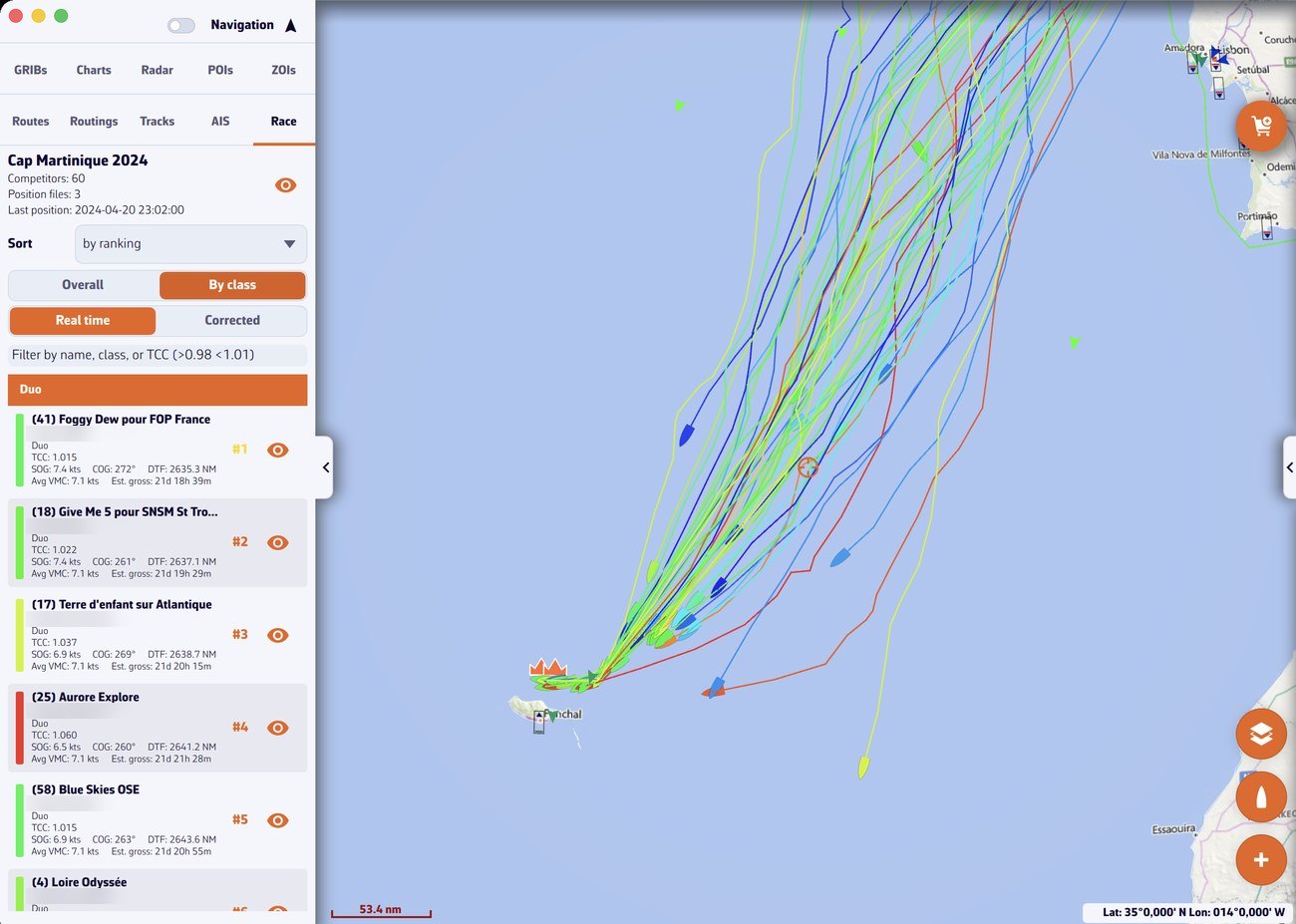 “Race” tab of the left drawer with the Cap Martinique 2024: header, “Sort by ranking”, “Overall / By class”, “Real time / Corrected”, list of competitors with their remaining distance (DTF) and estimated time; on the chart, the fleet’s tracks and the crown of the leaders; skipper names blurred
Going further
The race files
The .dcc file describes the race: its name, and for each boat its name, class, skipper, race number and IRC rating, also called TCC (Time Correction Coefficient). It can also contain the address of the position server, which then fills in the connection fields, and even positions already recorded.
On import, NavimetriX gives each boat a colour according to its rating, from red for the highest (the fastest) to blue for the lowest. If all ratings are equal, each boat gets a distinct colour. You can then change the colour in the competitor’s sheet.
A POSADRENA position report gives, for each boat, its number, latitude, longitude and time. Beware: Adrena coordinates are written in degrees and minutes, not in decimal degrees (47.3211N means 47° 32.11’ N).
Only one race is loaded at a time. “Delete race”, at the bottom of the page, erases it after confirmation.
Fetch the positions
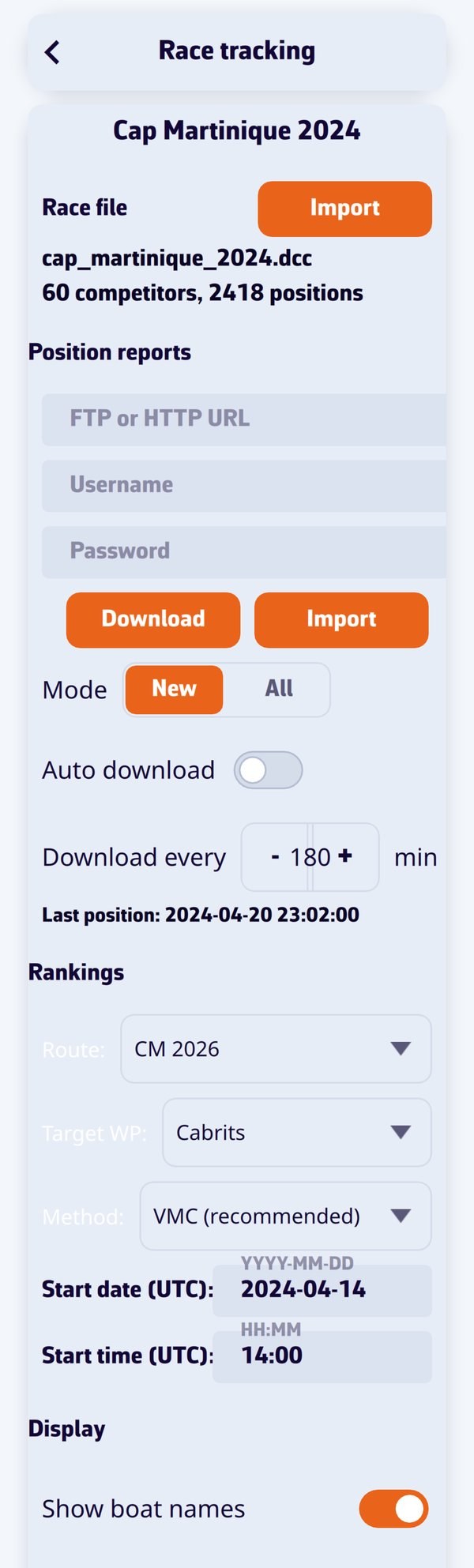 “Race tracking” settings: imported race file (60 competitors, 2418 positions), position reports with their “Download” and “Import” buttons, then the “Rankings” section with the route, target waypoint, method, start date and time in UTC
The “Position reports” section offers three ways of doing it:
- Download from a server: fill in the “FTP or HTTP URL” and, if the organizer provides them, the “Username” and “Password”, then tap “Download”. For an FTP folder, NavimetriX lists the folder and picks the position files itself. An HTTP address that always returns the latest report also works.
- “Mode”: “New” only fetches files not yet downloaded; “All” fetches them all again.
- “Auto download”: NavimetriX downloads by itself every N minutes, set in “Download every” (from 1 to 1,440 min, 180 min by default), without displaying a message each time.
- Manual import: the section’s “Import” button opens a position file (.txt) stored on the device, one file at a time.
The “Last position” line shows the time of the most recent report. Downloading requires an Internet connection.
The rankings
The rankings are based on each boat’s DTF (Distance To Finish), measured along a course route that you create or import in the Routes tab (see POIs, routes and ZOIs). In the “Rankings” section:
- “Route:” the course’s route;
- “Target WP:” the mark the fleet is heading for. The DTF is the boat’s distance to this mark, plus the length of the following segments up to the finish. By default, it is the last point of the route;
- “Method:” the speed used to estimate the arrival time: “VMC (recommended)”, the average speed at which the boat has been closing on the target mark since the start (VMC, Velocity Made good on Course), or “Average speed”, the distance travelled from one position to the next divided by the time;
- “Start date (UTC):” and “Start time (UTC):”. A wrong start time gives absurd speeds and times.
The real-time ranking orders the finished boats by their race time, then the others by increasing DTF. The corrected ranking orders the boats by their corrected time: the race time multiplied by the TCC, plus any penalty. For a boat still racing, this time is estimated: time elapsed since the start plus the DTF divided by the average speed of the chosen method. Boats that have retired go to the end of the list.
The Race tab
The “Race” tab of the left drawer shows:
- at the top, the race name, the number of competitors, of position files and the time of the last position, with the eye that shows or hides the race on the chart;
- “Sort”: by name, by class, by skipper, by ID, by rating and, as soon as a route is chosen, by ranking;
- in ranking sort, two choices: “Overall” or “By class”, and “Real time” or “Corrected”. “Corrected” only appears if the ratings differ;
- a filter field by name, class or skipper, which also accepts a TCC range (for example “>0.98 <1.01”). The filter also applies to the chart;
- for each boat: TCC, speed over ground (SOG), course over ground (COG), DTF, average speed, estimated times; for a finished boat, the arrival time and its gross and corrected times. “FIN” marks a finished boat, “RET” a retirement.
Tap a boat in the list to select it and centre the chart on it. On the chart, each competitor appears with its track, and a crown marks the leader of the chosen ranking. Names are displayed for selected boats, or for all with “Show boat names” (“Display” section of the settings).
Edit a competitor
In Settings > Race tracking, the “Competitors” section lists the boats. Tap one to open “Edit competitor”: boat name, skipper, class, “Boat ID” (the number that links the boat to its positions), “Rating” (the TCC, for example 1.026), “Penalty” in minutes, colour, “Finished” with the arrival date and time (UTC), and “Retired”. Tap “Save”.
See also
- AIS fleets to compare your boat with competitors received by AIS
- Course tracking
- POIs, routes and ZOIs
- FAQ: How do I follow a race when I am taking part?