AIS Fleets
ExpertThe essentials
An AIS fleet is a list of boats you want to watch: your direct competitors in a race, or the boats of a rally. NavimetriX compares them continuously with your boat, from their AIS positions (the system by which vessels broadcast their identity and position): who is ahead, who is offset to the side, and how many metres each gains or loses per minute.
- Open the left drawer, “AIS” tab, and choose the “Fleet” page at the top.
- Add boats: in the “Targets” page, tap the flag to the right of a boat (or the one on its sheet); or else, in the “Fleet” page, ⋮ menu, choose “Quick add on the chart” then tap the boats on the chart. The first addition creates the fleet “My fleet”.
- In the same ⋮ menu, choose the comparison axis: “Compare towards the mark”, “Compare along the wind” or “Compare along a bearing”.
- Read the “Ladder”: your boat at the centre, the boats ahead of you at the top. Or switch to the “List” for the numbers.
You need to receive AIS targets, through a receiver connected by NMEA or over the Internet (see Navigation: GPS, NMEA and AIS).
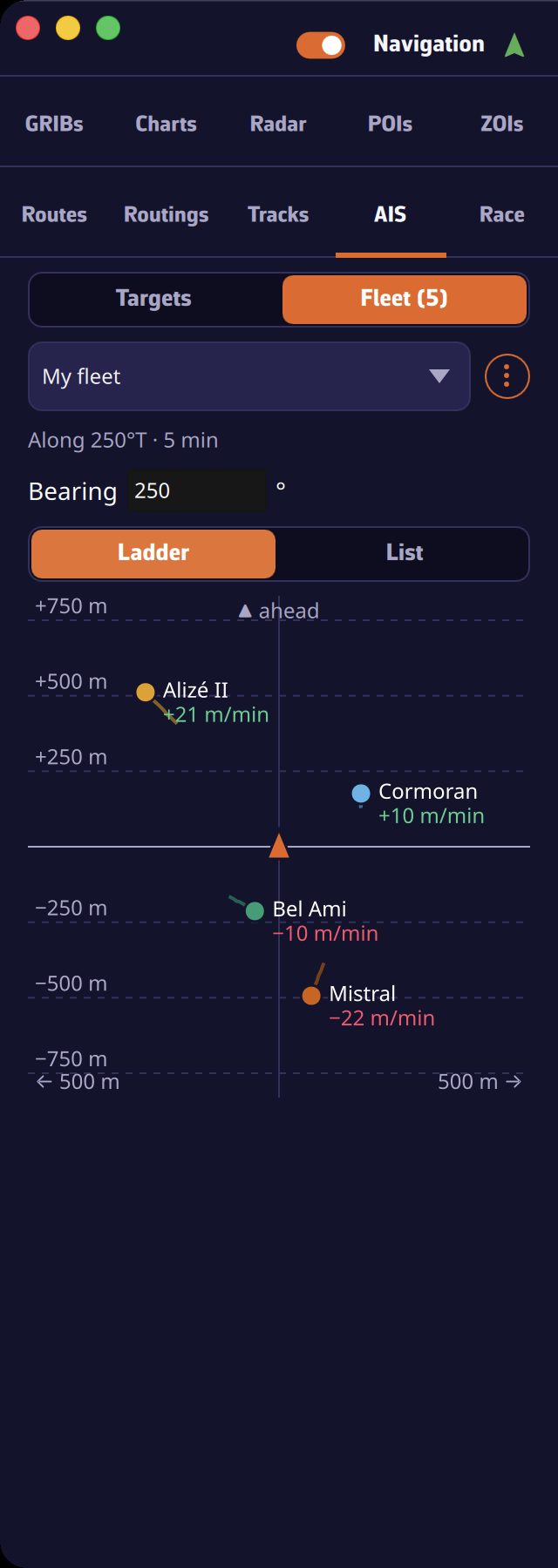 The “Fleet” page in “Ladder” view: your boat at the centre, five example boats with their wake and their gain per minute in green or red
Going further
Create and manage fleets
The drop-down menu at the top of the “Fleet” page lists your fleets. Choosing a fleet follows it on the chart; “None” no longer shows anything of the fleet on the chart and stops the calculations, while the flags keep adding or removing boats to the active fleet. The last line, “Manage fleets…” (also in the ⋮ menu), opens the “AIS fleets” window:
- “Fleets”: choose the active fleet, “Rename” it or “Delete” it, create one with “New fleet name” and “Create”;
- the active fleet’s boats (section “Boats in”, followed by the fleet name). Give each a “Nickname” more telling than its AIS name, tap its badge to switch to the next colour, or “Remove” the boat;
- adding by “MMSI” (the boat’s AIS identification number) and “Name (optional)”, then “Add”: useful for a boat you are not receiving yet;
- “Boats received (nearest first)”, with a filter by name or MMSI, to add a received boat in one gesture.
Each boat gets a colour from a palette readable by colourblind people. Fleets are saved with your account settings.
The flag and quick add
The flag is empty for a boat outside the fleet, filled with its colour for a member. A tap adds it to the active fleet or removes it; a long press offers to add it to another fleet or remove it from one. It does not exist for your own boat or for aids to navigation.
With “Quick add on the chart”, a banner appears above the chart: each tap on a boat adds or removes it instead of selecting it, and the banner gives the number of boats in the fleet. Tap “Done” to return to normal operation. After each addition or removal, a message confirms it for a few seconds with an “Undo” button, very handy after a mistaken tap on a crowded starting line.
The comparison axis
The whole comparison is made along an axis, which you choose in the ⋮ menu:
- “Compare towards the mark”: the axis points to the active mark, that of the followed route or of the “Goto”. A boat’s advance is your distance to the mark minus its own. Without an active mark, the page says so and offers the other axes;
- “Compare along the wind”: the axis follows the true wind direction measured by your instruments, turned towards the wind when you are upwind, the opposite when you are downwind. This requires an anemometer connected by NMEA;
- “Compare along a bearing”: a fixed bearing that you enter in the “Bearing” line that then appears (from 0 to 359°).
The average is also set in this menu: “Average over 2, 5, 10, 20 or 30 min” (10 min by default). The fleet’s speeds and courses are calculated over this window from the boats’ actual movement, not from the speeds announced by AIS, which are too noisy (a class B boat only transmits its position about every 30 seconds). To compare two boats at the same moment, NavimetriX takes your position at the time of the competitor’s last received position.
A discreet line, under the fleet menu, recalls the axis and the window (“Towards [mark] · 10 min”, “Upwind · wind 245° · 10 min”…) or says why the comparison is impossible.
The ladder
The “Ladder” view places your boat at the centre, the axis pointing up. A boat’s height is its advance over you along the axis, its position to the left or right its lateral offset. The two directions each have their own scale: rungs graduate the advance, and the lateral extent is shown at the bottom. Each boat is a dot in its colour, with its wake over the averaging window: a wake that rises relative to you signals a boat that is gaining. Next to its name is displayed its gain per minute.
Under the ladder, when the fleet sails on both tacks, NavimetriX estimates the wind from the fleet courses: upwind as downwind, boats on both tacks follow courses symmetrical about the wind. The line gives this direction, its difference from your measured wind, and the number of boats on starboard and port tack.
Tap a boat on the ladder to centre the chart on it.
The list
The “List” view gives one line per boat, yours included (“Us”): rank along the axis, gain per minute (green if gaining, red if losing), speed, VMC (the speed towards the mark or along the axis), advance, lateral offset and tack. A boat whose last position is more than 3 minutes old shows its age (“4 min ago”); a member never received shows “waiting”. The “Sort” menu orders the list by gain, advance, VMC, speed, distance or name. Tap a line to centre the chart on the boat.
On the chart
When a fleet is followed, its boats are always labelled, their name in their colour, with their average speed and their gain in place of the raw speeds, and their wake is drawn in their colour. The page’s label becomes “Fleet (5)”, with the number of members.
The Fleet instrument
The ⋮ menu, “Show on an instrument”, adds the “Fleet” instrument: the same ladder, as large as the tile, in the instrument bar or placed on the chart. Without a followed fleet, it displays “No fleet followed. Choose one in the AIS tab, Fleet page.” (see Instrument bar and instruments on the chart).
In replay
The comparison also works during the replay of a track recorded with its AIS targets: the recorded fleet is compared with your track, at the moment shown by the timeline. It is a chance to review, at leisure, where a race was won or lost (see Replay).
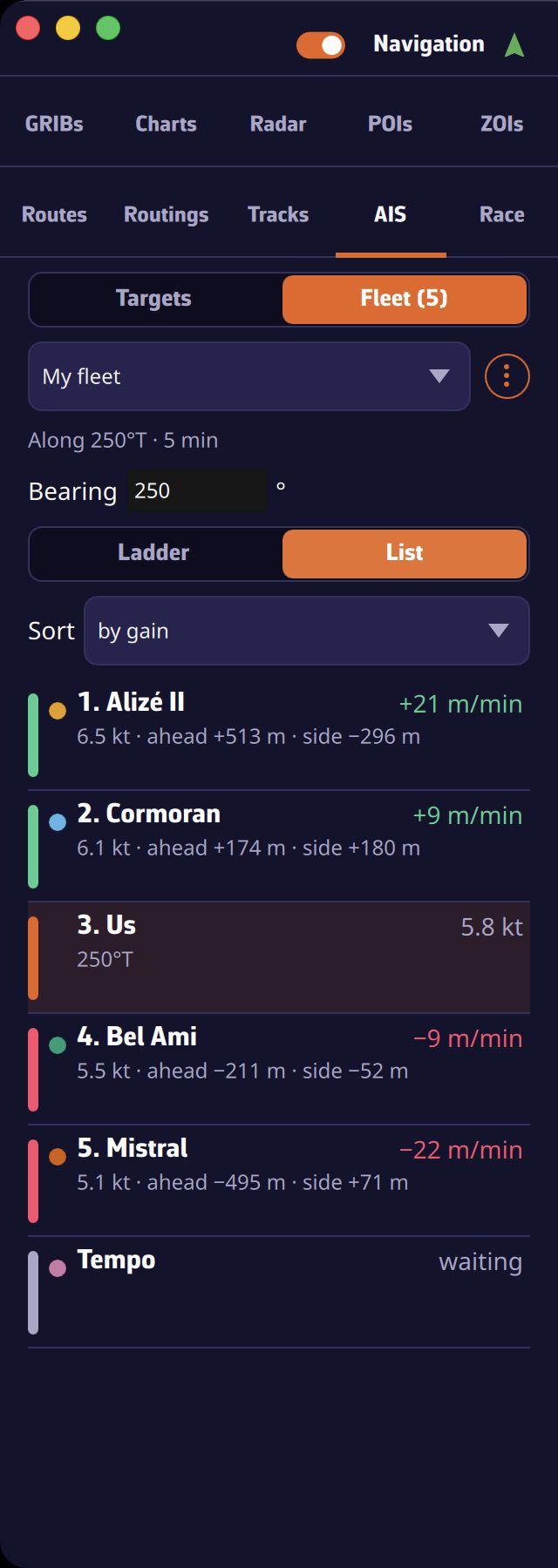 The “Fleet” page in “List” view sorted by gain: the “Us” line highlighted, and a greyed-out boat whose last position is more than 3 minutes old
See also
- Race tracking for offshore races followed through the organizers’ position reports
- Instrument types
- Navigation: GPS, NMEA and AIS
- FAQ: How do I display AIS targets?