Understand and choose your polar
BeginnerThe essentials
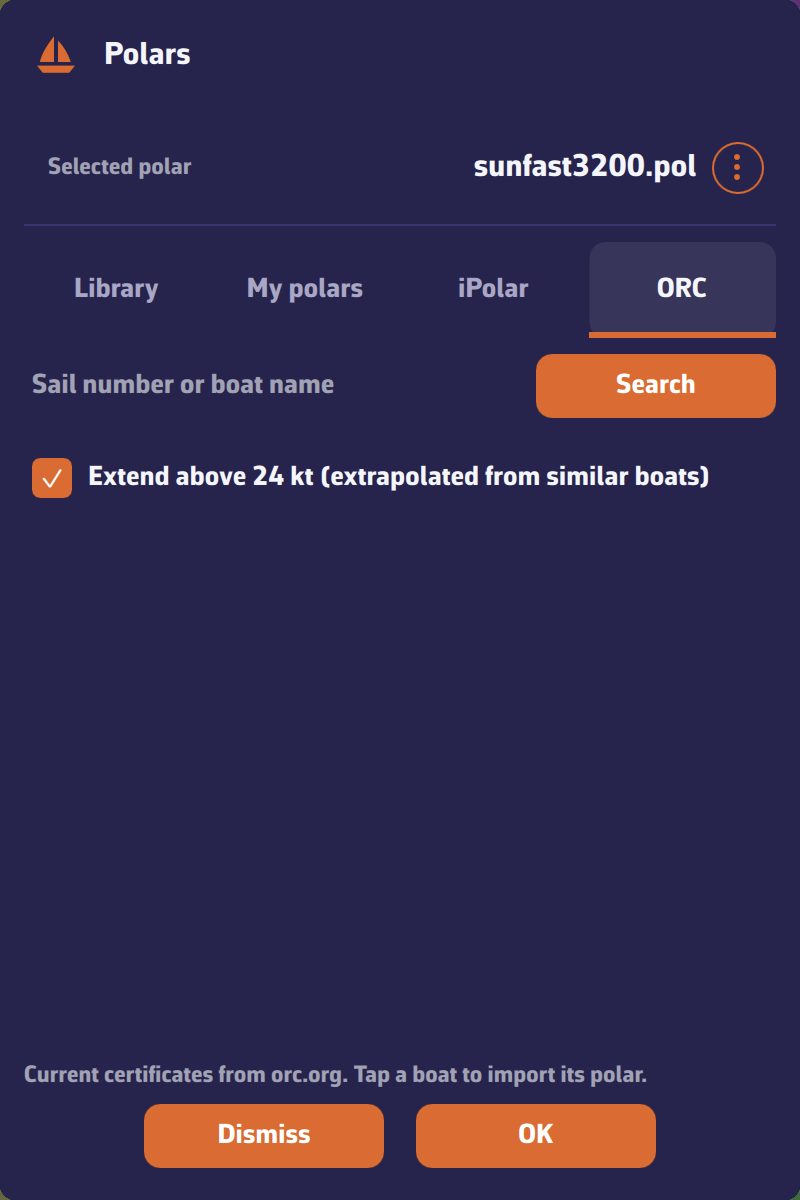 Polars window: selected polar, polar menu and the Library, My polars, iPolar, ORC tabs
The speed polar gives the boat’s speed for each true wind strength (TWS, True Wind Speed) and each angle between the true wind and the boat’s heading (TWA, True Wind Angle). It is what allows weather routing to calculate the fastest route; it is also used for laylines and performance instruments. A poorly chosen polar skews all these calculations.
- Open Settings, then “My Boat”.
- Tap the “Polar” row, which shows the current polar. The “Polars” window opens.
- In the “Library” tab, look for your boat: scroll the list or type part of the name in “Search polar…” (for example “3600” for a Sun Fast 3600).
- Tap the polar you want: its name is displayed at the top, opposite “Selected polar”.
- Tap “OK” to confirm.
The same “Polar” row exists at the top of the “Routing” settings: it is the same setting.
Going further
The four tabs of the “Polars” window
| Tab | Content |
|---|---|
| “Library” | Nearly 500 polars of well-known boats, supplied with the app. Most come from naval architects or ORC certificates. They can be neither edited nor deleted. |
| “My polars” | Your polars: imported from a file, taken from an ORC certificate, touched up in the editor or degraded after a lost sail. “Import Polar” adds one. |
| “iPolar” | The polars calculated from your boat’s characteristics, and the “Create Polar” button. |
| “ORC” | The current ORC certificate search, by sail number or boat name, to import its polar. |
Creation, import, ORC and export are detailed in Create, import and export a polar.
In “My polars” and “iPolar”, tick polars then tap “Delete Selected” to erase them; deletion cannot be undone. If a deleted polar has a Sailchart, NavimetriX offers to keep it in the Sailchart library, to attach it to another polar.
The polar menu
Each polar in the list, as well as the selected polar at the top of the window, has a “⋮” button. Its menu offers:
- “Edit”: the polar editor (see Polar editor and Report);
- “Sailchart…”: which sail to carry according to the wind (see Sailchart);
- “Lost sail…”: a copy of the polar without one sail (see Lost sail);
- “Export” (“Share” on phone and tablet), with the choice of format.
Synchronisation
If you are logged in to your NavimetriX account, the selected polar and its Sailchart follow you to your other devices, even if it is an imported or touched-up polar.
Working on your polar
Building a reliable polar from your own passages is long work: you need well-calibrated instruments, then you have to sort, filter and smooth thousands of points. A simple method gives most of the result:
- Start from a polar close to your boat: library, ORC certificate or iPolar.
- Note your real speeds in moderate wind and flat sea: angle and speed upwind, speed on a reach, angle and speed downwind.
- Compare them with those of the polar, for example with a constant wind routing, and deduce an efficiency percentage.
- Enter this percentage in the routing efficiencies, for light wind and strong wind, and set the minimum upwind angle if your boat does not point as well as the polar says (see Polar efficiency and wind thresholds).
- Sail, compare, adjust. To correct the very shape of the polar, use the editor and check the result with its Report.