Sailchart
ExpertThe essentials
A Sailchart answers one question, for each true wind angle (TWA) and each wind strength (TWS): which sail do you carry? It is the digital version of the table a sailmaker supplies with a set of sails (a crossover chart). It is attached to a polar.
The Sailchart never changes the boat’s speed, which comes from the polar alone. It names the sail carried, which lets routing colour the route by sail, show each leg’s sail in its table, count the time spent under each sail and apply a sail change penalty. Underway, an instrument shows the sail to carry (see Which sail to carry). Without a Sailchart, everything works as before, with no sail names.
- Open the “Polars” window (Settings, “My Boat”, “Polar” row).
- Open the polar’s “⋮” menu, then “Sailchart…”.
- If the polar has no Sailchart yet, start from a usual sail set, from another polar’s Sailchart, or import one.
- Paint the cells with the sails from the palette, then tap “Save”.
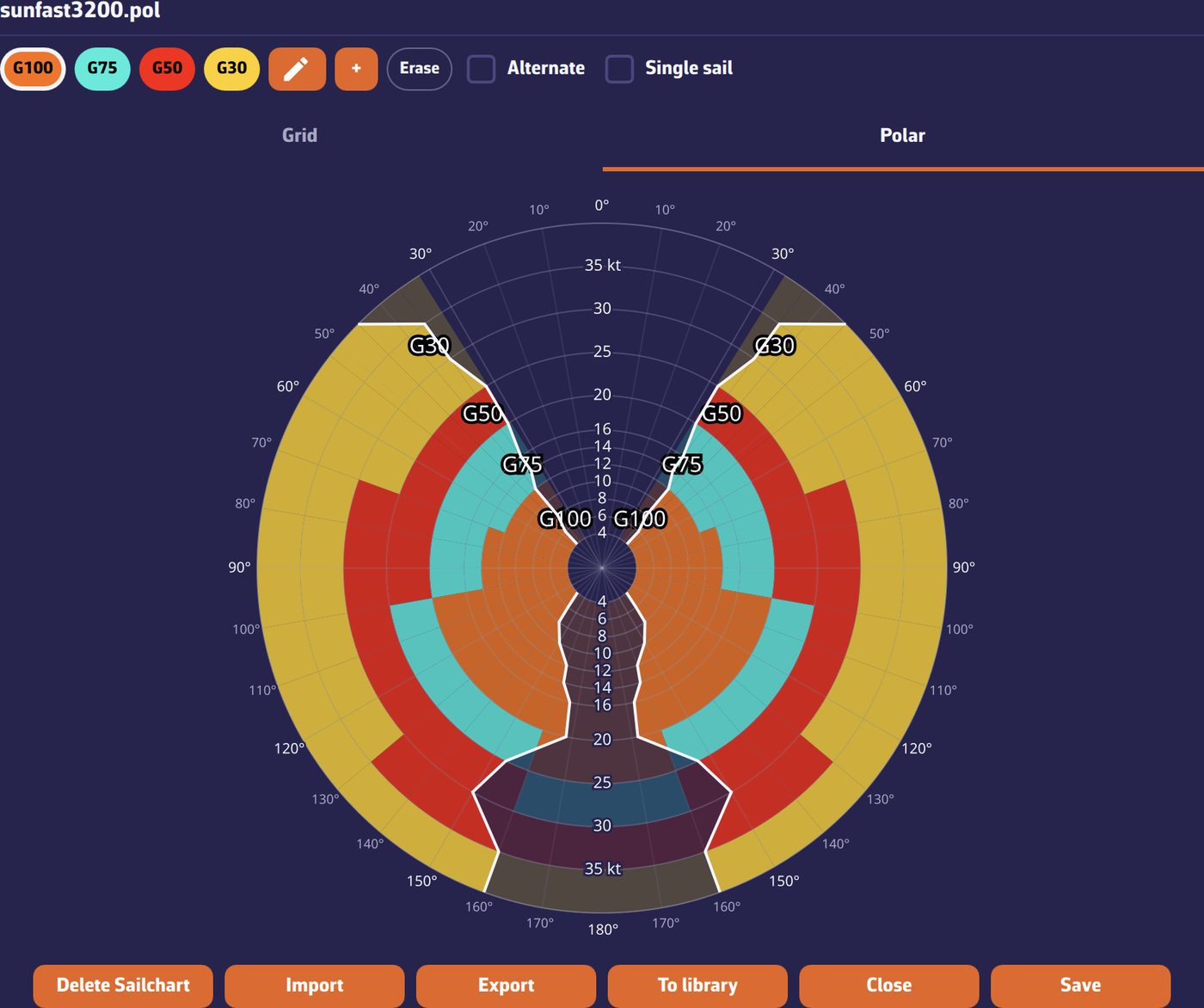 The Sailchart editor
Going further
How it is built
The Sailchart is a grid: the rows are wind angles, the columns wind strengths, and each cell carries a sail code (for example J2, C0, S2). A cell applies to a band, not to a point: the column placed at 12 knots applies from 12 knots up to the next column. A few well-placed bands are enough.
A cell can carry a main sail and alternates, written for example “J2|C0”, for transition bands where two sails are equally good. Routing takes this into account: if the boat is already carrying one of the cell’s sails, it keeps it and pays no change penalty.
Start from something
For a polar with no Sailchart, the editor offers:
- a usual sail set: “Main + furling genoa (cruising)”, “White sails (main + genoa)”, “Main + genoa + asymmetric spinnaker”, “Main + genoa + symmetric spinnaker” or “Racing (Sun Fast 3200 style)”. These are complete Sailcharts, to be corrected afterwards;
- another polar’s Sailchart (“or copy the Sailchart of another polar”), handy for several configurations of the same boat, including those filed in the Sailchart library;
- import of a file (see below).
A polar created with iPolar already has its Sailchart.
Paint
- Choose a sail in the palette at the top: it becomes the brush. Tap a cell to paint it, or a row or column header to fill the whole band.
- “Erase” is a mode: while it is active, tapping a cell empties it.
- The “Alternate” box adds the sail to the cell instead of replacing the main sail: this is how you declare a transition band.
- A long press on a sail’s dot opens “Edit sail”: code, name and colour, or removal. The palette’s “+” button adds a sail (“New sail”).
- “+ row”, “- row”, “+ column” and “- column” add or remove angle and strength bands, at the value of your choice (17.5 knots for example). A Sailchart keeps at least three angle bands and two wind bands.
The “Grid” tab shows the table; the “Polar” tab shows the same Sailchart in polar coordinates, both tacks mirrored. The “Single sail” box fills only the chosen sail there and leaves the others in outline, which makes overlaps legible. Nothing is written before “Save”.
Import a Sailchart
The editor’s “Import” button accepts:
.sail: the NavimetriX and SailGrib format;.txt: a table of the same structure, like Expedition’s;.se: an Adrena Sailect crossover. A Sailect crossover is a set of files, one per sail: select them all at once. The app rebuilds a single Sailchart, places the bands on the real boundaries drawn by the sailmaker and takes up each sail’s code and colour; where two zones overlap, the cell gets a main sail and an alternate.
The import replaces the grid shown; save to keep it.
Library, export and deletion
- “To library” files a copy of the Sailchart under the name of your choice in the “Sailchart library”, from where it can be attached to any polar. When you delete a polar, NavimetriX also offers to keep its Sailchart there.
- “Export” (“Share” on phone and tablet) offers two formats: “NavimetriX format (with alternates)” and “Compatible format (primary sail only)”, for software that reads only one sail per cell. On computer, the file goes to your Downloads folder. NavimetriX reads Adrena crossovers but does not write them.
- “Delete Sailchart” returns the polar to the no-Sailchart state, after confirmation.
The Sailchart follows its polar, including in synchronisation between your devices.
See also
- Lost sail: uses the Sailchart
- Understand and choose your polar
- Read a routing: colours by sail
- Routing settings: sail change penalty
- FAQ: What is a Sailchart?
- FAQ: How to create a Sailchart
- FAQ: How to import a Sailchart