Polar editor and Report
ExpertThe essentials
The polar editor corrects the shape of a polar without a spreadsheet: you move points on a curve and watch the result. Nothing is written, synchronised or used by routing before you save.
- Open the “Polars” window (Settings, “My Boat”, “Polar” row).
- Open the “⋮” menu of the polar to touch up, then “Edit”.
- In the “Curves” view, choose a wind strength and move the curve’s points: with the mouse, drag them; on a touchscreen, tap a point then use the “−0.1” and “+0.1” buttons.
- Check the result in the “Slice” and “Targets” views, then in the “Report”.
- Tap “Save”, choose a name and confirm. The polar is stored in “My polars”.
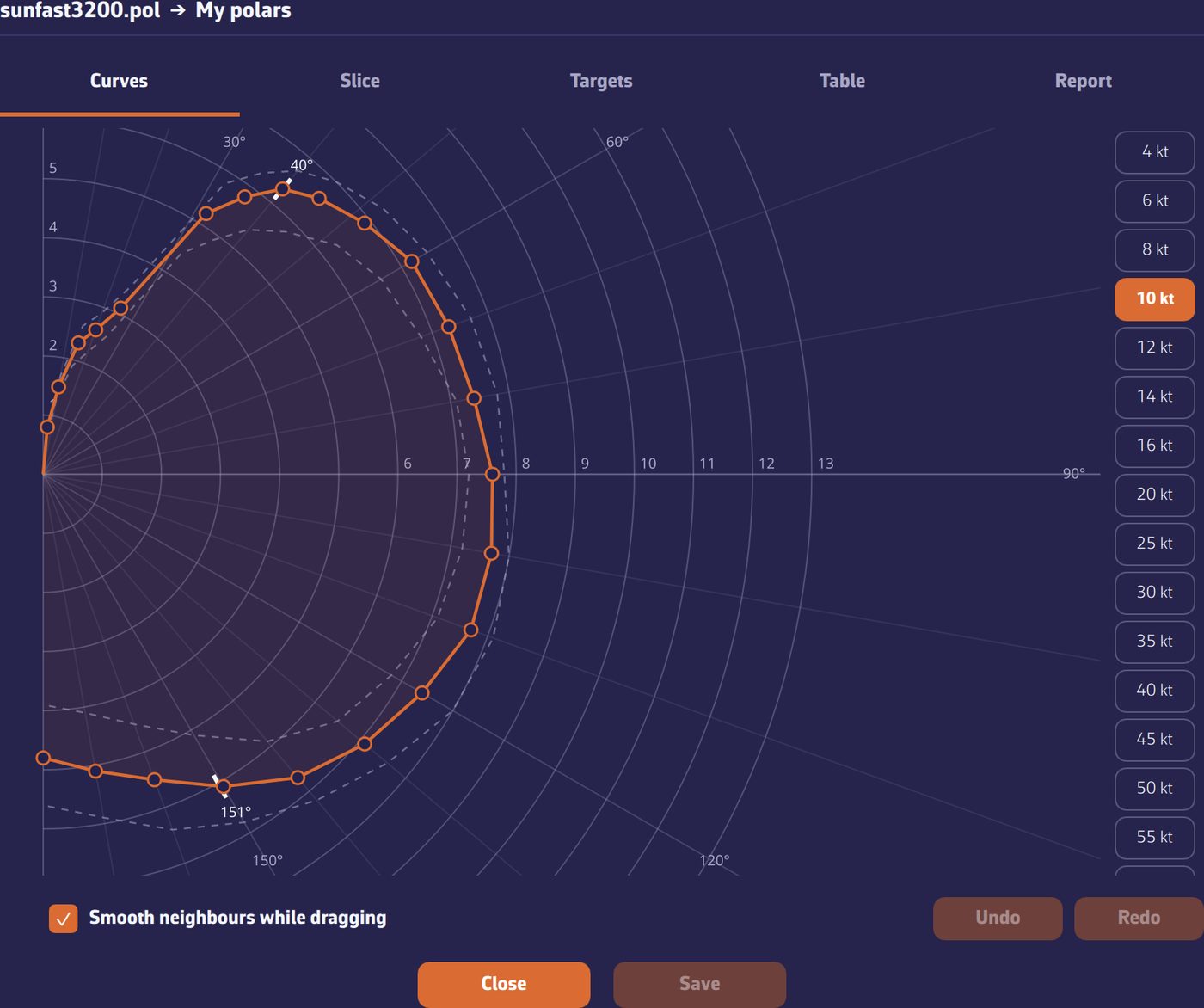 Polar editor, Curves view
Going further
The five views
| View | What it shows |
|---|---|
| “Curves” | Speed by angle, for one wind strength. The curves of neighbouring strengths stay displayed dotted as a reference, and the curve from before your changes appears as an orange ghost. The best VMG (Velocity Made Good, the speed made good along the wind axis) angles upwind and downwind are marked live. |
| “Slice” | Speed by wind strength, for a given angle. This is the view that reveals a bump: a curve touched up apart from the others shows immediately. |
| “Targets” | The best-VMG “Target angles (TWA)” and “Target VMG (kt)”, “Upwind” and “Downwind”, by wind. These are the figures read at the helm: smooth them first. |
| “Table” | The complete table, for inspection and whole-table operations: scale (in %) a column, a row or the whole table, add (“+ row”, “+ column”) or delete a row or a column. |
| “Report” | The automatic analysis of the polar (see below). |
Scale several columns
In the “Table” view, tap a wind value at the head of a column to select that column; tap it again to deselect it. To select several neighbouring columns, drag along the wind values, or tap the first then, on computer, Shift-click the last. The button becomes “Scale % · 6-10 kt columns”, for example: the chosen percentage applies to all these columns at once, and a single “Undo” goes back. Handy for degrading light-wind or strong-wind speeds in one go.
The 0 kt column stays at zero, and “Delete column” deletes only one column at a time.
Smoothing, undo, saving
- “Smooth neighbours while dragging” (“Smoothing” on phone), ticked by default: instead of moving a single point, you gently deform its neighbourhood, nearby angles and neighbouring wind strengths. The “−0.1” and “+0.1” buttons follow this setting.
- “Undo” and “Redo” go back over your last changes.
- “Save” asks for a name (“Save as”) and stores the polar in “My polars”. A library polar is never overwritten: you create a copy of it. Keeping the name of a “My polars” polar that you are editing replaces it; taking the name of another “My polars” polar asks for confirmation.
- “Close” with unsaved changes asks whether to discard them.
On a phone, the editor opens full screen.
The consistency warnings
While you work, the bottom of the editor counts the “Consistency warnings” and quotes the first: a higher speed in lighter wind at the same angle, an isolated spike, an upwind angle that opens as the wind rises, a gybing angle that closes, an upwind speed higher than the beam reach speed… These are the flaws a spreadsheet lets through and a routing amplifies.
The Report
The Report analyses the polar as soon as you open its tab, with no button to press, and gives it a score out of 100: green from 80, orange from 55, red below. If you touch up the polar afterwards, the score is marked “outdated” and the analysis is redone the next time the tab is opened. Each observation is clickable and leads to the relevant view, row or cell.
The analysis covers three levels:
- “Internal consistency”: the flaws of the polar itself (speeds inconsistent between wind strengths, spikes, irregular optimal angles, curves too rough overall).
- “Fleet comparison”: the polar is compared with the five closest polars in the library, compared on raw speeds. Cells that differ by more than 30% from the median of these neighbours are flagged and highlighted in the “Table” view. A difference is not necessarily an error: your boat may really be faster than its neighbours.
- “Physics (iPolar)”: the polar’s shape is checked against what a monohull can physically produce, according to the iPolar generator’s model. The Report gives a match percentage; it warns below 85% and alerts below 75%. This check does not apply to multihulls: if your boat is declared a catamaran or trimaran in “My Boat”, the Report says so.
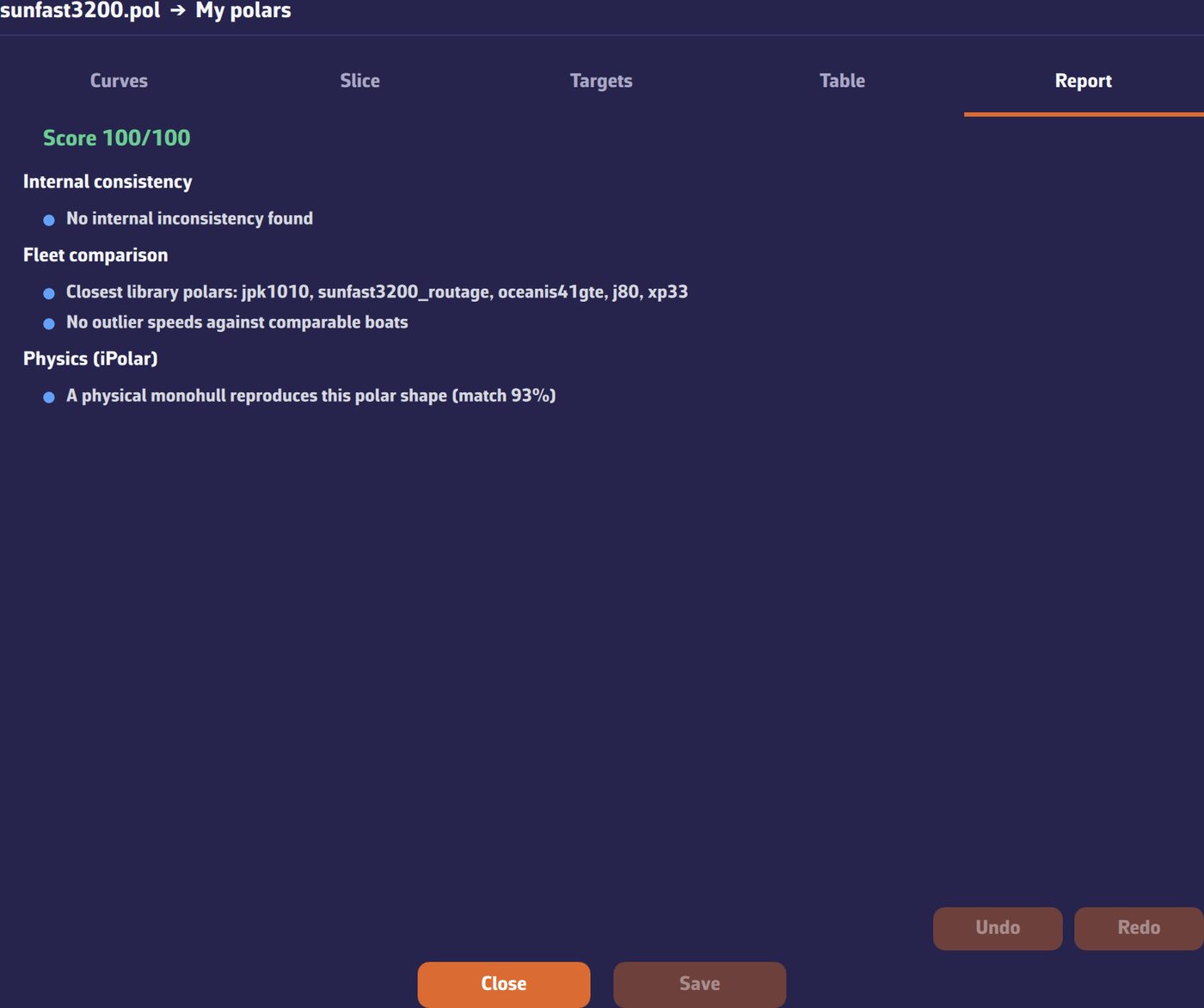 Report tab: score out of 100, internal consistency, fleet comparison, iPolar physics