Create, import and export a polar
BeginnerThe essentials
If your boat is not in the library, three paths lead to its polar, all from the “Polars” window (Settings, “My Boat”, “Polar” row):
- iPolar calculates a polar from the boat’s dimensions, in a minute;
- “My polars” imports the polar file you already have;
- ORC gets the polar from your boat’s ORC rating certificate.
To create a polar with iPolar:
- In the “Polars” window, open the “iPolar” tab and tap “Create Polar”.
- Enter a name (at least 3 characters), the length overall, the displacement, the mainsail area and the jib area.
- If you know them, add the waterline length and the symmetric and asymmetric spinnaker areas.
- Choose the “Navigation style” and the “Polar type”, then tap “Calculate Polar”.
- The new polar appears in the list, already selected: tap “OK”.
Going further
iPolar
| Field | Values |
|---|---|
| Polar name | At least 3 characters. The file takes the suffix _routing or _perf according to the type. |
| “Length overall (m)”, “Displacement (T)”, “Main sail area (m²)”, “Jib area (m²)” | Required. |
| “Length waterline (m)”, “Sym. spinnaker area (m²)”, “Asy. spinnaker area (m²)” | Optional. |
| “Navigation style” | “Cruising” or “Racing”. |
| “Polar type” | “Routing” or “Performance”. The “Routing” type gives speeds equal to 92% of the “Performance” type. |
For most cruising boats, “Cruising” and “Routing” give the most realistic polar.
iPolar also creates the polar’s Sailchart: a genoa that is furled as the wind rises and, if you entered their areas, the symmetric and asymmetric spinnakers. You can adapt it afterwards (see Sailchart).
Import a polar file
- In the “Polars” window, open the “My polars” tab and tap “Import Polar”.
- Choose the file (
.pol,.csvor.txt). On computer, the picker opens on the Downloads folder. - The polar appears in “My polars” under the file’s name, with the
.polextension, already selected. Tap “OK”.
The import is tolerant. It reads:
- angle × strength tables, whatever the separator (tab, semicolon, comma or spaces) and with decimals as a point or a comma: this is the format of most navigation software;
- Expedition’s pair format, one line per wind strength;
- CSV files exported by ORC tools, with their lines of optimal upwind and downwind angles.
The file is converted to NavimetriX’s internal format; the original is kept alongside. If the app had to correct something (an empty cell filled by interpolation, for example), the message “Polar imported with warnings:” details what it did, without blocking the import. It is no longer necessary to convert a .csv file to .pol before importing it.
Import the polar of an ORC certificate
A boat rated under ORC already has its polar: it is in its certificate. This function queries the orc.org site and therefore requires an Internet connection.
- In the “Polars” window, open the “ORC” tab.
- Type a sail number, a boat name or a class name in “Sail number or boat name”, then tap “Search”.
- Tap the certificate you want to import its polar into “My polars”.
A single boat can have several current certificates: the list shows each one’s family, “full crew”, “double-handed” or “non-spinnaker”. Take the one that matches your programme.
An ORC certificate covers winds from 4 to 24 knots. The “Extend above 24 kt (extrapolated from similar boats)” box, ticked by default, adds columns up to 60 knots: the app searches its library for the ten polars closest to yours over the common range, and takes up their behaviour in strong wind. These columns remain editable in the editor. The certificate’s identity is kept with the polar.
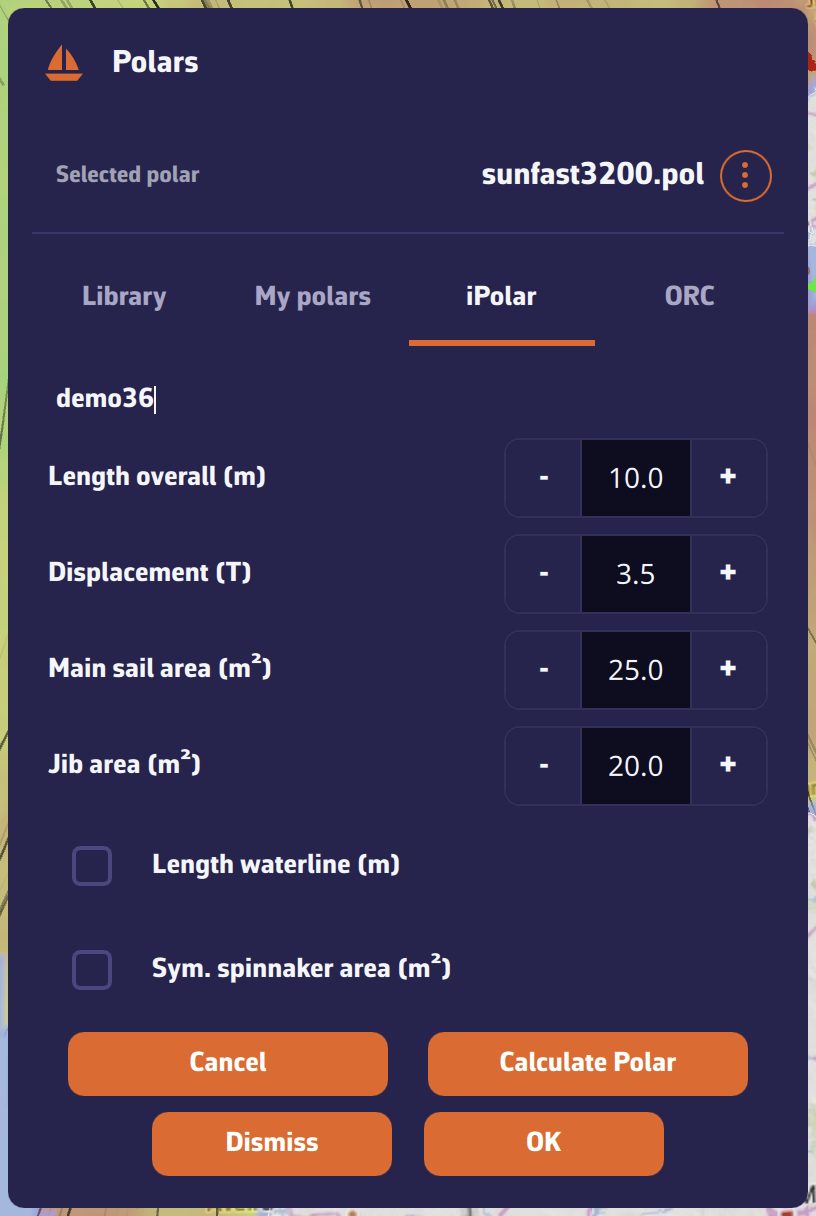 “Polars” window, iPolar tab: “Create Polar” form with the name, length overall, displacement and sail areas
Export a polar
Open the polar’s “⋮” menu, then choose a format under “Export” (“Share” on phone and tablet):
| Format | Content |
|---|---|
| “SailGrib, Adrena (.pol)” | The tab-separated table, read by most software. |
| “Expedition (.txt)” | Expedition’s pair format. |
| “qtVlm (.csv)” | Semicolon-separated table. |
| “Weather4D (.csv)” | Comma-separated table. |
On computer, the file is saved in your Downloads folder. On phone and tablet, the system share sheet opens. Exported in the “Expedition (.txt)” format, a polar from an ORC certificate regains its exact optimal upwind and downwind angles.
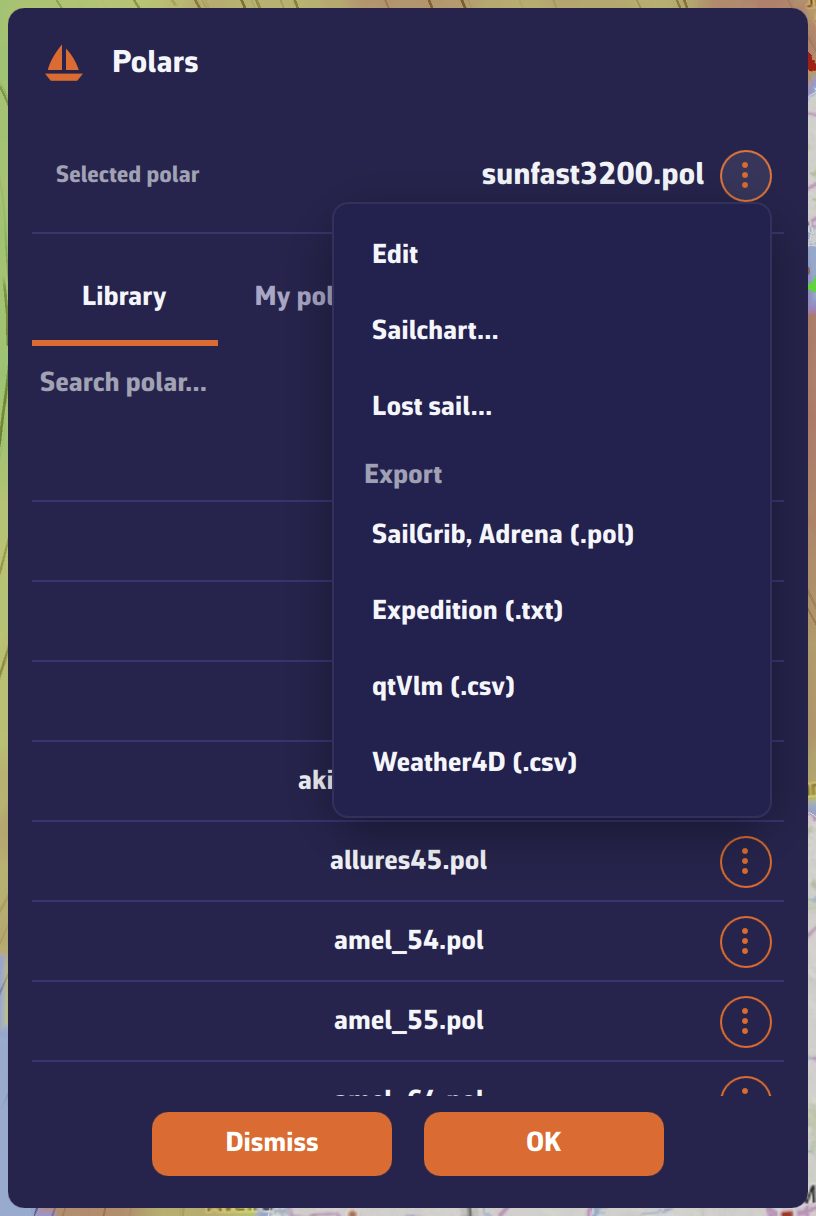 “Polars” window: “⋮” menu of the selected polar, with Edit, Sailchart…, Lost sail… and the export formats