Sync Between Devices
BeginnerThe essentials
Connect all your devices to the same NavimetriX account: a route created on the phone appears on the computer, a setting changed on the tablet follows on the other devices. Synchronization happens by itself, as soon as the device has Internet.
- Take the Premium subscription and create your account (see NavimetriX account).
- Connect each device to this account: Settings, person icon, “Log In” tab.
- Let the devices connect to the Internet (Wi-Fi, mobile network or satellite). Without a network, everything keeps being recorded on the device, and synchronization resumes when the connection returns.
Going further
What follows the account
- POIs (points of interest), routes, ZOIs (zones of interest) and routings.
- Most settings: units, time zone, colourblind-friendly colours, MOB button (man overboard), My Boat, Routing, Forecast display, Alarms.
- The GRIB list (weather forecast files). Each device downloads the content itself: a GRIB missing from the device carries the mention “Missing” and a download icon
 . Press it to fetch it.
 - The tracks of your passages and their logbook: they go up to the account as soon as the device has Internet, if the subscription is valid, then appear in the Tracks tab of the other devices. See the chapter Tracks, Replay and Logbook.
- The Geogarage account, used by all your devices. Chart zones downloaded for offline use, however, stay on the device that downloaded them.
What stays specific to each device
Some settings depend on the screen or on where the device is used. They do not leave the device:
- the Theme (light in the cockpit, night at the chart table);
- in Settings > “General”: the Language, the Starry sky, the Display scale, the Font (Windows), the Timeline scale size and Energy saving;
- the instrument configuration, adapted to each screen’s size;
- the chart background chosen in the Layers menu and the chart’s orientation;
- the settings of the GPS & NMEA page: connections to onboard instruments, GPS source, AIS source (the vessels received by the Automatic Identification System);
- the alarm voice (Settings > “Alarms”), which depends on the voices installed on each device: you cannot have the same voice on a Windows computer and on an iPad, for example;
- the C-MAP charts: each device registers on your C-MAP account and downloads its own zones.
The synchronization banner
When you sign in to a different account from the one the device was using, everything realigns: settings, track list, account tracks, sending of pending track chunks. A “Syncing your account…” banner shows each step:
- “Settings, routes and POIs” with the number of items received;
- “Tracks list”;
- “Fetching tracks: x of y…”, then “Tracks fetched: n”;
- “Sending n chunks…”.
Without a network, a line says “waiting”. The banner shows “Account synced” when everything is finished, then withdraws. A startup or a reconnection to the same account does not display it.
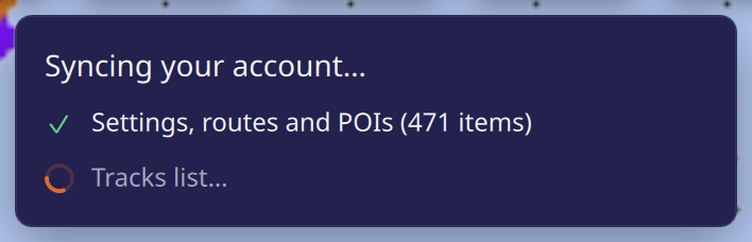 “Syncing your account…” banner just after signing in: settings, routes and POIs, track list, then track fetching in progress
Good to know
- The navigation log only goes up to the account if the subscription is valid. Without account credentials on the device, nothing is sent.
- After a password change on another device, synchronization stops until you sign in again (see “Session expired” in NavimetriX account).