Platforms and Installation
BeginnerThe essentials
NavimetriX runs on phones, tablets and computers: iPhone and iPad, Android, Mac, Windows and Linux PCs. There is also a version that opens in a web browser. The same NavimetriX account works on all these devices.
- Download the app from the site’s home page: App Store (iPhone, iPad and Mac), Google Play (Android), Windows installer or Linux AppImage (a single file that runs without installation).
- At first launch, the “Welcome to NavimetriX” window announces the download of the base data, about 400 MB. Press “Get Started”.
- Keep NavimetriX open during this download: switching to another app or letting the device go to sleep can interrupt it.
- At the end, press “Start Using NavimetriX”. The “View Quick Start Guide” button opens the Quick Start.
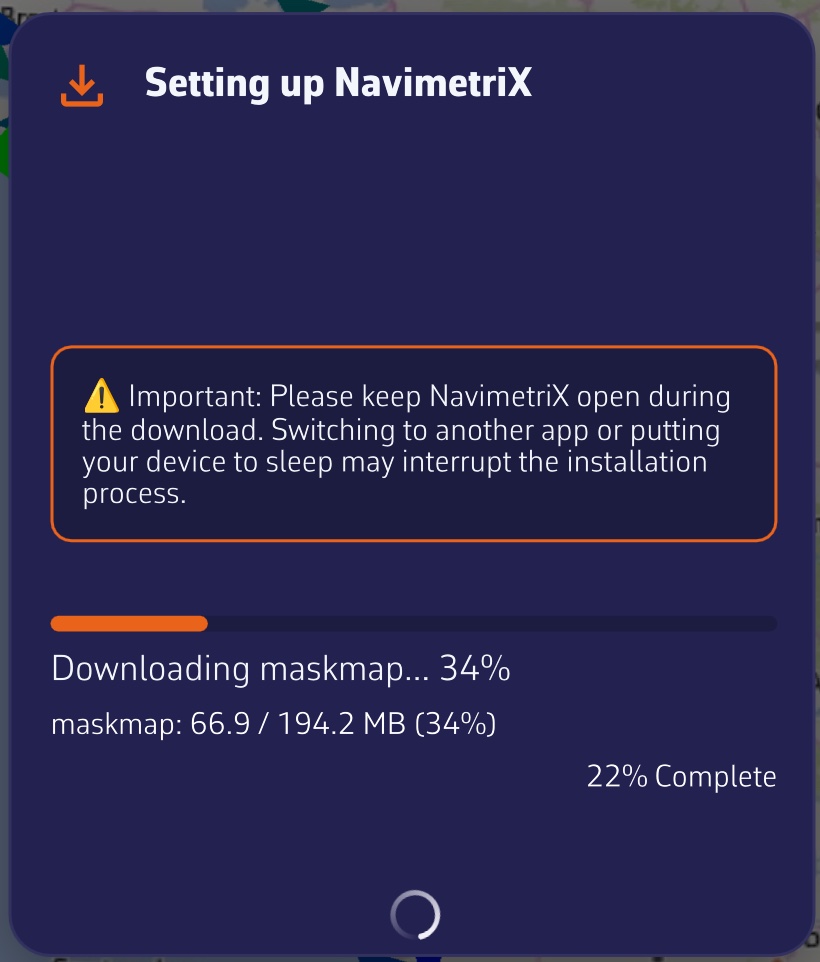 “Setting up NavimetriX” window during the base data download: progress bar and downloaded volume
Going further
Minimum versions
| Platform | Minimum version | Notes |
|---|---|---|
| macOS | 13 (Ventura) | Intel Macs and Apple silicon Macs |
| Windows | Windows 10 version 1809 (build 17763) | Windows 11 included |
| Linux | AppImage | two versions: x86_64 (PC) and aarch64 (64-bit ARM) |
| Android | 9 (API 28) | 64-bit ARM processor devices only |
| iOS and iPadOS | 16 | iPhone and iPad |
These versions are a minimum. They do not guarantee that the app runs well on an old device: memory and graphics processor also matter.
First launch
- The app’s language follows the system’s if it is French, English, German or Spanish; otherwise, the app starts in English. It can then be changed in the General settings.
- The base data (about 400 MB) requires an Internet connection. The window shows the file in progress and the total downloaded.
- In case of an error, the “Installation Error” window shows the reason and offers “Retry” or “Abort”.
Updates
- At launch, NavimetriX compares its version with the latest published for your platform. If a more recent one exists, it displays “A new version is available. Would you like to update your version?” Accepting opens the site’s download page.
- After an update, the “What’s new” window lists what changes in the installed version. It is not displayed at the very first launch. The full history is in Settings > “About” > “Version history”.
Windows
- On the site’s home page, the “Get it from Microsoft” badge directly downloads the
NavimetrixSetup_<version>.exeinstaller from navimetrix.com. There is no need to go through the Microsoft Store app. - To update, download the new installer and run it.
- The installer is signed. If Windows SmartScreen or an antivirus still blocks the installation, or if Windows 11 displays error 4551 (Smart App Control), follow the FAQ pages listed below.
- The installer opens in the Windows firewall the ports used to receive NMEA data over the network (NMEA: the format of onboard instrument data). Uninstalling removes these rules.
Uninstall completely
- Windows: uninstall NavimetriX from Settings > Apps > Installed apps. The uninstaller also deletes the data folder
%LOCALAPPDATA%\Soft4Sail\NavimetriX, the C-MAP data, the app’s registry key and its firewall rules. - macOS: the app stores its data in its container,
~/Library/Containers/navimetrix.soft4sail.com(the Finder shows it under the name “NavimetriX”). Moving the app to the trash does not delete this folder: delete it too for a complete uninstall. - What is synchronized with your NavimetriX account is not lost: you get it back by signing in again. See Sync between devices.