NavimetriX Account
BeginnerThe essentials
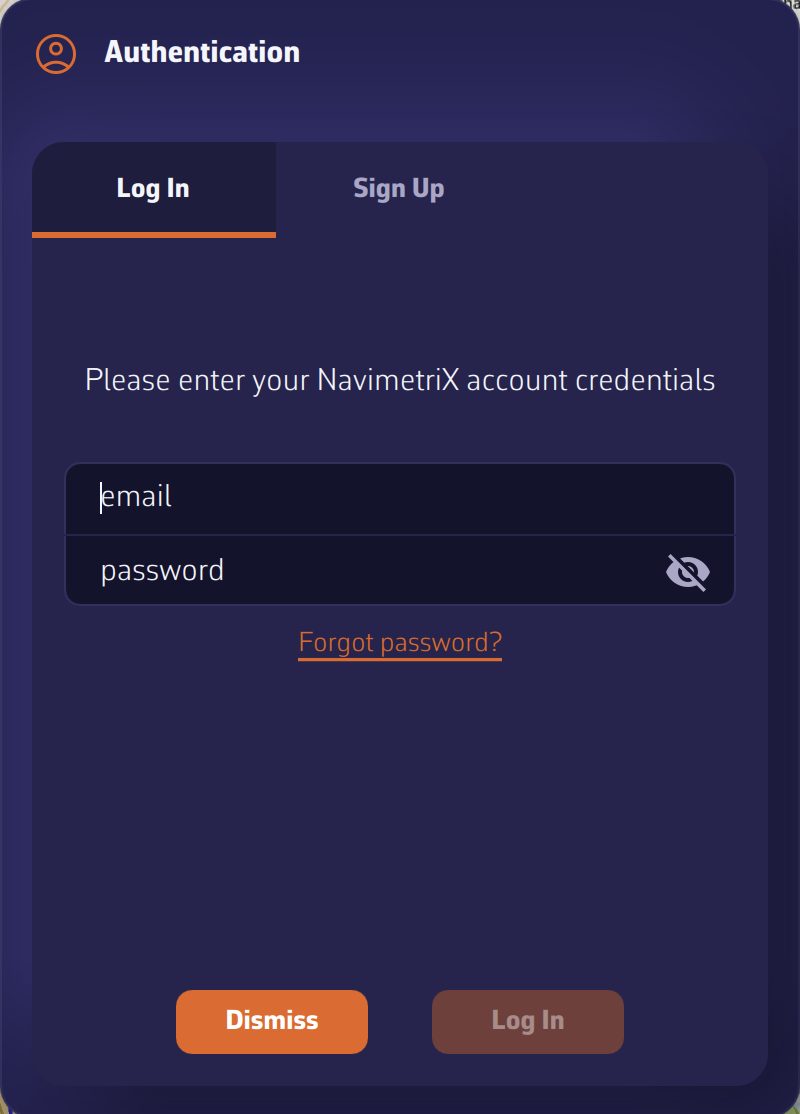 The “Authentication” window, “Log In” tab, with the “Forgot password?” link
The NavimetriX account links your devices: it carries your Premium subscription and synchronizes your settings, routes, POIs (points of interest), routings and tracks. Creating it is reserved for Premium subscribers and is done on the device that took the subscription. Signing in, however, works on all devices.
- Open the Settings with the chevron handle on the right edge of the screen.
- Press the person icon
 , to the right of the “Settings” title. The “Authentication” window opens.
 - To create the account: “Sign Up” tab, enter your email address and a password twice, press “Request Code”, enter the code received by email, then press “Sign Up”.
- To sign in: “Log In” tab, enter the account’s email address and password, then press “Log In”.
Going further
Create the account
- On a device without a valid subscription, the “Sign Up” tab shows “Premium Required” and “Account creation is available for Premium subscribers only.” The “Upgrade to Premium” button opens the subscription window. See Premium subscription.
- “Request Code” only becomes active once the address is valid and the two passwords are identical. The code arrives by email; if you do not see it, check your junk mail (spam). Enter it in the “# code” field.
- Once the account is created, sign in in the “Log In” tab. Creating the account does not open the session by itself.
Sign in
- If the address or password do not match any account, the app says so and offers to create an account or try again.
- The message “Unable to reach the server” signals a network problem: check the Internet connection or firewall, or try from another network (a phone hotspot, for example).
- Once signed in, the person icon opens a small menu: “Logout” and “Delete Account”. On a computer, its tooltip reads “My account” or “Logout”.
Forgot password
- In the “Log In” tab, press “Forgot password?”, under the password field. The “Reset password” tab opens.
- Enter your email address and press “Request Reset”. The message “If an account exists for this email, you will receive instructions to reset your password.” is displayed, whether or not the address exists.
- Enter the code received by email in “reset code”, then the new password twice, and press “Reset”.
Resetting does not require a subscription: it works from any device.
Session expired
If the account’s password has been changed on another device, the server rejects the one the device had kept. At launch, the app then displays “Your session has expired: the password of your account was probably changed on another device. Sign in again to resume syncing your tracks, routes and settings.” Press “Sign in” and enter the new password. What you have created on the device in the meantime is kept. “Not now” asks again at the next launch.
Sign out, switch account
- “Logout” shows the account’s address and asks for confirmation.
- Signing back in to the same account keeps what you created on the device. Signing in to another account loads that account’s data instead: a “Syncing your account…” banner shows the progress. The previous account’s tracks leave the device, but stay on their account. See Sync between devices.
- In the browser version, an account is mandatory: signing out immediately reopens the sign-in window.
Delete the account
“Delete Account” requires an Internet connection. The app asks for confirmation (“Are you sure you want to delete your account? This action cannot be undone.”) and has you type the phrase “delete my account” before erasing the account. A subscription taken in a store does not stop for all that: cancel it in the App Store or Google Play (see Premium subscription).