Contact support
BeginnerThe essentials
Before writing, search the FAQ: the answer is often there. The ? button, to the left of the “Settings” title at the top of the settings drawer, opens it in your browser.
To write to support, preferably go through the app: the app log (the file where NavimetriX notes what it does, its warnings and its errors) goes with your message and shows us what happened.
- Open Settings (the ‹ handle on the right edge of the screen), then Contact us.
- On computer, choose the Method: “Mail” (your email software) or “Gmail” (Gmail opens in the browser).
- Tap Send a mail to support.
- In the “Contact support” window, describe the problem: what you were doing, and what you expected. Tap Send.
- The log goes to our servers, then a reference number is displayed: “We have received your log. Reference: …”. It is copied to the clipboard and included in the message that opens next. Complete that message if needed, then send it.
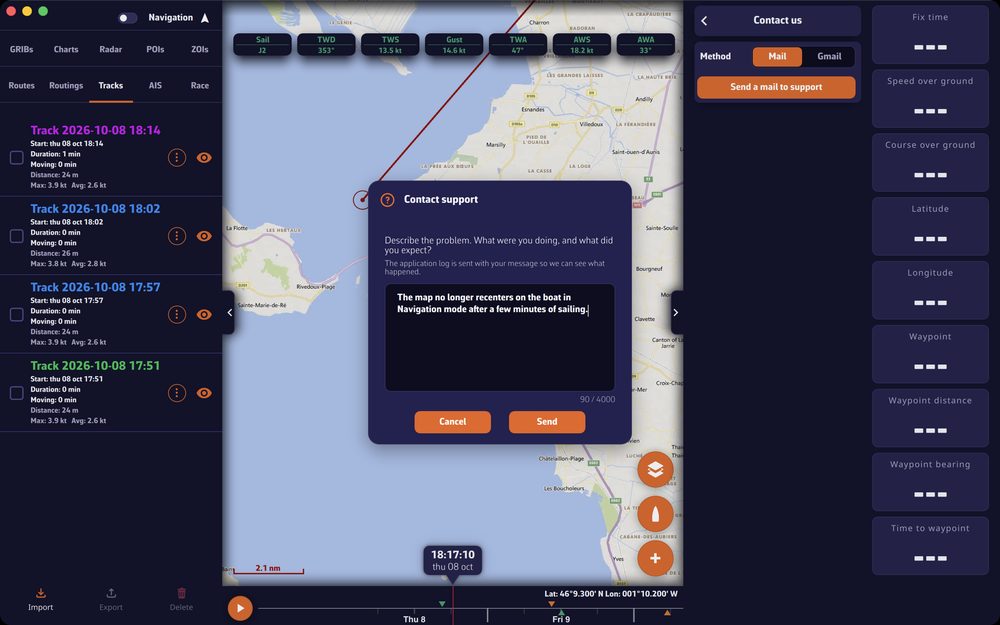 “Contact support” window: two-line description, character counter and “Cancel” and “Send” buttons
Going further
The message to support
- The description is required: Send stays greyed out as long as it is empty. It accepts up to 4,000 characters, a counter shows this.
- Preferably write right after the incident: the app updates the log on disk just before sending, so the incident is in it. The log is rotated when it reaches a certain size; if it has just been, the previous file goes too.
- Add screenshots to the email if they help to understand. They read better than photos of the screen.
- Without an Internet connection, or if sending the log fails (“The log could not be sent. It will be attached to your email instead.”), the message opens without a reference number. On phone, on tablet and with “Mail” on Mac, the log is attached automatically. On Windows and Linux, or with “Gmail”, it is copied as navimetrix.log to the Desktop (to the Downloads folder on Mac): attach it yourself, the message explains this.
If the log is not attached and you want to add it yourself, it is located here:
- Windows:
C:\Users\[your user name]\AppData\Local\Soft4Sail\NavimetriX\logs\navimetrix.log - macOS:
~/Library/Containers/navimetrix.soft4sail.com/Data/Library/Application Support/Soft4Sail/NavimetriX/logs/navimetrix.log(the Library opens in the Finder with Go > Go to Folder…) - Linux:
~/.local/share/Soft4Sail/NavimetriX/logs/navimetrix.log
Outside the app, use the site’s contact form.
The other help in the settings drawer
- Quick Start: the getting-started guides. See Getting started and interface.
- About: the app’s name and version number at the top of the page, then:
- “Version history”: the news of each version;
- “Visit our website”;
- “Join our Facebook group”: the NavimetriX users’ group, where others may already have met your question;
- “Privacy policy”;
- “Rate NavimetriX”: opens the app’s page in the App Store or Google Play Store, on macOS, iOS and Android only.
Anonymous usage statistics
In About, the “Share anonymous usage statistics” switch is on by default. These figures tell us which features are used, and therefore which deserve to be kept and improved. They contain no position, boat name or address.
Turn the switch off to refuse: the app erases what it had queued on the device and asks the server to erase what it already holds for this device. If the request does not succeed, for lack of network for example, it is repeated at the next launch.