Working Folders
BeginnerThe essentials
A working folder groups everything that belongs to one project, a cruise, a regatta, a sailing area: its GRIBs, POIs (points of interest), ZOIs (zones of interest), routes, routings and tracks. Only one folder is active at a time. The six tabs of the left drawer and the chart show nothing else.
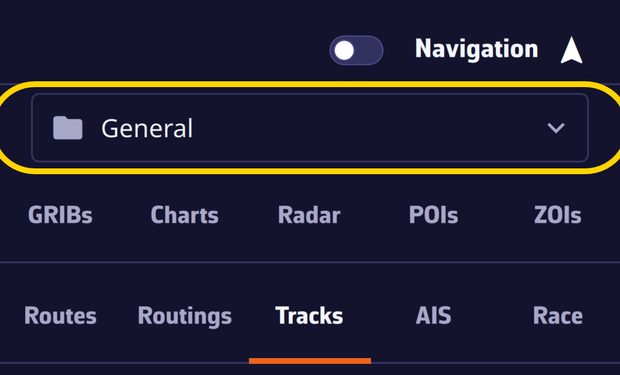 The working folder bar, above the tabs
- Tap the working folder bar, above the tabs of the left drawer. It shows the name of the current folder.
- In the “Working folder” window, tap a folder to work in it, or “New folder…” to create one and open it straight away.
- The lists and the chart switch together to the chosen folder.
The “General” folder is the default one: it holds everything you have not filed elsewhere. It cannot be renamed or deleted.
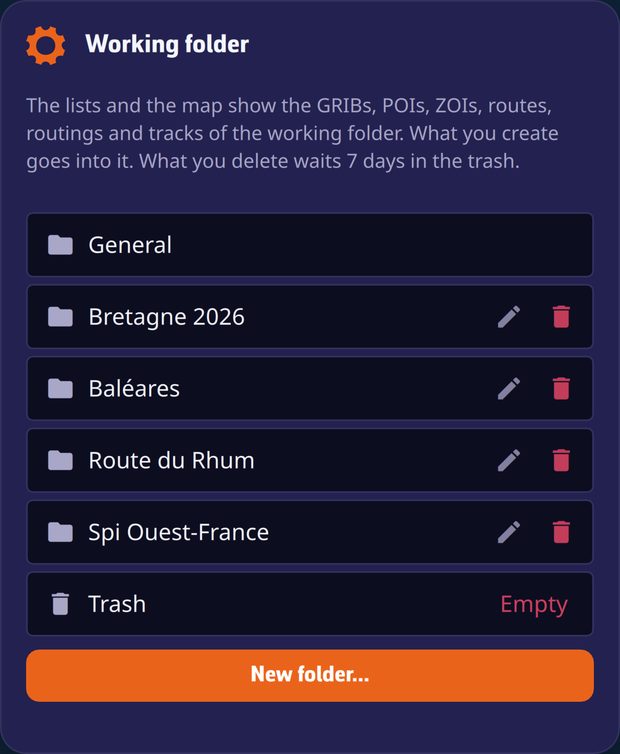 The “Working folder” window
Going further
What the current folder changes
- Everything you create or import (POI, route, ZOI, GRIB, routing, recorded track) goes into the current folder.
- The chart only draws the items of the current folder. The route you are following stays displayed, whatever the folder.
- A routing only takes the ZOIs of the current folder into account: an avoidance zone filed in another folder no longer constrains the calculation.
- Only the GRIBs of the current folder are updated, by the “Refresh” button as well as by the “Auto download” option. When you enter a folder, the app checks whether a newer run is available for its GRIBs.
- The track being recorded stays in the list, whatever the folder. It is filed in the folder that is current when the recording starts.
Move or duplicate to another folder
- One item: ⋮ button of its row, then “Folder…”. Pick the destination folder, or “New folder…”.
- Several items: tick the boxes on the left of the rows, then tap “Folder” in the bottom bar.
- POIs, routes and ZOIs can be moved or duplicated: the window offers “Move” and “Duplicate”. A copy is handy for an anchorage or an avoidance zone used by several projects.
- GRIBs, routings and tracks can only be moved.
- A routing that belongs to a comparison takes the other routings of the series with it.
The moved item leaves the list and the chart: it is in the other folder.
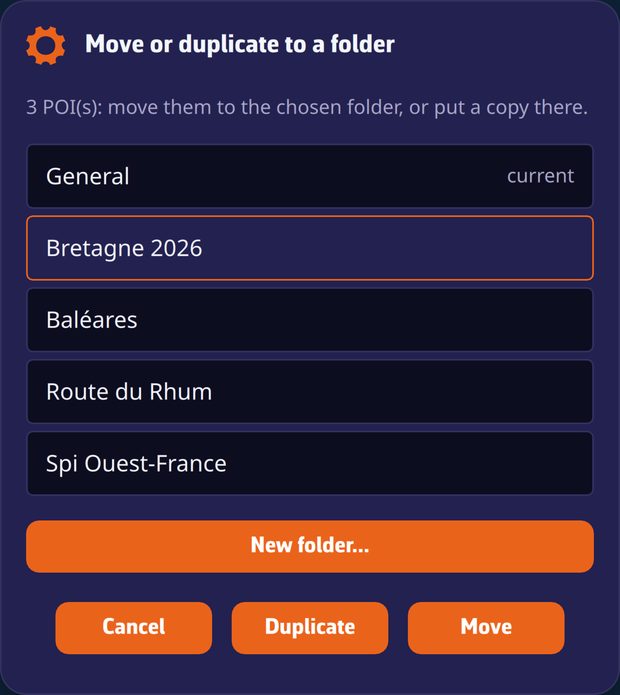 The “Move or duplicate to a folder” window: a folder chosen, “Duplicate” and “Move” buttons
Rename or delete a folder
In the “Working folder” window, each folder carries two buttons: the pencil renames it, the bin deletes it. Deleting a folder sends all its contents to the “Trash”, where they are kept 7 days, and the app says so before confirming. If you delete the current folder, the app returns to the “General” folder.
The trash
What you delete in a list or on the chart (GRIB, POI, ZOI, route, routing, track) is not erased right away: it goes to the “Trash”, with no confirmation question.
- The “Trash” is the last row of the “Working folder” window. Tap it to open it like a folder: the lists and the chart then show what it holds.
- To get an item back: ⋮ button of its row, then “Folder…”, and choose a folder. For several items, tick them then tap “Folder” in the bottom bar.
- In the trash, “Delete” erases for good, after confirmation.
- What has been waiting in the trash for 7 days is deleted for good.
- The “Empty” button, on the “Trash” row, deletes everything it holds at once, after confirmation. The question reminds you of the number of items and that a track is then removed from your account and from all your devices.
- A GRIB you download again while it is waiting in the trash comes out of it: it returns to the current folder.
The track being recorded does not go to the trash. The trash and the date an item was put in it follow your account: the 7-day delay is the same on all your devices.
On your other devices
The folders and their contents follow your account: a folder created on the computer is on the tablet. The current folder, however, belongs to each device: you can prepare the next cruise on the computer while the tablet on board stays on today’s sail.
The former track archive folders have become working folders: you will find them in the list, with the tracks you had filed in them.