C-MAP: object information
ExpertThe essentials
On a C-MAP chart, each object (buoy, light, sounding, wreck, restricted area…) carries an information sheet: its characteristics, as the chart describes them. The “Inspection” window displays them in one gesture.
- Choose “C-MAP” in the “Maps” section of the layers menu.
- Long-press the object, or double-click with the mouse.
- The “Inspection” window lists on the left the objects found at that spot. Tap one to read its characteristics on the right.
- Close the window with the cross at the top right.
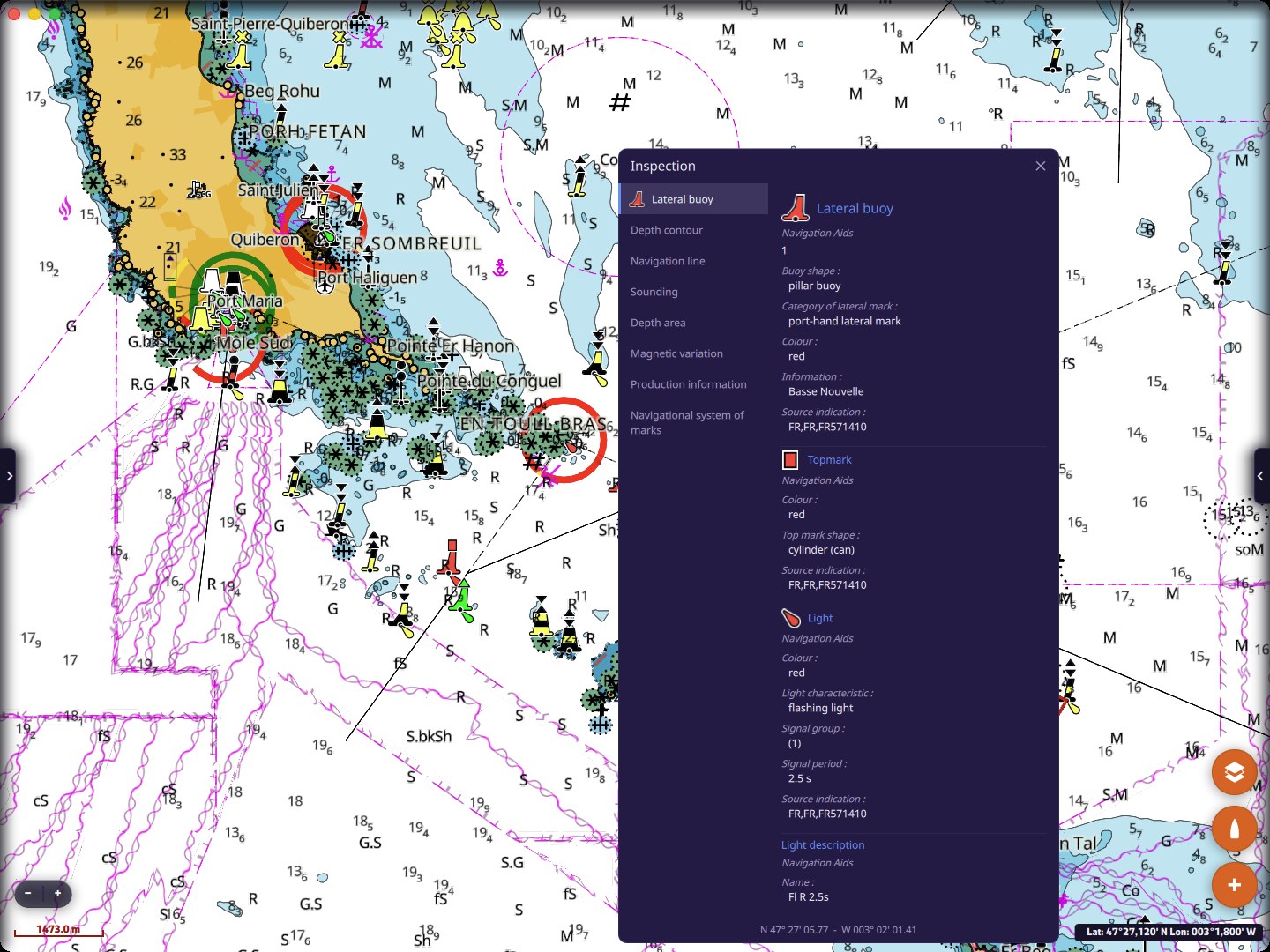 Inspection window: lateral buoy, topmark and light, with their characteristics
Going further
The “Inspection” window
- Where to tap: the search covers the objects near the touched point; the tolerance follows the scale, tight when you are zoomed in on a harbor, wider in an overview. Zoom in if the window shows “No features found”.
- Other objects take priority: if the long press lands on an AIS target, a POI or a route, that object is selected, and the “Inspection” window does not open.
- Content: one tab per object found (lateral buoy, depth contour, sounding, depth area, magnetic variation…), and for the chosen object, its attributes: shape, color, mark category, light characteristics, period, data source… Some objects carry photos: tap one to enlarge it full screen.
- Position: the bottom of the window gives the position of the touched point, in degrees, minutes and seconds.
- Placement: on a phone, the window opens at the center of the screen; on a tablet or a computer, next to the touched point.
The sheet can only be read on the “C-MAP” base map. On other base maps, the long press keeps its usual functions.