In the GRIBs tab of the left panel (chevron handle (›) on the left edge of the screen), each file has a round button on its right. This button shows the update status of your GRIB file and can display three different states:
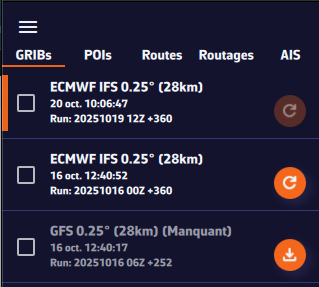
1. Dark orange “Refresh” icon: file up to date

The icon appears in dark orange right after a GRIB file has been downloaded. This means your file is up to date: you already have the latest available version of the weather model.
This is what you will see immediately after downloading a GRIB file.
2. Light orange “Refresh” icon: new run available

The icon turns light orange. This means a new model run (a new forecast) is available. To update your GRIB file, simply click or tap this icon: the file will automatically be replaced with the latest version.
3. Light orange icon with a download symbol: file missing on this device

Finally, the icon may appear in light orange with a small download symbol, and the row reads Missing. This means you have already downloaded this GRIB file on another device, but it is not yet available locally on the one you are using. To retrieve it, simply click or tap the icon: the file will be downloaded automatically.
Update everything at once
The Refresh button in the bar at the bottom of the list updates every GRIB that has a new run in one go, and fetches the missing files. It stays greyed out while there is nothing to refresh.
Let NavimetriX update for you
At the top of the list, turn on the Auto download switch. As soon as a new run is available for one of your GRIBs, NavimetriX refreshes them without waiting for you, including when the app comes back to the foreground.
The other buttons on the row
- The ⋮ button opens the file menu: Rename, Export (Share on phones and tablets) and Delete.
- For the displayed GRIB, when the chart centre is inside its area, a table-shaped button opens the Meteogram: this GRIB’s forecast at the chart centre, time step by time step.
See also: Where can I see weather models status?