Wave settings
Open Settings by tapping the chevron handle (‹) on the right edge of the screen, then select Forecast display.
- Wave display
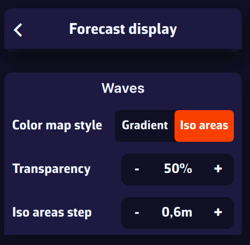
In the Waves section, select the Iso areas colour style, which represents wave height as bands of equal height, using rainbow colours from blue (calm sea) to magenta-red (rough to very rough sea), passing through various shades of green, yellow, orange and red. Particularly well suited for wave data. The Gradient style shows the same colours as a continuous blend.
Transparency lets you adjust the colour mask depending on the background (satellite planisphere or nautical chart).
Iso areas step lets you adjust the spacing of the bands (e.g. in 0.60 m increments).
Displaying waves
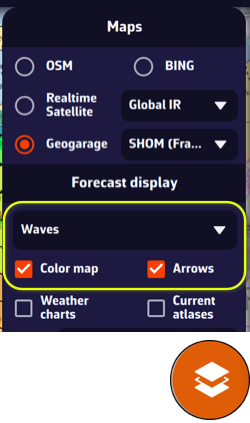
On the chart, the round orange layers button at the bottom right of the screen lets you choose what to display.
In the Forecast display section, the drop-down menu lets you select a data layer to display. If you have loaded a wave GRIB file on screen (for example an MFWAM model), the Waves data will be selected by default. You can then tick or untick the Color map (wave height) and the Arrows (wave direction). With waves, the box is called Arrows: barbs and particles are for the wind only.
This section automatically adapts to the type of GRIB file currently displayed: weather, waves, or currents.
What the chart shows
- The colour map shows the significant height of the total sea, that is the wind sea and the swell combined.
- The arrows start at the grid point and point the way the waves travel. Their length grows with the height. No arrow is drawn over land.
- If the file also contains the wind sea and the swell separately (as GFS Wave, MFWAM Global and France, Copernicus Global and Mediterranean and DMI WAM do in the catalogue), each point carries two arrows: the wind sea in black (white over the satellite background) and the swell in red. Where they are missing, a grey arrow shows the total sea.
The value labels
The value labels give, at the target, the height, the direction the waves come from and the period. When the file contains the wind sea and the swell, the Waves label becomes Total sea, and two labels, Wind sea and Swell, appear next to it with their own height, direction and period.