Tracks are managed in two places:
- the Tracks tab of the left panel, to show and manage your tracks (your trips);
- Settings > My Boat > Track, to adjust the look of the track being recorded.
Track recording
Recording starts when you turn on Navigation mode (“Navigation” switch at the top of the left panel, reserved for the Premium subscription) and stops when you turn it off: the trip is then closed and filed in the list.
If you turn Navigation mode back on less than 30 minutes later, the previous track continues. If it ended more than 30 minutes and less than 3 days ago, the app asks whether to continue it or start a new one (“Continue” or “New track”). Beyond that, a new track starts. A trip left 48 hours without any movement is closed automatically.
The Tracks tab
Open the left panel with the chevron handle on the left edge of the screen, then choose the Tracks tab.
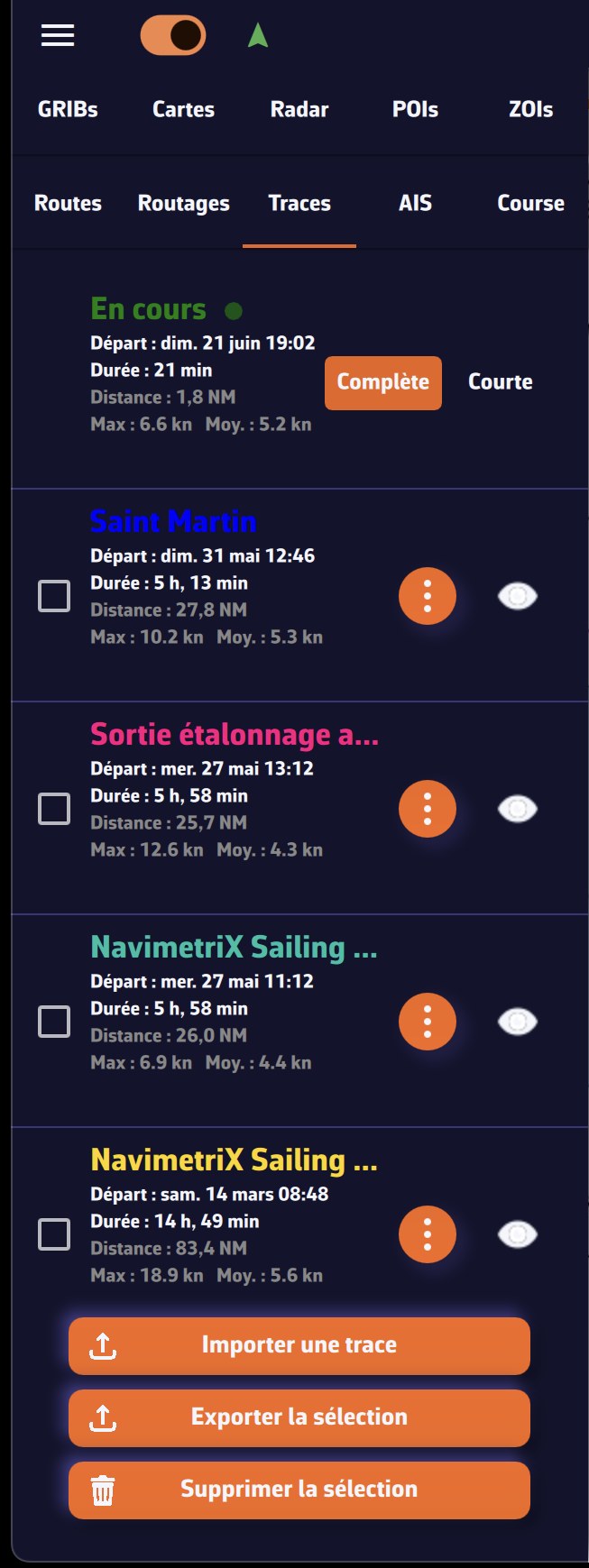
The track being recorded appears at the top, titled “Ongoing · this device”, with a pulsing red dot.
Each track shows its name, start date, duration, distance and its maximum and average speeds. For each track you have:
- the eye icon: show or hide the track on the chart (the chart zooms to the track when you show it); on the “Ongoing” row, the eye shows or hides the track being recorded;
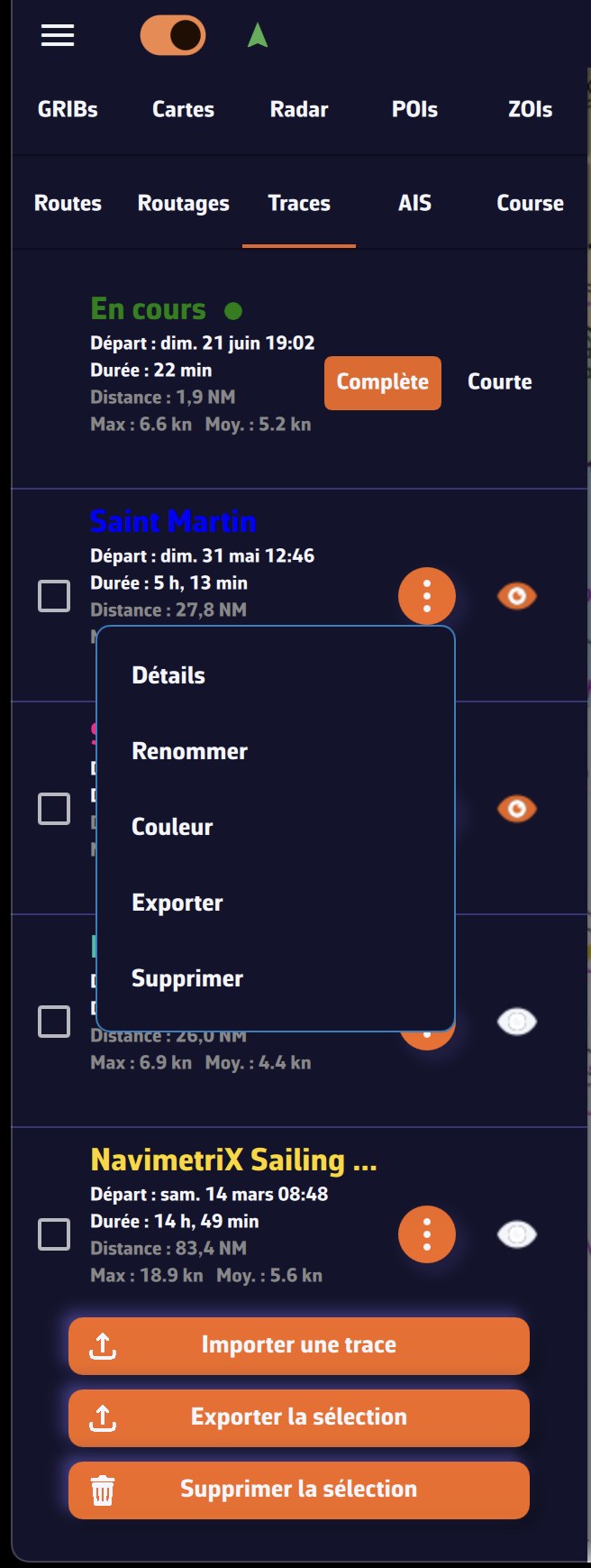
- the ⋮ menu (three dots): Replay, Details, Logbook, Rename, Display, Share replay link (or Share live link for the ongoing track), Export (Share on a smartphone or tablet), Archive and Delete. For the ongoing track, Replay, Rename, Export, Archive and Delete are greyed out while recording goes on.
See also: How to replay a track, How to keep the logbook of a track, How to share a track by link and How to archive and organise my tracks.
Display of a track
The Display item of the ⋮ menu opens the “Track display” window. Changes apply immediately:
- Day numbers and Logbook events: show or hide these markers along the track;
- Follow boat during replay and Playback speed: how the track behaves during its Replay;
- Live track extent (ongoing track only): Full for the whole trip, Short for the last 20 minutes;
- Track color and line Thickness, for this track only.
Buttons at the bottom of the panel
At the bottom of the panel, three buttons act on one or more tracks (tick the boxes on the left to select them):
- Import: import a GPX file, a NavimetriX track (.nx), NMEA logs (.txt, .nmea, .log, .gz) or an Adrena track (.trz);
- Export (Share on a smartphone or tablet): export the ticked tracks, in NavimetriX format (.nx), which keeps the logbook, the Replay and the display settings, or in GPX format, which carries the points only;
- Delete: delete the ticked tracks, from your account and all your devices.
Adjust the look of the ongoing track
Open the Settings with the handle on the right edge of the screen, select My Boat, then the Track section.
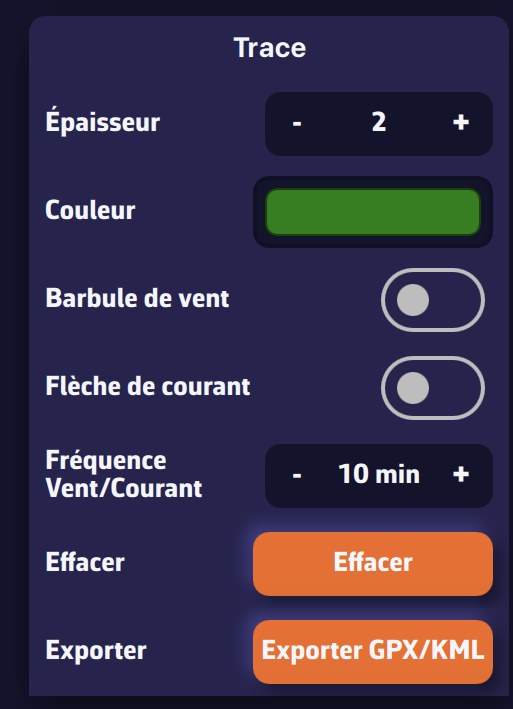
You can:
- set the line width (1 to 5);
- set the color of the track being recorded;
- show or hide wind barbs on the track;
- show or hide current arrows on the track;
- set the wind/current display frequency (in minutes);
- clear the ongoing track: after confirmation, it is deleted, from your account too. This cannot be undone.
The width set here also applies to recorded tracks for which you have not chosen a thickness in the “Track display” window.