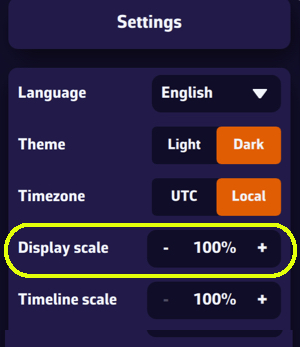
This setting allows you to enlarge or reduce the size of all elements displayed on the map, from 60% to 200% (100% by default). Very useful on board if you want to use the app without wearing your glasses.
Note that the menu font size remains unchanged.
To find it, open Settings by tapping the chevron handle (‹) on the right edge of the screen, select General, then set Display scale in the Appearance section. This setting is specific to each device: you can choose a different value on your phone and on your tablet.
On Windows, to also enlarge text and menus, see How to increase the size of text displayed in Windows?