Open Settings by tapping the chevron handle (‹) on the right edge of the screen. The first section groups the basic settings:
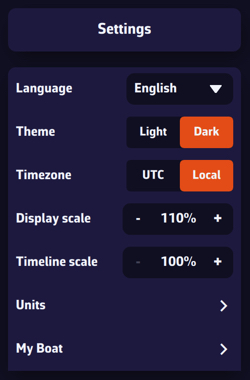
- Theme: Light, Dark (default) or Night. The Night theme shows the interface in red and amber on a black background, to preserve your night vision. The theme is specific to each device: you can stay in Light in the cockpit and switch to Dark at the chart table.
- General: the app preferences, described below.
- My Boat: all the settings about your boat: name, type, MMSI, identity, dimensions, polar, COG vector, heading line, track, etc.
The General page
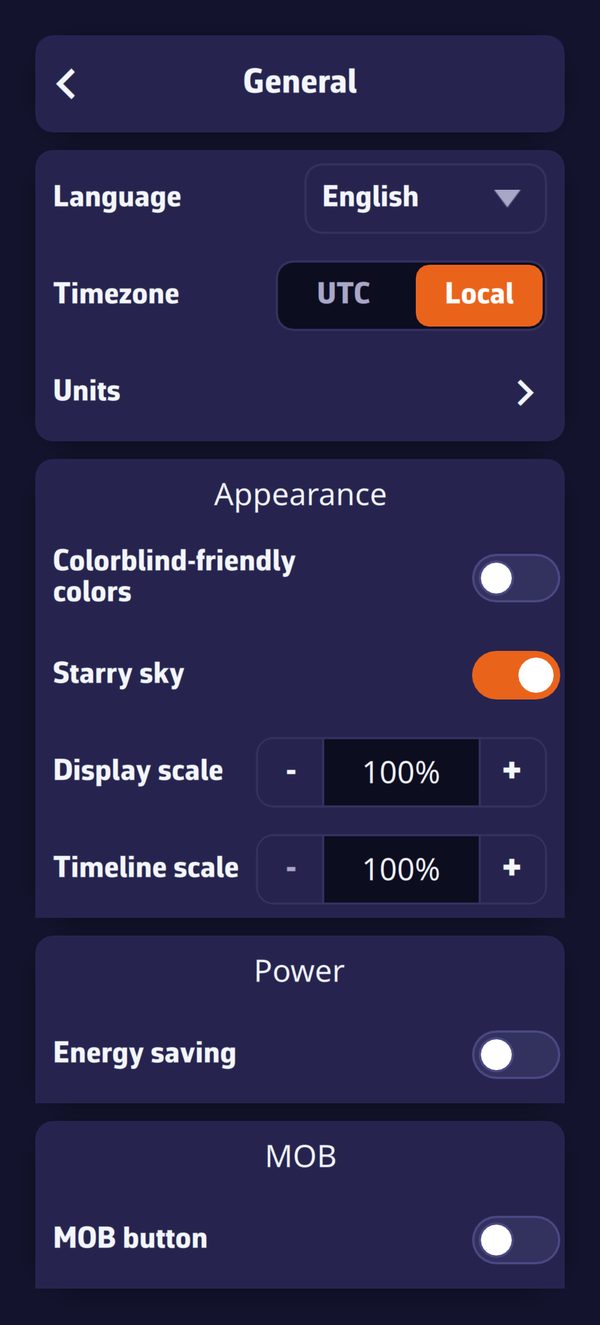
- Language: English, French, German or Spanish.
- Timezone: UTC (Coordinated Universal Time) or Local (your device's time).
- Units: speed, angle, bearings, temperature, rain, waves, pressure, depth, distance and short distance, to suit your habits.
Appearance section:
- Colorblind-friendly colors: colors that carry a meaning (port and starboard, alerts, AIS danger, wind scale…) switch to a palette that colorblind users can read. This setting follows your account on all your devices.
- Starry sky: shows the stars, sun, moon and planets around the globe when you zoom out. It is purely decorative.
- Display scale: enlarges or reduces all the items on the map, from 60% to 200%. See What is the display scale setting?
- Font (Windows only): size of the whole interface, from 75% to 250%. See How to increase the size of text displayed in Windows?
- Timeline scale: stretches the time bar, from 100% to 500% in steps of 100%. The higher the value, the more room each hour takes and the finer you can pick a time with a tap: in one-hour steps at 100%, down to 5 minutes at 500%.
Power section: Energy saving lowers the update rate of the instruments, the device GPS and the alarms, and stops the wind and current particle animation, to save battery.
MOB section: MOB button shows a Man Overboard button at the bottom left of the map, in Navigation mode.