The app imports polars in .pol, .csv and .txt format, whatever the separator (see Which polar formats can I import and export?).
To import your own polar:
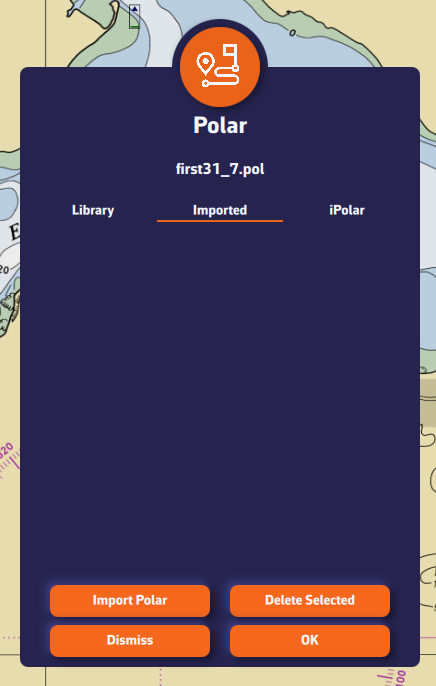
- Open the settings drawer (handle on the right edge of the screen), go to "My Boat" and press the Polar row. The "Polars" dialog opens.
- Select the "My polars" tab.
- Press the "Import Polar" button.
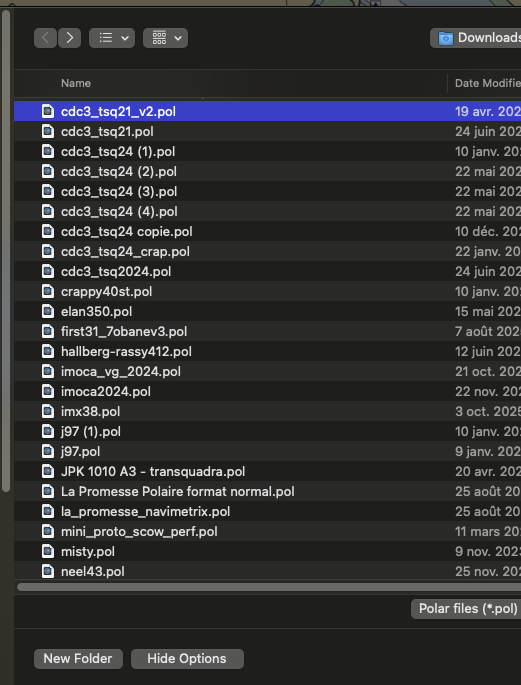
- Choose your polar file (.pol, .csv or .txt) saved on your computer, tablet or phone. On a computer, the file picker opens on the Downloads folder.
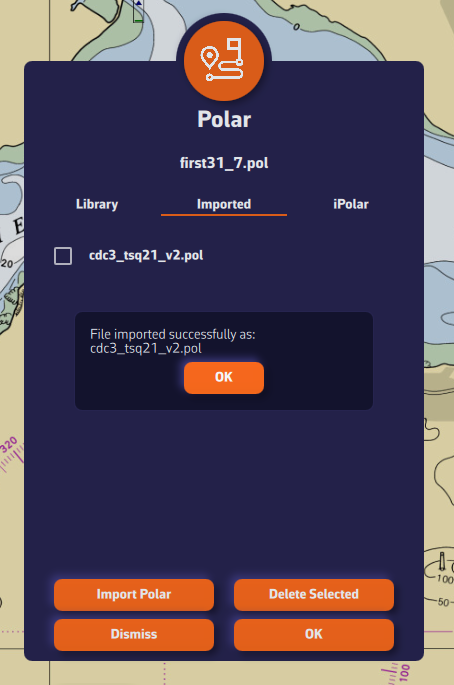
- The imported polar appears in "My polars" under the name of your file, with the .pol extension, and it is already selected. If the app had to correct something in the file, a "Polar imported with warnings" message details what it did.
- Press OK to confirm the polar.
Advantage: if you are logged into your NavimetriX account, the selected polar is synchronised across all your devices!