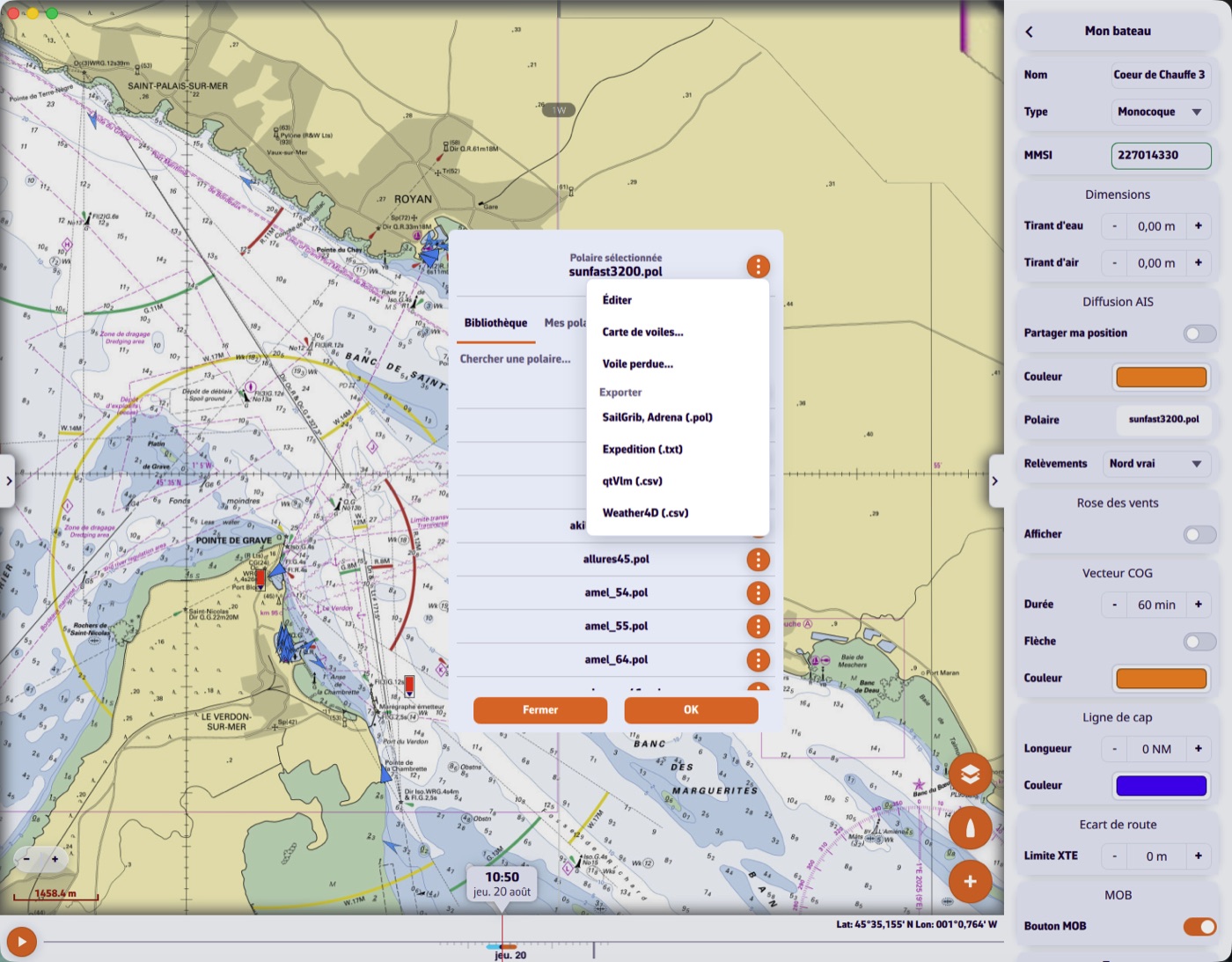
A Sailchart belongs to a polar, so you open it from the polar:
- My boat tab, then tap the selected polar.
- On the polar's row, open the menu (three dots).
- Choose Sailchart…
Starting from something
If the polar has no Sailchart yet, the app offers two starting points:
- A usual sail set: Main + furling genoa (cruising), White sails (main + genoa), Main + genoa + asymmetric spinnaker, Main + genoa + symmetric spinnaker, or Racing (Sun Fast 3200 style). These are complete, plausible Sailcharts that you then correct.
- Another polar's Sailchart, if you have already painted one — handy when you keep several configurations of the same boat.
You can also import the Sailchart your sailmaker gave you.
Painting
The editor works like a paint pot:
- pick a sail from the palette at the top: it becomes the brush;
- tap a cell to paint it;
- tap a row or column header to fill the whole band at once;
- Erase is a mode: while it is on, tapping a cell empties it;
- Alternate adds a second sail to the cell instead of replacing the first: this is how you declare a transition band.
A long press on a sail chip opens its settings: code, full name and colour. The + adds a sail to the inventory.
Adjusting the grid
The + row / − row and + column / − column buttons add or remove angle and speed bands. A band can sit at any value: if your genoa gives way to the solent at 17.5 knots, put the band at 17.5.
The two views
The Grid tab shows the table. The Polar tab shows the same Sailchart in polar coordinates, both tacks mirrored — the way sailmakers draw it, where the shape of each region reads at once. Single sail fills only the chosen sail and leaves the others as outlines, which makes overlaps legible.
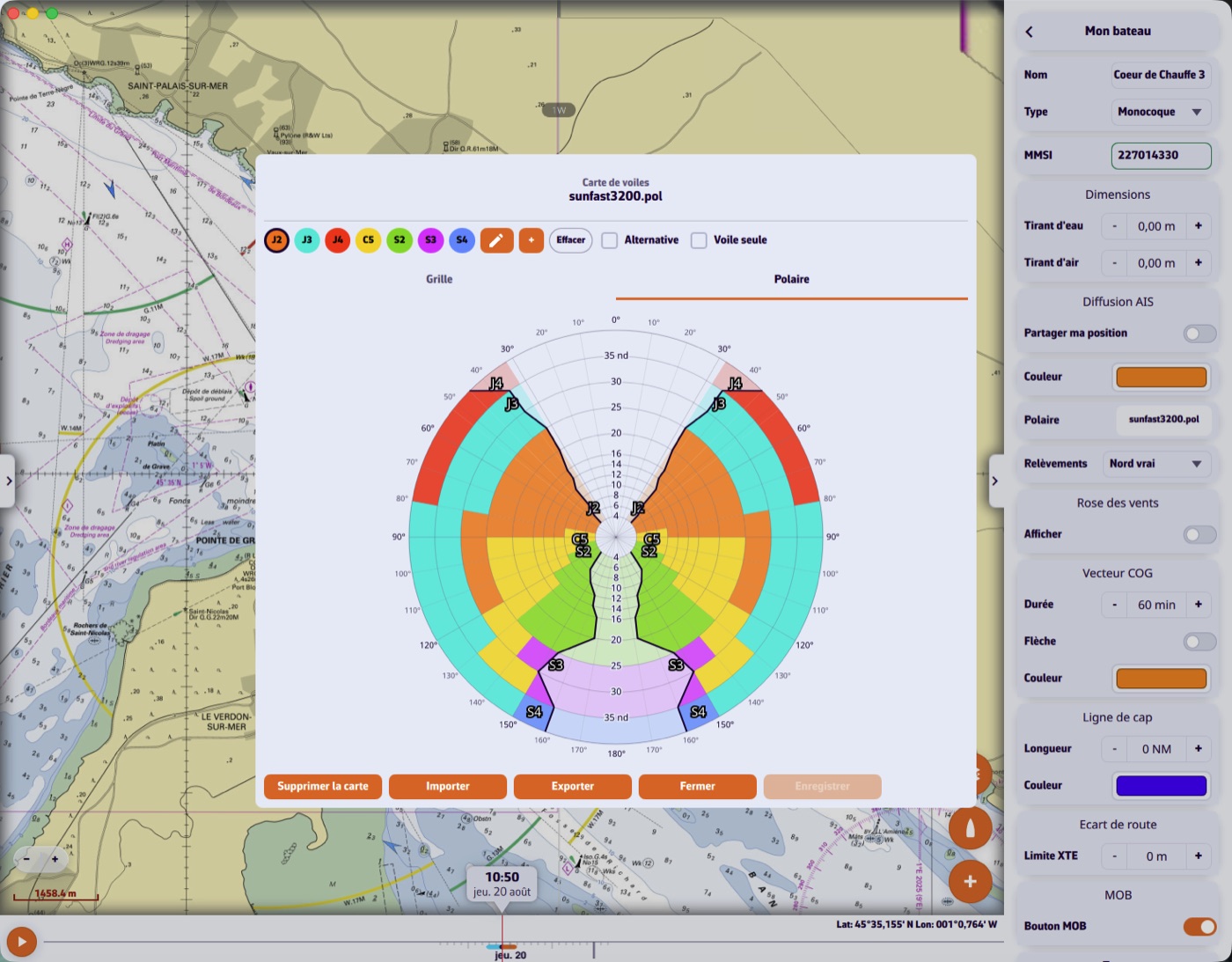
Nothing reaches the disk before Save. Delete Sailchart returns the polar to having no Sailchart at all, that is, to the previous behaviour.