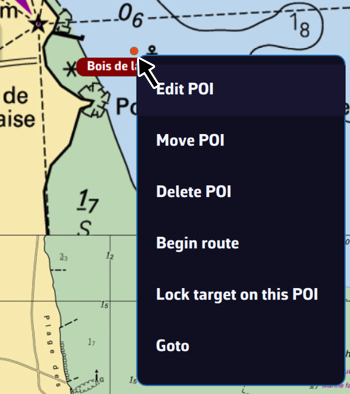
In NavimetriX, a point you place on the chart is called a POI (Point Of Interest), a generic term that can include many elements (targets, anchorages, beacons, race marks, etc.). The points that make up a route are called waypoints; a POI can be used as a waypoint when you create a route.
Creating a POI
On a tablet or smartphone

Drag the chart under the target in the centre of the screen, zooming in to position it accurately.
Tap the round orange + button in the bottom right corner of the screen and select “Add POI” from the menu.
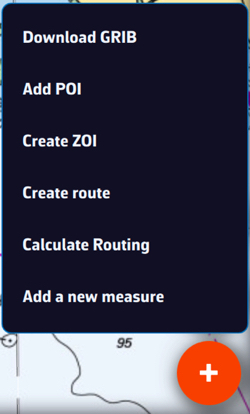
In the creation window that opens, you can:
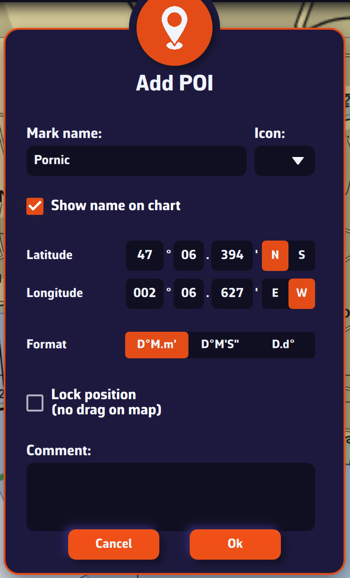
- Enter the name of the point
- Select an icon from the drop-down list
- Choose whether to show the name on the chart
- Enter a specific latitude and longitude manually
- Choose the coordinate format
- Lock the POI's position, so that it cannot be dragged on the chart
- Enter a comment about this POI
Tap “Ok” to confirm.
On a Mac or PC
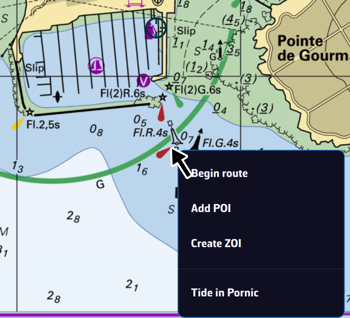
Place the mouse or trackpad pointer on the desired location on the chart, without worrying about the target, and right-click. In the menu that appears, select “Add POI”. The creation window opens as shown above.
You can also proceed as on a tablet or smartphone.
Saving
The points are saved in the POI list: open the left panel with the chevron handle on the left edge of the screen, then choose the POIs tab.
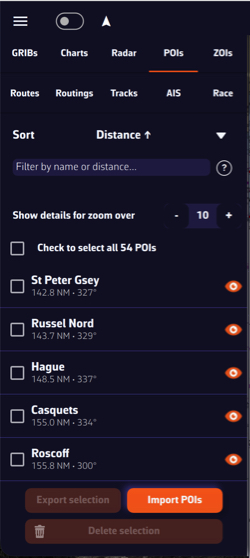
You can show or hide each point individually by tapping the eye icon on the right of its row. Tapping the name centres the chart on the POI. The ⋮ button of the row offers “Rename” and “Delete”. Tick the checkboxes to select several POIs for the buttons at the bottom of the panel, “Export” (“Share” on a smartphone or tablet) and “Delete”.
Adjusting POI display
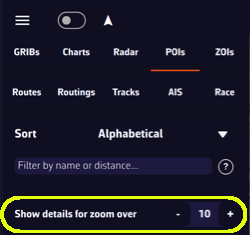
The “Show details for zoom over” setting, at the top of the POIs tab, makes the name and optional icon appear only from a certain zoom level, so that the chart is not cluttered if you have many points.
Moving a POI
To move a POI, tap or click on it, select “Move POI” from the menu that opens, then drag it on the chart. This item does not appear if the POI's position is locked: unlock it first with “Edit POI”.