NavimetriX includes a comprehensive MOB (Man Overboard) function, with drift tracking, search pattern and AIS integration. Here's how to use it.
1. Enable the MOB button
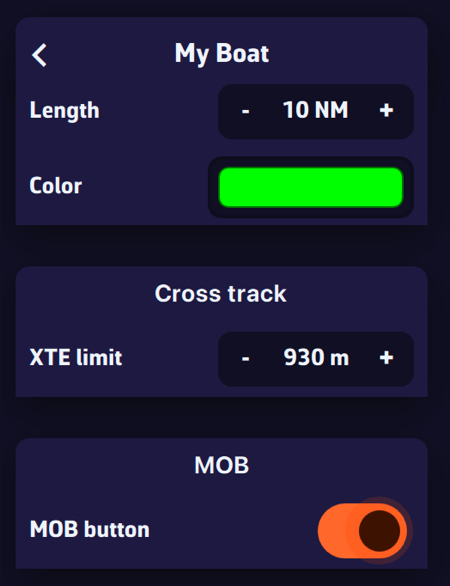
The MOB button is not displayed by default. To enable it:
- Go to Settings → Navigation → My Boat → MOB
- Enable the MOB Button option
The red MOB button then appears at the bottom left of the chart, in Navigation mode only.
2. Trigger MOB
To trigger MOB, press and hold the MOB button for 1.5 seconds. A progress ring fills around the button to indicate progress. This long-press action is intentional to prevent accidental activation.
A short tap simply displays a tooltip reminding you to hold the button.
3. What happens when MOB is triggered
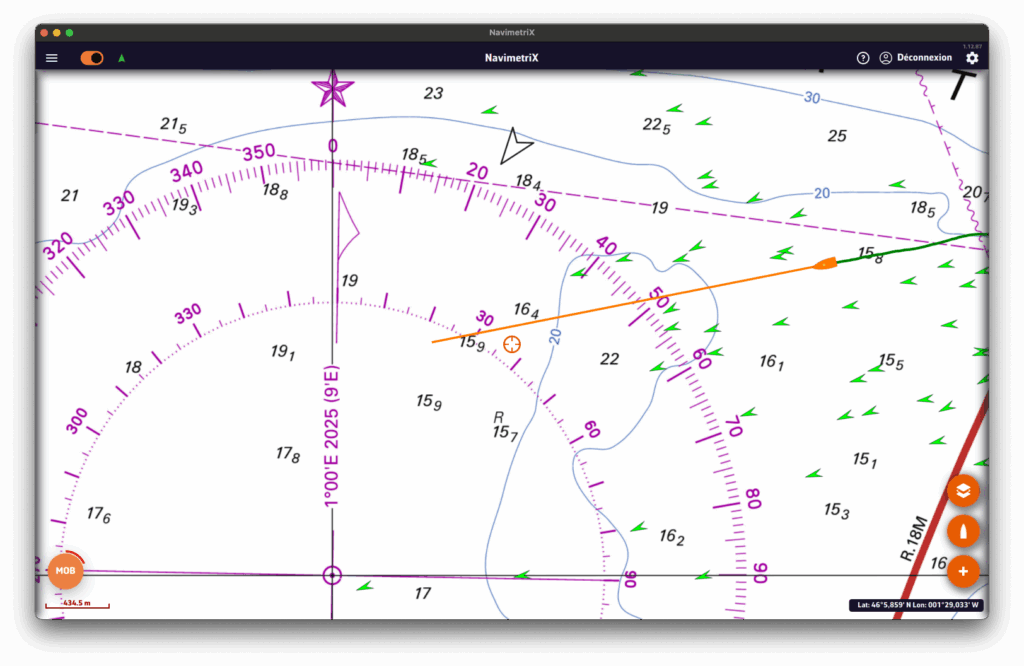
As soon as MOB is activated, several actions are performed automatically:
- MOB marker: a point of interest is created at the boat's current GPS position (e.g. "MOB 14:32:58")
- Active waypoint: the MOB position is set as the Goto waypoint, with a route line to the MOB
- Auto zoom: the chart centres and zooms to the MOB position
- Timer: an elapsed time counter starts immediately (displayed in red)
- Drift tracking: drift calculation begins (see next section)
4. The MOB dashboard (HUD)
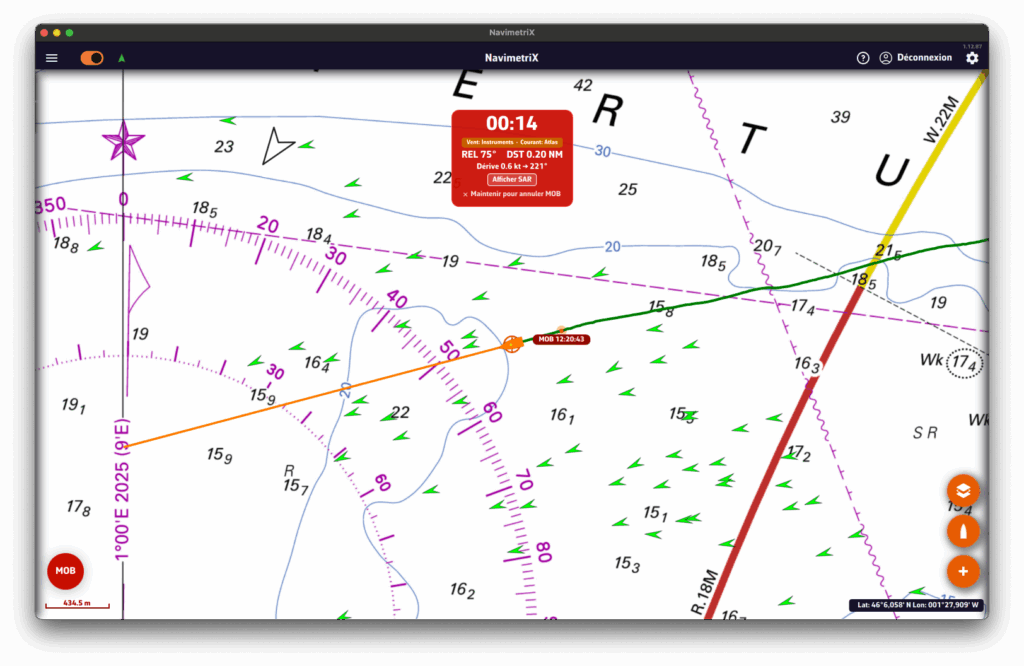
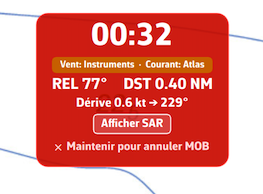
An information banner appears at the top of the chart with essential data:
- Elapsed time: displayed in large red format (MM:SS)
- Bearing (BRG): heading to steer towards the MOB position
- Distance: distance to the MOB (in nautical miles, or metres when < 0.1 NM)
- Drift data: estimated drift speed and direction
- Mode badge: indicates the data source (GRIB wind, current, AIS...)
- Search button: to show or hide the search pattern
5. Drift tracking
NavimetriX estimates the probable position of the person in the water taking into account:
- Wind: using GRIB data or onboard instruments. Leeway is calculated at 3% of the true wind speed with a 10° divergence, in accordance with international search and rescue standards.
- Current: using GRIB data, tidal atlas or onboard instruments.
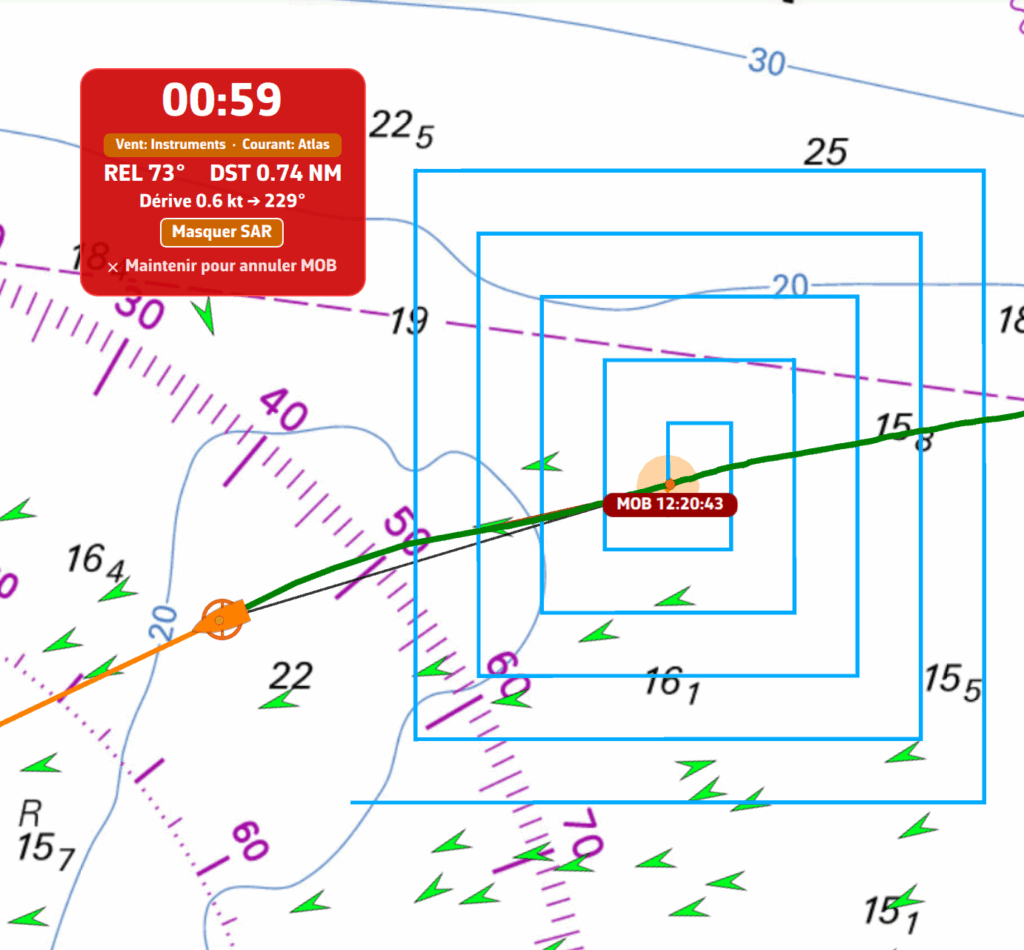
On the chart, you will see:
- An orange drift line connecting the initial MOB position to the estimated position
- An orange circle around the estimated position, whose radius increases over time (growing uncertainty)
The estimated position is updated every 30 seconds and the Goto waypoint is automatically adjusted.
6. Search pattern
NavimetriX can display an expanding square search pattern, compliant with international search and rescue procedures (IAMSAR).
To display it, tap the "Search" button in the MOB banner. The pattern is centred on the estimated drift position (or on the initial MOB position if no drift data is available).
7. MAYDAY reminder
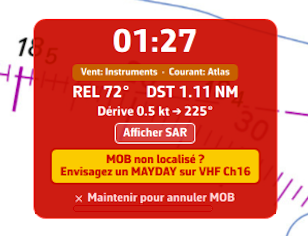
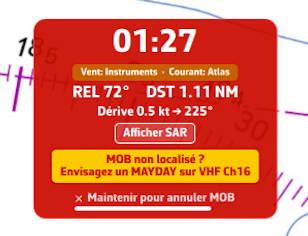
60 seconds after MOB activation, if the situation is not resolved, a yellow banner appears as a reminder to consider a MAYDAY call on VHF channel 16 (RYA recommendation).
8. AIS MOB integration
If an AIS MOB beacon (personal or SART type) is detected nearby, NavimetriX reacts automatically:
- An audible alarm sounds
- An alert dialogue displays the beacon's position
- MOB mode activates automatically if not already active
- The AIS position is tracked in real time (updated every 5 seconds)
If the AIS signal is lost, NavimetriX automatically switches to drift estimation mode after 60 seconds.
The mode badge in the MOB banner changes colour depending on the situation:
- Green: AIS MOB beacon detected and tracked
- Red: AIS MOB signal lost
- Orange: drift data available (wind/current)
- Grey: no drift data available
9. Cancel MOB
To cancel MOB mode, press and hold the "Hold to cancel MOB" text in the MOB banner for 1.5 seconds. A progress bar confirms the cancellation.
Cancelling deactivates tracking, removes the Goto waypoint and hides the MOB banner.
10. Practical tips
- Enable the MOB button before heading out to sea in the settings, so it is immediately accessible in an emergency
- Load a GRIB file for your sailing area: GRIB wind and current data significantly improve drift calculation accuracy
- Equip yourself with an AIS MOB beacon: it provides real-time tracking of the person in the water, far more accurate than drift estimation
- The MOB button only appears in Navigation mode with an active GPS position