Display GPS data from your phone
While sailing, if you want to display your phone’s GPS data, open Settings by tapping the chevron handle (‹) on the right edge of the screen.
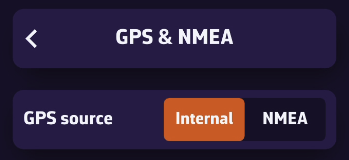
Go to the GPS & NMEA menu and make sure the GPS source is set to Internal. In Advanced mode, GPS source becomes a list (Internal, Instruments, GPS, AIS) on the GPS tab: choose Internal there too.
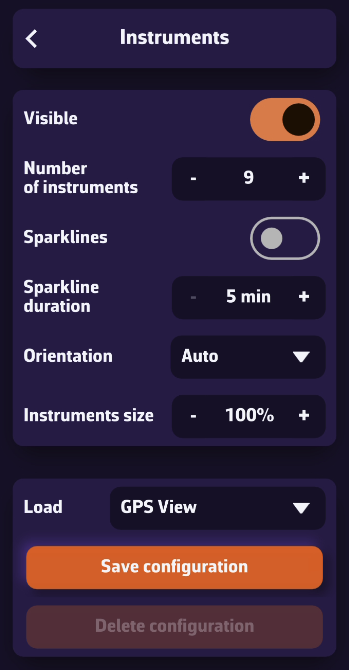
Exit this menu, then open Instruments. Turn on the Visible switch and check that Bar visible is on too (it is by default). Finally, make sure the loaded configuration (Load) is GPS View.
Once your phone receives a GPS signal, the time of the last position, your speed over ground (SOG), and your course over ground (COG) will be displayed in the instrument bar.
You can scroll through the parameters to view your coordinates and POI data if you’ve selected a waypoint using the Goto function (DTW: distance, BTW: bearing, TTG: time to go).
On a phone, tiles show acronyms by default (TIME, SOG, COG…) with a sparkline; elsewhere, full names. The Tile titles setting (Acronyms / Names) on the Instruments page changes this.
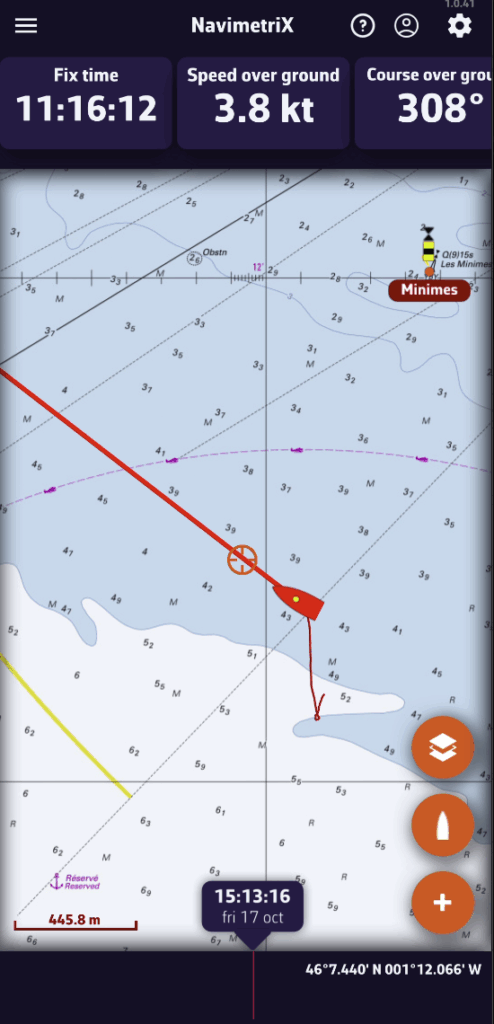
On phones, the default display is horizontal.
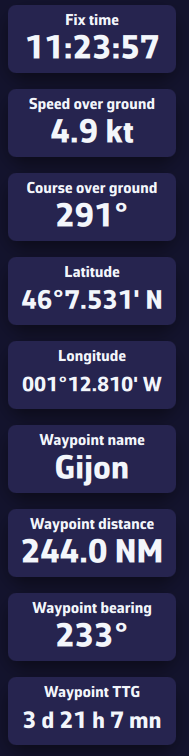
On tablets or computers, the layout automatically adjusts to a vertical view.