Track management is now organised in two places:
- the Tracks panel in the hamburger menu, to manage your recorded tracks (your trips);
- Settings > My Boat > Track, to adjust the track's appearance.
The Tracks panel (hamburger menu)
Open the hamburger menu (☰ top left) and select the Tracks tab.

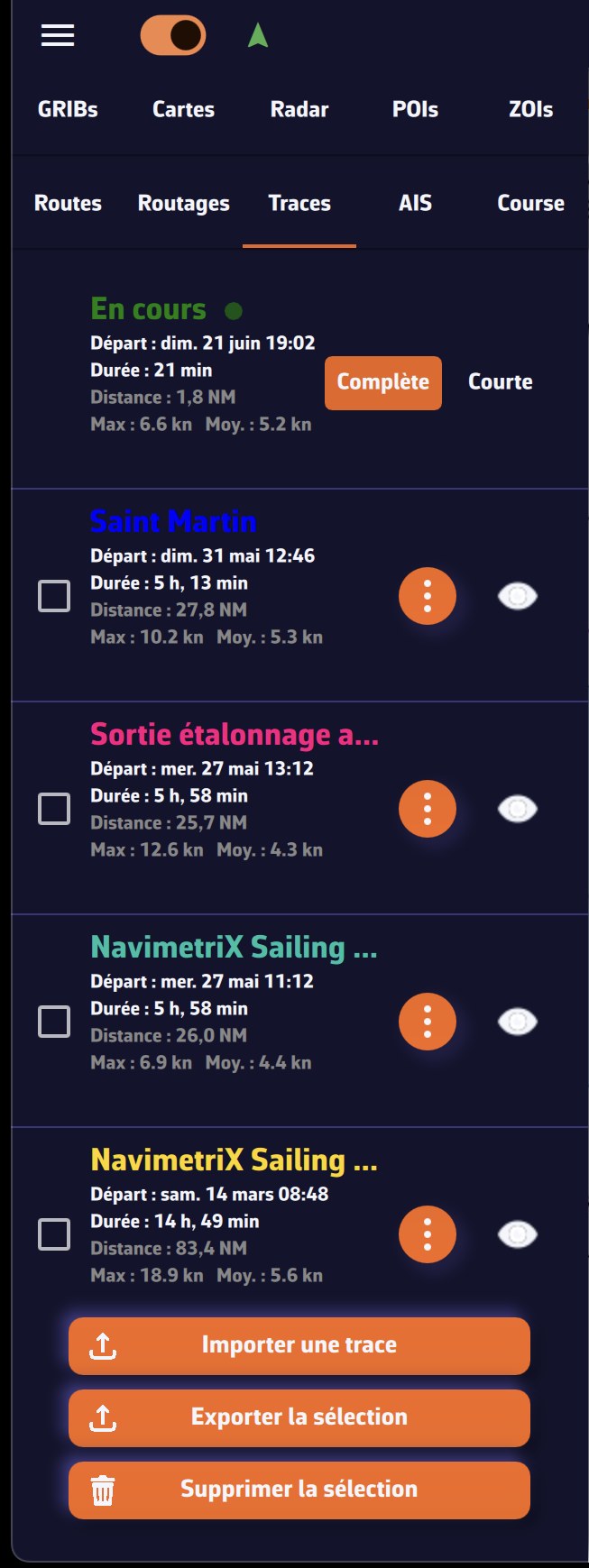
The track currently being recorded appears at the top, marked "Ongoing" with a pulsing red dot. Recording starts as soon as you switch on Navigation mode and stops when you switch it off. For this track you can choose the displayed extent:
- Full: the whole current trip;
- Short: the last 20 minutes (lighter track).
Each saved track shows its name, start date, duration, distance as well as its max and average speed.
For each saved track you have:
- the eye icon: show or hide the track on the map;
- the ⋮ menu (three dots): Details, Rename, Color, Export / Share (GPX) and Delete.
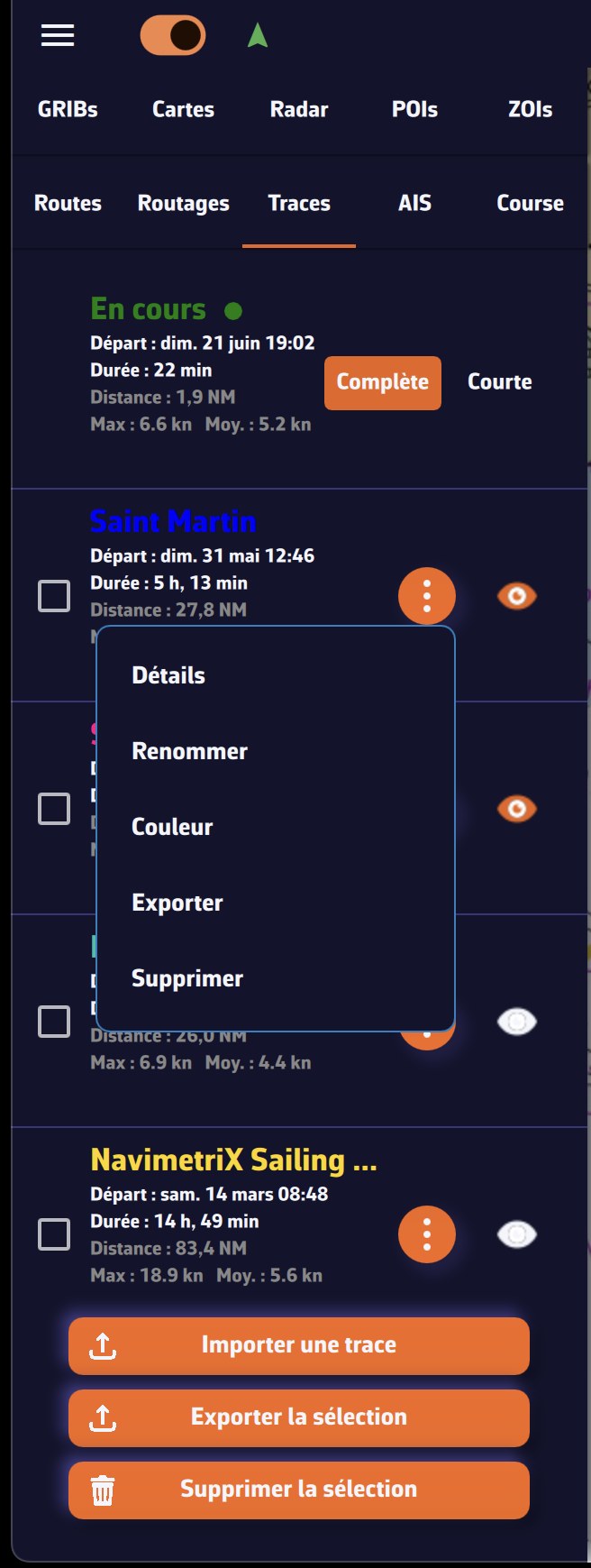
At the bottom of the panel, three buttons act on several tracks at once (tick the boxes on the left to select them):
- Import track: import a GPX file;
- Export / Share selection: bundle the ticked tracks into a single GPX file;
- Delete selection: delete the ticked tracks.
Adjust the track's appearance

Open the Settings (gear button, top right), select My Boat, then the Track section.
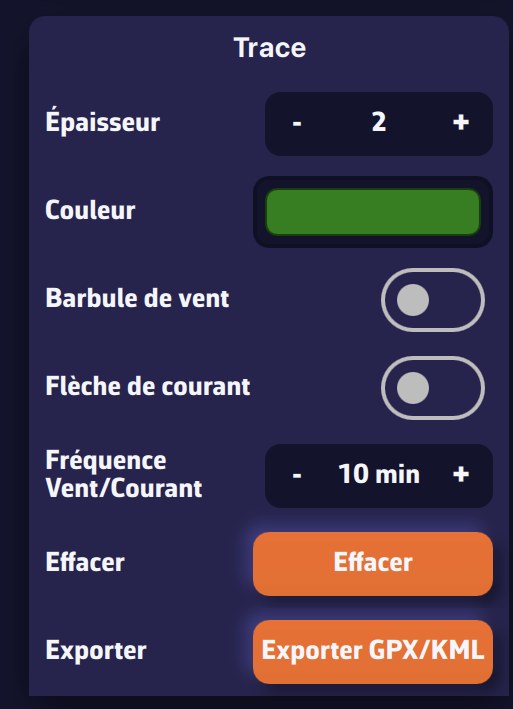
You are able to:
- Adjust the line width (1 to 5)
- Select the track color
- Choose whether or not to display wind barbules on the track
- Choose whether or not to display current arrows on the track
- Adjust the frequency of the wind/current display
- Clear the track
- Export the track (GPX/KML format)
The current track is now always displayed: there is no longer a display switch or a duration setting. For a lighter track, switch the ongoing track to Short (last 20 minutes) in the Tracks panel.