Customizing the Instrument Panel

To change the displayed instruments, open the right panel using the gear button at the top right of the screen, then select Instruments.
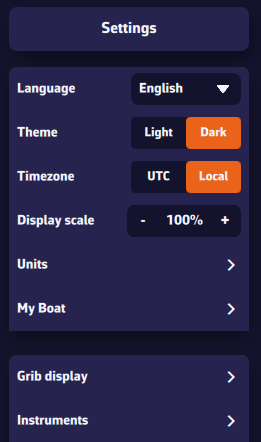
You will see several settings:
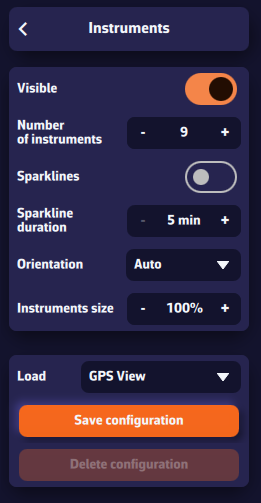
- Visible — Show or hide the entire instrument bar.
- Number of instruments — You can display between 2 and 15 instruments at the same time.
- Mini charts — When enabled, a small chart appears under each instrument showing how the value has evolved over the last 5–20 minutes.
- Orientation — Choose between vertical or horizontal layout, or leave it on automatic (it adapts to your screen width).
- Scrolling — In horizontal mode (especially on phones), you can scroll the instrument bar to the right to see more instruments.
- Instrument size — Adjust the size as you prefer. Increasing it makes the values easier to read — even without glasses!
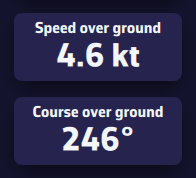
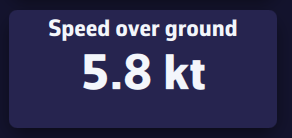
Personalizing your setup
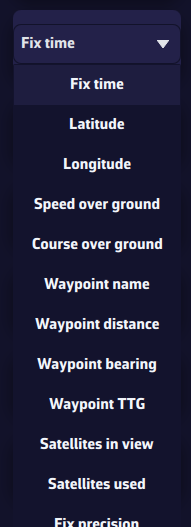
On a computer, right-click an instrument. On a mobile device, perform a long tap.
A list of parameters appears — select the one you want to assign to that instrument. We advice to proceed from the first instrument down to the last one for a more easy way.
Saving a configuration
To save a configuration, press the Save Configuration button, enter a name, and confirm to save it. This allows you to switch between different configurations according to your needs by selecting their name from the drop-down list.
Saved configurations are specific to each device — they are not synchronized between your phone and your computer, ensuring optimized layouts for each screen. The order remains the same in vertical or horizontal display.