On a Mac, NavimetriX keeps all its data in a protected folder called a “container”: downloaded GRIB files, offline chart zones, settings specific to this Mac. Moving the app to the Trash does not delete this folder. For a complete uninstall, delete it as well.
⚠️ The data in this folder is lost. Whatever is synced with your NavimetriX account is kept: you will get it back when you sign in again. Files you exported to Downloads or to another folder of your choice also stay where they are.
- Quit NavimetriX, then move the app to the Trash (Applications folder).
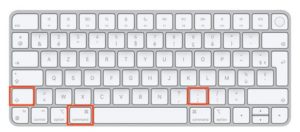
- In the Finder, choose Go > Go to Folder (Cmd + Shift + G), paste
~/Library/Containersand confirm. - Move the NavimetriX folder to the Trash. That is the name the Finder displays; the folder's real name, the one you see in Terminal, is
navimetrix.soft4sail.com. The full path is therefore/Users/[user]/Library/Containers/navimetrix.soft4sail.com, where [user] is your Mac username. - Empty the Trash.
Another way: open your user folder in the Finder, then show hidden files and folders by pressing Cmd + Shift + . (period) simultaneously. The Library folder appears: open Library > Containers and delete the NavimetriX folder.