Once the app is installed, preferably on a mobile device from the Apple Store or Google Play, you must first subscribe to the Premium subscription for the 7-day trial period.
1. Take out the Premium subscription

Tap the “Cart” icon to open the Premium subscription window. If you select the “Account” icon before subscribing, the authentication window reminds you that you must subscribe first.
If you do not wish to continue your subscription beyond 7 days, you will need to cancel it before that deadline to avoid being charged.
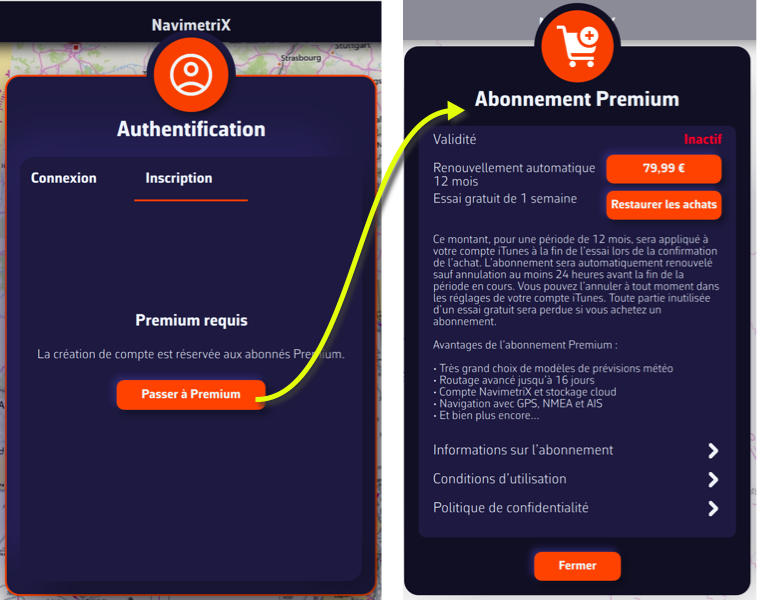
Once subscribed, the "Cart" icon disappears from the screen.
2. Create your NavimetriX account

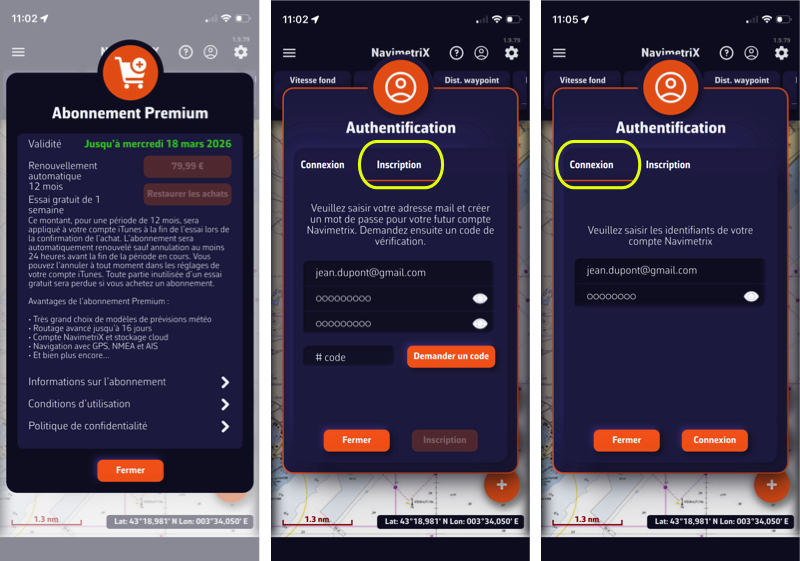
- Tap "My Account" in the top right corner, or the icon above (for smartphones).
- Select the Sign Up tab from the Authentication menu.
- Enter an email address and a password.
- Press the orange "Request a code" button.
- Enter the code received by email, then press the "Sign Up" button.
- Then go to the Log In tab in the Authentication menu.
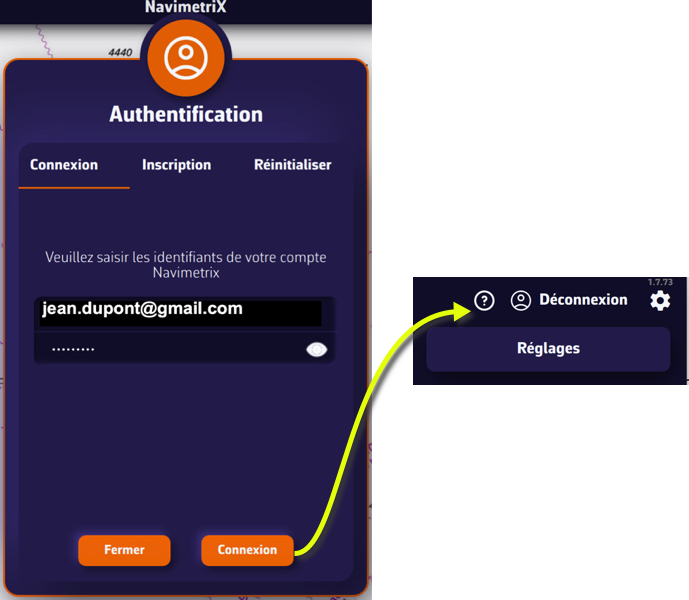
- Enter your NavimetriX account email address and password, and press the orange "Log In" button.
Warning: You must create your account on the device you used to purchase the Premium subscription.
- The "My Account" button has been replaced by "Logout".
You can now enjoy all NavimetriX features for 7 days.
Warning: if you wish to continue your subscription for a year, do not cancel it before the end of the 7-day trial.