Download
In the Settings of NavimetriX, under the Geogarage Charts section, tap “Add New Zone”, then define the geographical area to download by dragging the green corners of the grey rectangle.
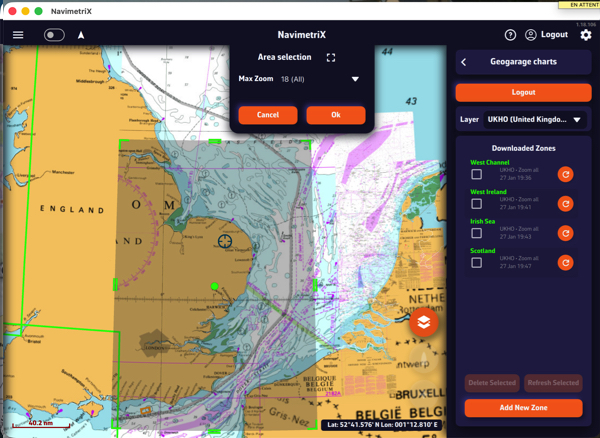
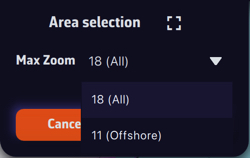
The Area selection dropdown menu offers two zoom-level options for the maximum chart scale:
- 11 (Offshore) — covers a large area containing only small-scale charts (ocean routes, offshore charts).
- 18 (All) — includes all scales up to detailed large-scale charts (ports and anchorages). If the selected area is too large, a warning will appear.
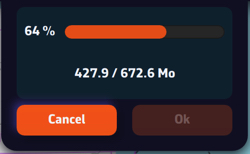
Once confirmed, a countdown shows the preparation and download progress.
A green frame remains visible so you can add new adjacent download zones without overlap using the “Add a new area” button. Only downloaded charts are available for offline use.
Updating downloaded charts
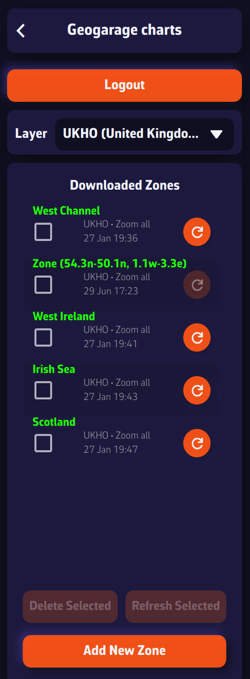
The downloaded chart zones are listed by publisher in the Geogarage Charts drawer. A checkbox allows you to select them for the Delete or Refresh functions.
Whenever a chart update is published by the provider, the dimmed refresh icon becomes active so you can update your zones individually, or collectively by checking the boxes and using the “Refresh Selected” button.