A C-MAP chart is not downloaded whole: you choose the zones you need. First you must have bought an X-Chart with your C-MAP account.
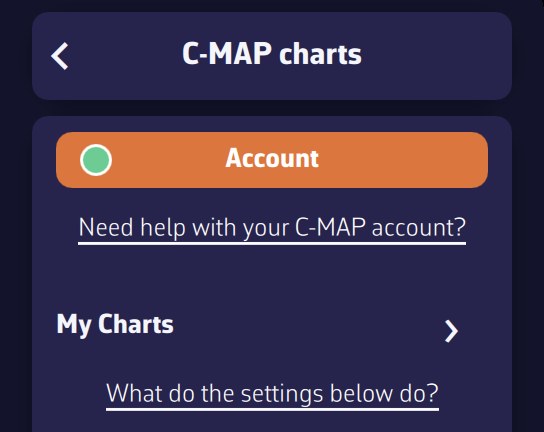
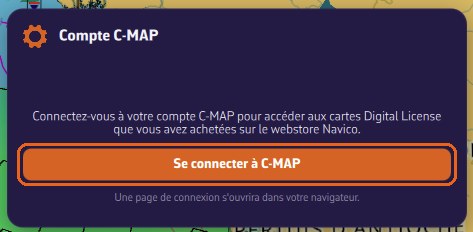
1. Sign in. Open the settings, then "C-MAP charts". Tap "Account", then "Sign in to C-MAP". A C-MAP page opens in your browser: enter the email address and password of your C-MAP account. The browser shows "C-MAP sign-in successful": close the tab and come back to NavimetriX.
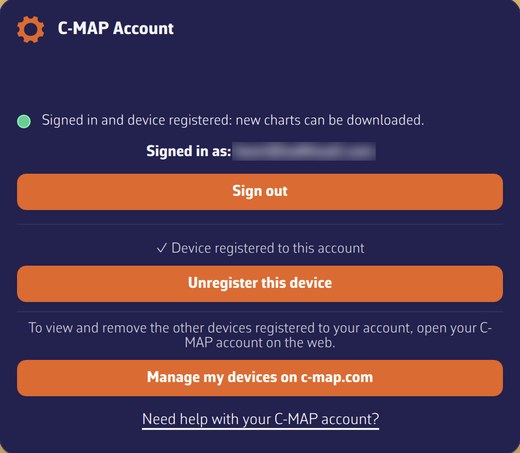
The account window shows your email address and "✓ Device registered to this account". If it says "Device not registered", tap "Register this device".
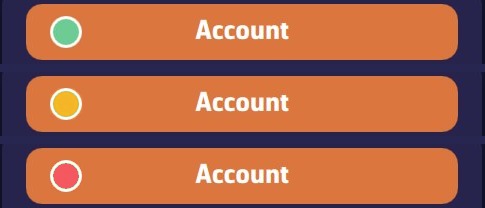
The dot on the "Account" button shows the status at a glance: green = signed in and device registered (you can download new zones); orange = signed in, but the registration of the device is not confirmed (for example if C-MAP does not respond); red = not signed in. Zones you have already downloaded are displayed in all cases: only downloading new zones depends on it.
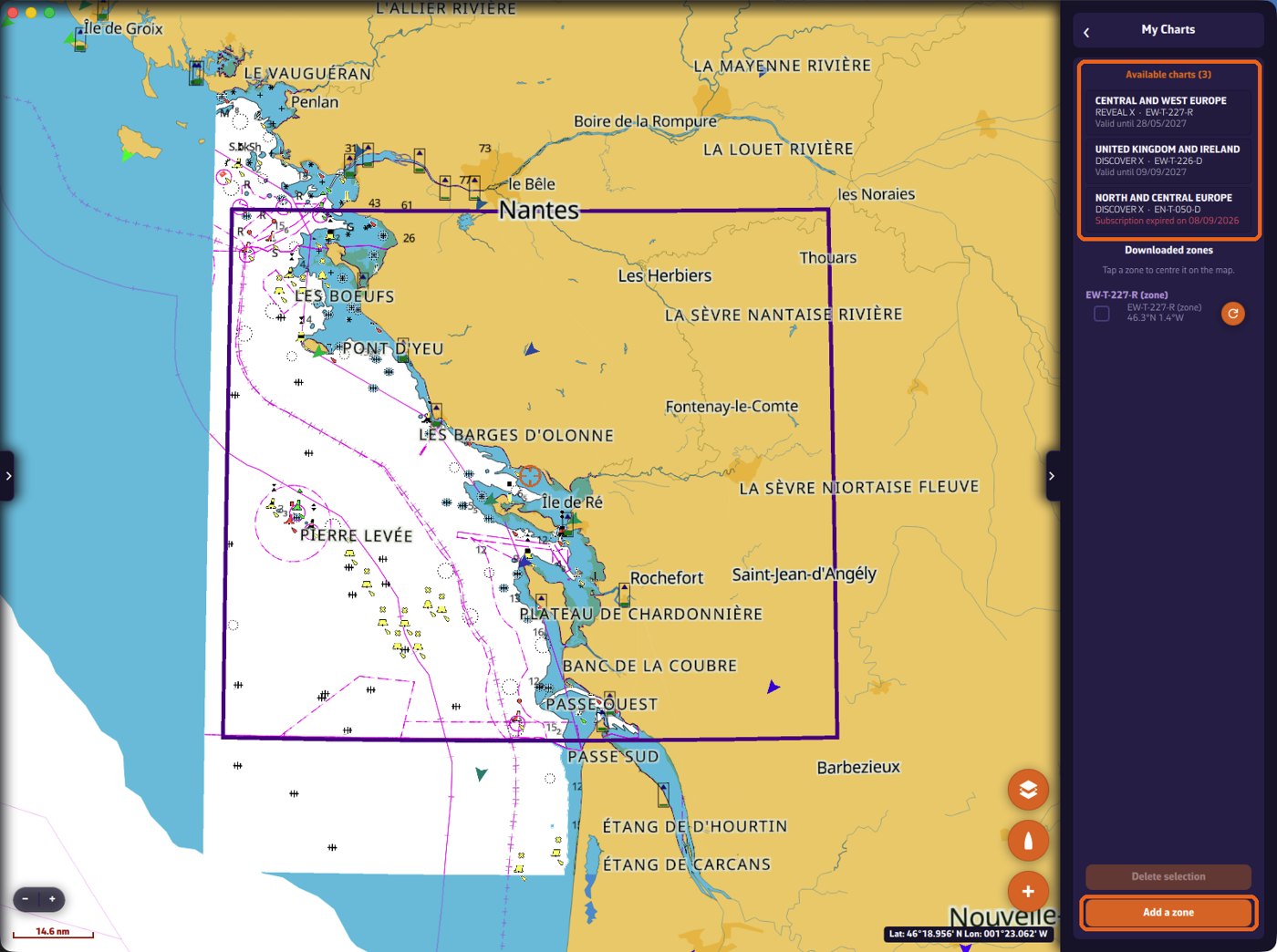
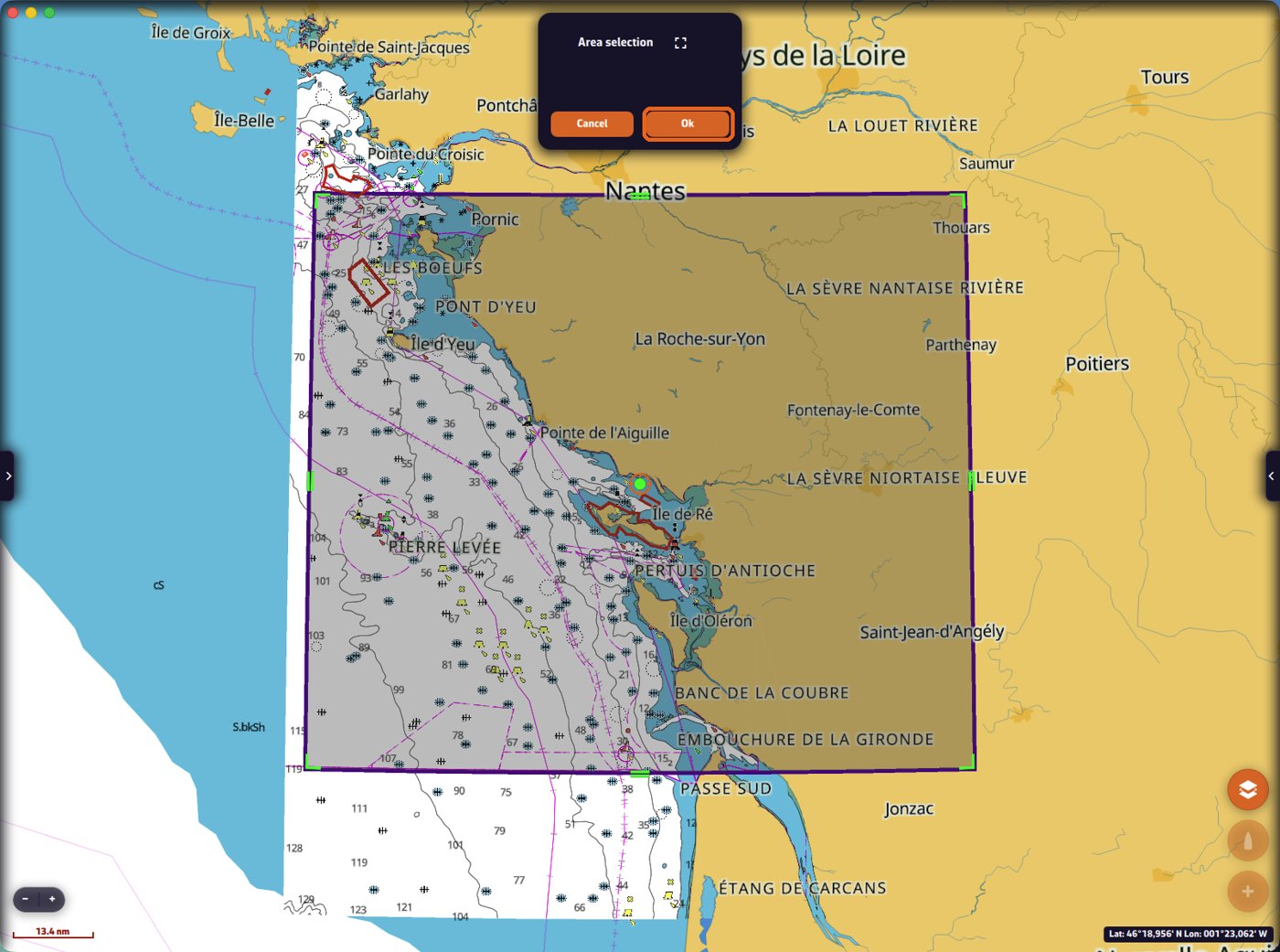
2. Choose the zone. Open "My Charts", which lists your charts (type, code, end-of-subscription date), then tap "Add a zone". A rectangle appears on the map: move it and resize it with the green handles so it covers your sailing area, then tap OK.
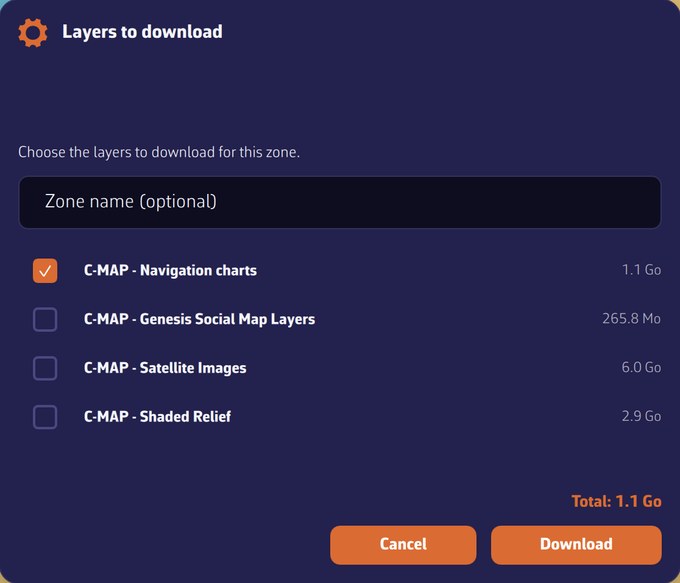
3. Download. If several of your charts cover the zone, NavimetriX asks which one to use. Choose the layers and tap "Download". "Navigation charts" is the essential layer; satellite images and shaded relief (REVEAL X only) are larger: on a phone, keep them for the areas where you really want them. A banner shows the progress and you can keep using the app.
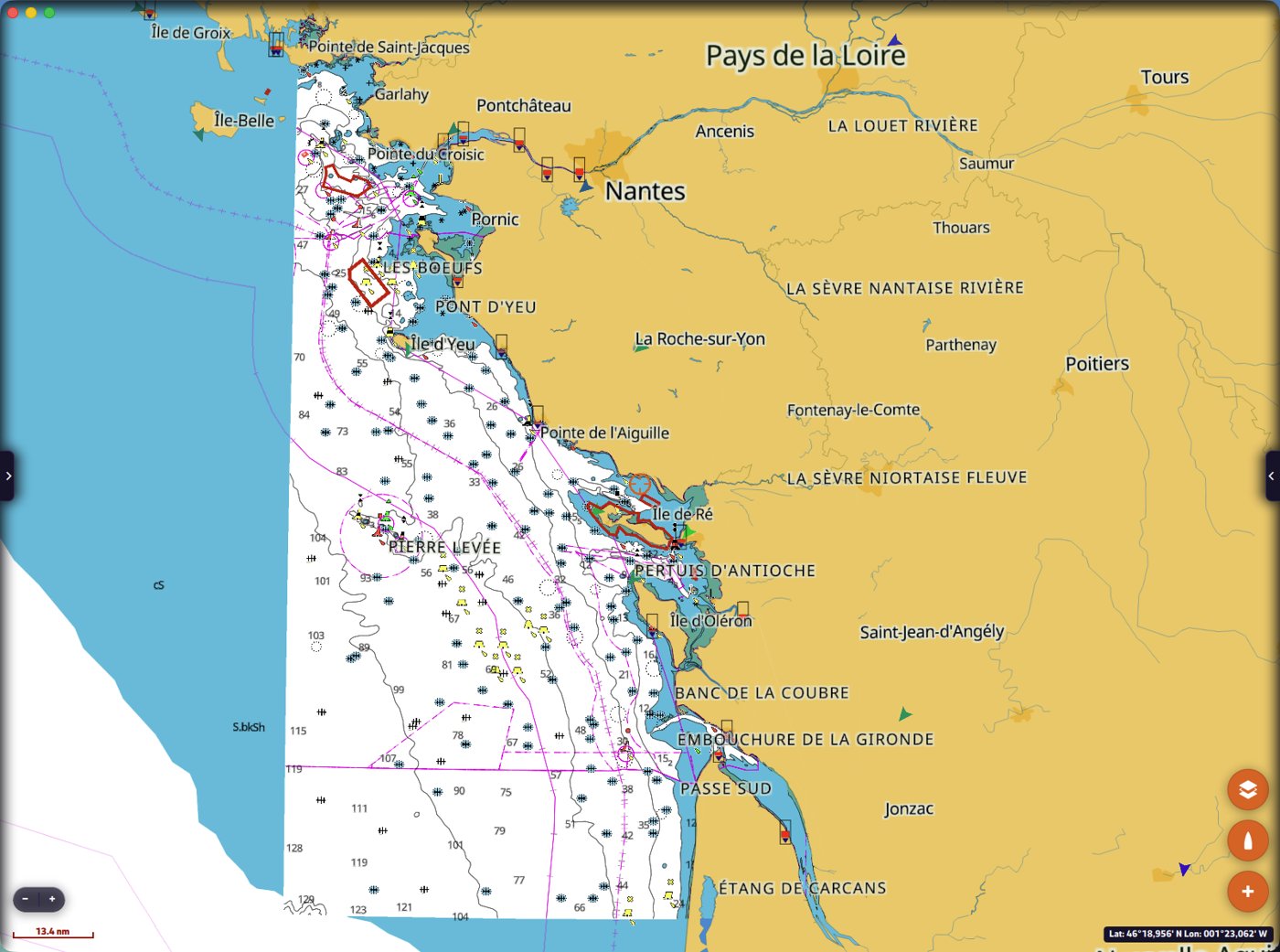
Once the download is finished, the detailed chart is displayed inside the zone, even with no Internet connection.
Adding layers later, or updating a zone. In "My Charts", tap the round refresh button to the right of the zone, tick the layers to add or update, then tap "Download". Do not use "Add a zone" for this.